Zielgruppen
Eine Zielgruppe ist eine benannte Liste von Kontakten. Legen Sie sie einmal an und verwenden Sie sie erneut. Um dieselbe Gruppe wieder zu erreichen, wählen Sie dann einfach die Liste, statt die Adressen zusammenzustellen. Ein Kontakt kann mehreren Zielgruppen angehören. Sie fügen Mitglieder hinzu oder entfernen sie, wenn Personen hinzukommen oder die Gruppe verlassen.
Verwalten Sie Zielgruppen im Dashboard unter Contacts > Audiences, im Terminal mit bird audiences, über die Zielgruppen-API oder mit einem der SDKs.
Die Seite Audiences
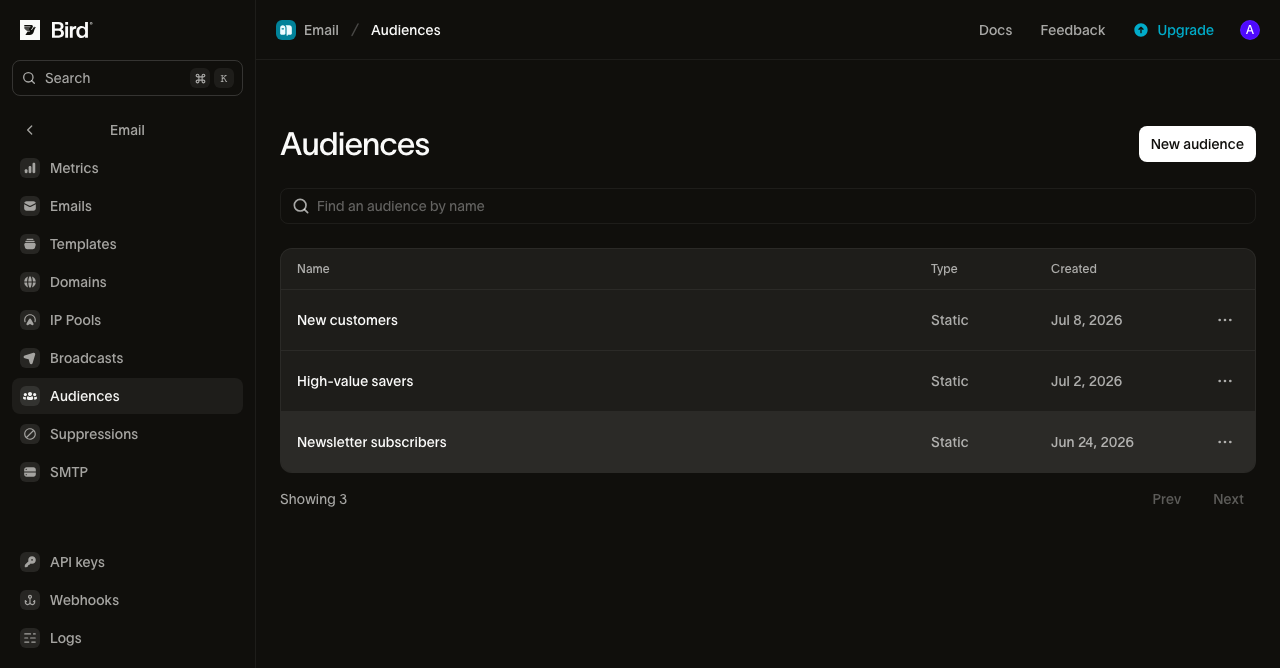
Die Seite Audiences zeigt Ihre Zielgruppen mit Namen, Erstellungsdatum und Typ. Bei Listen, deren Mitglieder Sie selbst hinzufügen und entfernen, steht unter Typ Static. Zum Anzeigen der Seite benötigen Sie die Leseberechtigung für email_marketing, zum Erstellen oder Bearbeiten einer Zielgruppe die Schreibberechtigung.
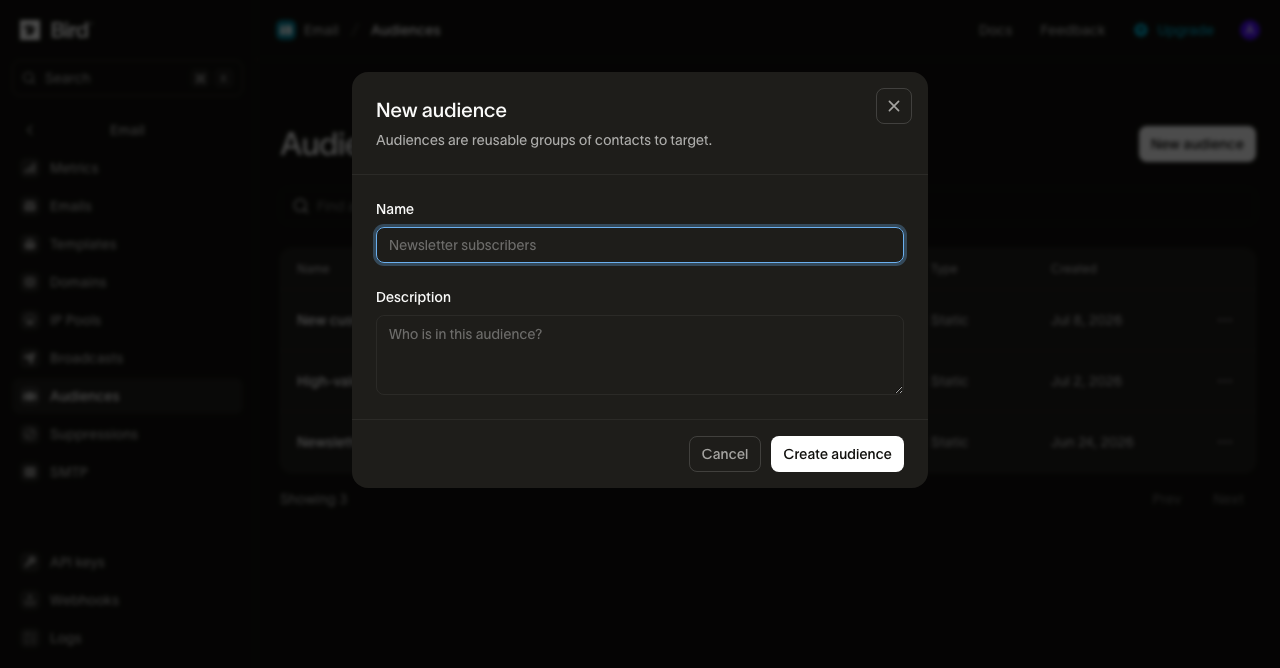
Zum Erstellen benötigen Sie einen Namen und optional eine Beschreibung der enthaltenen Personen. Öffnen Sie anschließend die Zielgruppe, um ihre Mitglieder zu verwalten.
Mitglieder
Öffnen Sie eine Zielgruppe, um ihre Mitglieder anzuzeigen. Zuletzt hinzugefügte Mitglieder stehen oben. Jede Zeile zeigt:
- Den Namen und die E-Mail-Adresse des Kontakts.
- Die aus den gespeicherten Kennungen des Kontakts abgeleiteten Labels Email oder SMS. Sie belegen weder Erreichbarkeit noch Berechtigung.
- Alle Zielgruppen, denen der Kontakt angehört, einschließlich dieser.
- Den Zeitpunkt, zu dem der Kontakt dieser Zielgruppe beigetreten ist.
Durchsuchen Sie die Liste nach einer E-Mail-Adresse und wählen Sie dann eine Zeile aus, um den Kontakt zu öffnen.
Die Zielgruppenübersicht enthält zwei Karten. Members zählt alle Mitglieder der Zielgruppe. Email zählt Kontakte mit einer Adresse und schätzt, wie viele nach Berücksichtigung der geltenden Präferenzen und Unterdrückungen angeschrieben werden können. Diese Schätzung kann sich vor der Ausführung eines Broadcasts ändern und garantiert keine Zustellung.
Um die Mitgliedschaft über eine Integration abzufragen, verwenden Sie Zielgruppenmitgliedschaft abrufen. Die Referenz erklärt die aktuelle Mitgliederzahl und den Zeitpunkt ihrer Ermittlung.
Für den täglichen Verlauf verwenden Sie Zielgruppenmitgliedschaftsstatistiken abrufen. Lesen Sie vor dem Vergleich von Daten die Regeln zur Aufbewahrung und zu fehlenden Beobachtungen.
Dieselben Abfragen sind über bird audiences und die MCP-Tools audiences_membership und audiences_membership_history verfügbar. Die SDK-Anleitungen zeigen, wie Sie sie in Ihrer Anwendung verwenden.
Sie können Personen auf zwei Arten hinzufügen:
- E-Mail-Adressen einfügen: Fügen Sie der Zielgruppe bis zu 1.000 Adressen auf einmal hinzu, eine pro Zeile. Wir ordnen jede Adresse einem bestehenden Kontakt zu oder erstellen einen neuen, wenn keine Übereinstimmung vorliegt. Anschließend fügen wir alle in einem Schritt zur Zielgruppe hinzu.
- Beim Import zuweisen: Fügen Sie Kontakte zu Zielgruppen hinzu, während Sie sie importieren oder per Upsert erstellen oder aktualisieren. Der Batch-Endpunkt und
bird contacts batchakzeptieren neben den Kontakten eine Liste unteraudience_idsmit bis zu 10 Zielgruppen pro Anfrage. Jede angegebene Zielgruppe muss existieren. Andernfalls schlägt die gesamte Anfrage fehl und es wird nichts gespeichert.
Das Hinzufügen ist idempotent: Ein Kontakt, der bereits Mitglied ist, bleibt Mitglied und behält sein ursprüngliches Beitrittsdatum. Das Entfernen einer Mitgliedschaft erfasst keine Abmeldung. Präferenzen und Unterdrückungen bleiben davon getrennt. Wenn Sie ein Mitglied entfernen, nehmen Sie den Kontakt nur aus dieser Zielgruppe heraus. Der Kontakt selbst bleibt in Ihrem Workspace und in allen anderen Zielgruppen, denen er angehört. Entfernen Sie ein Mitglied über seine Zeile oder wählen Sie mehrere aus und entfernen Sie sie gemeinsam.
Verwenden Sie in der CLI den Befehl bird audiences add-contacts <audience-id>, um Kontakte hinzuzufügen, und bird audiences remove-contacts <audience-id>, um sie wieder zu entfernen. Beide Befehle akzeptieren Kontakt-IDs. Sie müssen daher die ID jedes Kontakts kennen, den Sie hinzufügen oder entfernen. Wenn Sie nur eine Liste mit E-Mail-Adressen haben, verwenden Sie stattdessen bird contacts batch mit audience_ids. Dieser Befehl sucht jede Adresse, erstellt für unbekannte Adressen einen Kontakt und fügt alle mit einem Aufruf zur Zielgruppe hinzu.
Eine ausgewählte Kohorte aktuell halten
Die öffentliche Zielgruppen-API verwendet explizite statische Mitgliedschaften. Wenn ein CRM oder Data Warehouse eine regelbasierte Kohorte ermittelt, synchronisieren Sie sowohl Ergänzungen als auch Entfernungen und erfassen Sie die letzte abgeschlossene Aktualisierung. Folgen Sie der Anleitung Zielgruppenmitgliedschaften synchronisieren. Das Aktualisieren der Eigenschaften eines Kontakts allein löst keine Neuauswertung einer statischen Zielgruppe aus.
An eine Zielgruppe senden
Eine Nachricht an eine gesamte Zielgruppe zu senden, ist ein Broadcast. Wählen Sie die Zielgruppe aus. Wir erstellen beim Versandstart aus ihren Mitgliedern die Empfängerliste, sodass der Broadcast alle erreicht, die zu diesem Zeitpunkt Mitglied sind. Broadcasts führen Sie über das Dashboard, die API oder die Befehle unter bird email broadcasts aus.
Für eine einmalige Empfängerliste, die Sie nicht als Zielgruppe speichern möchten, verwenden Sie stattdessen einen Batch.
Nächste Schritte
-
Zielgruppenmitgliedschaften synchronisieren: eine im Quellsystem ausgewählte Kohorte mit expliziten Mitgliedschaften abgleichen
-
Kontakte: die Empfängerdatensätze und typisierten Eigenschaften, aus denen eine Zielgruppe besteht
-
Broadcasts: eine Nachricht an diese Zielgruppe senden
-
Batch-Versand: eine Alternative zu Broadcasts für eine einmalige Liste mit bis zu 100 Nachrichten pro Anfrage
-
Unterdrückungen: die Liste der Adressen im Workspace, an die wir nicht zustellen
-
API-Referenz: vollständige Anfrage- und Antwortschemas
-
Kunden verwalten: Kontakte & Zielgruppen: ein Video zum Erstellen von Kontakteigenschaften, Importieren von Kontakten und Zusammenfassen in einer Zielgruppe
Verwandte Ressourcen
Weiter mit der Dokumentation, Anleitungen und Beispielen zu diesem Thema.