Automations-Nodes auswählen
Ein Node führt eine einzelne Aufgabe in einem Flow aus. Öffnen Sie den Step catalog, um verfügbare Nodes, ihre Felder, Ausgabepfade und Beispiele einzusehen.
Automations befindet sich im Early Access. Ihre Workspace-Berechtigungen legen fest, welche Aktionen Sie ausführen können.
Die Tabellen verwenden die Katalognamen. Auf der Canvas kann ein Aufgabenlabel angezeigt werden, z. B. Choose a path für Branch, Find contacts für List contacts oder Wait for a delivery result für Wait for event. Ein Template kann einem Schritt einen eigenen beschreibenden Namen geben.
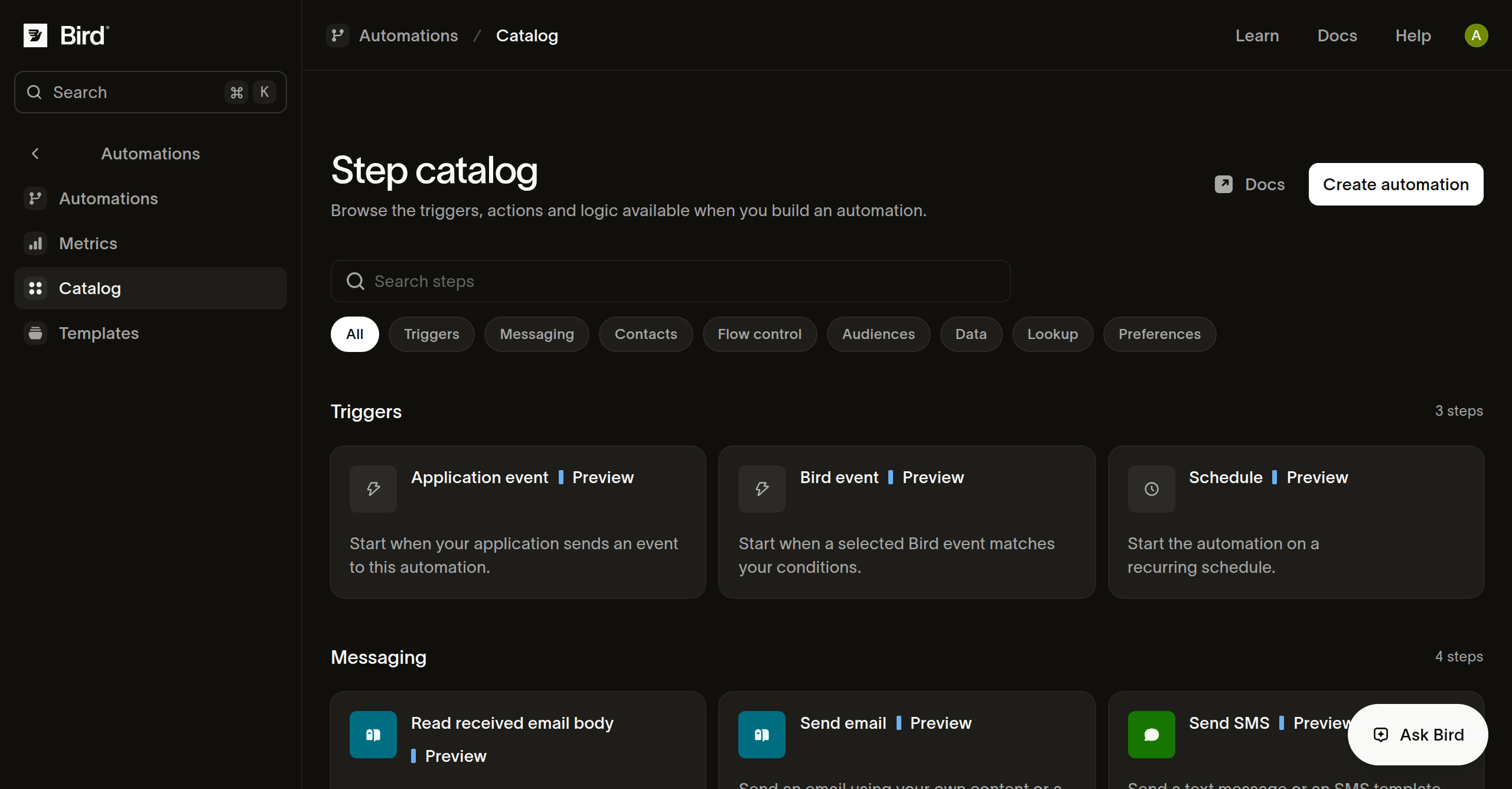
Trigger
| Node | Verwenden für |
|---|---|
| Application event | Starten anhand eines Events aus Ihrer Anwendung oder eines manuellen Laufs über das Dashboard. |
| Incoming messages | Starten anhand einer eingehenden SMS-, E-Mail- oder WhatsApp-Nachricht mit eigenem Trigger. |
| Schedule | Starten zu wiederkehrenden Zeiten in einer gewählten Zeitzone. |
Siehe Trigger auswählen und Läufe planen.
Logik und Daten
| Node | Verwenden für |
|---|---|
| Set values | Werte für spätere Schritte benennen, auch aus früheren Daten berechnete Werte. |
| Branch | Die erste zutreffende Bedingung auswählen oder den Otherwise-Pfad nehmen. |
| Delay | Pausieren, bis eine Zeitspanne abgelaufen oder ein Zeitstempel erreicht ist. |
| Wait for event | Auf eine unterstützte Bestätigung einer bestimmten früheren Messaging-Aktion warten. |
| Wait for application event | Auf ein deklariertes Event warten, das mit dem Business Key des Laufs verknüpft ist. |
| Exit | Mit einem expliziten Status, optionalem Ergebnisgrund und Resultat beenden. |
Siehe Flows und Verbindungen, Datenmapping und Event-Waits.
Messaging
| Node | Verwenden für |
|---|---|
| Send SMS | Text oder ein SMS-Template an einen Empfänger senden. |
| Send email | E-Mail-Inhalt oder ein Template mit Empfänger- und Absendereinstellungen senden. |
| Send WhatsApp | Ein Template oder unterstützte Text- und Medieninhalte senden. |
| Read received email body | Den Text- und HTML-Body einer empfangenen E-Mail für spätere Schritte abrufen. |
Siehe Nachrichten senden. Ein erfolgreicher Versand bedeutet, dass der Kanal die Nachricht zur Verarbeitung angenommen hat.
Kontakte und Zielgruppen
| Nodes | Verwenden für |
|---|---|
| Get contact, List contacts | Einen Kontakt per ID lesen oder eine Seite von Kontakten durchsuchen. |
| Create contact, Update contact, Delete contact | Einen einzelnen Kontaktdatensatz ändern. |
| Create or update contacts | Einen vorbereiteten Batch übermitteln und das Ergebnis jedes Eintrags prüfen. |
| Get audience, Create audience, Update audience | Eine statische Zielgruppe lesen oder verwalten. |
| List audience contacts | Eine Seite von Zielgruppenmitgliedern lesen. |
| Add contacts to audience | Bestimmte Kontakte zu einer Zielgruppe hinzufügen. |
| Remove contact from audience, Remove contacts from audience | Bestimmte Mitgliedschaften entfernen, ohne die Kontakte zu löschen. |
Siehe Mit Kontakten und Zielgruppen arbeiten. Das Auflisten einer Zielgruppe sendet keine Nachricht an deren Mitglieder.
Präferenzen und Lookups
| Node | Verwenden für |
|---|---|
| List preferences | Gespeicherte Messaging-Präferenzen einsehen. |
| Record preference | Eine Präferenzangabe übermitteln und prüfen, ob sie angewendet wurde. |
| Look up phone number | Eine Telefonnummer anhand der ausgewählten Lookup-Eigenschaften bewerten. |
| Look up email address | Eine E-Mail-Adresse bewerten und optionale Vorschläge einsehen. |
Siehe Präferenzen und Lookups verwenden.
Nächste Schritte
Verwandte Ressourcen
Weiter mit der Dokumentation, Anleitungen und Beispielen zu diesem Thema.