Métriques e-mail
La page Metrics affiche l'acceptation par les serveurs de réception, les ouvertures et clics enregistrés, ainsi que les taux de rebond et de plainte pour votre espace de travail. Les statistiques de livraison n'établissent ni le placement en boîte de réception ni si une personne a lu le message. Utilisez Inbox Insights pour des estimations de placement.
Ouvrez Email > Metrics dans le tableau de bord. Outbound affiche les e-mails envoyés et les ouvertures par défaut. Inbound affiche les e-mails que votre espace de travail reçoit. Pour inspecter un message ou un destinataire, utilisez le journal des e-mails. Pour lire les mêmes agrégats par programmation, utilisez les stats API.
Lire vos métriques
Tout dans cette section concerne l'onglet Outbound. Le sélecteur de période propose Last 24 hours, Last 7 days, Last 30 days et Last 90 days, et chaque nombre de la page le suit. La période par défaut est 30 jours.
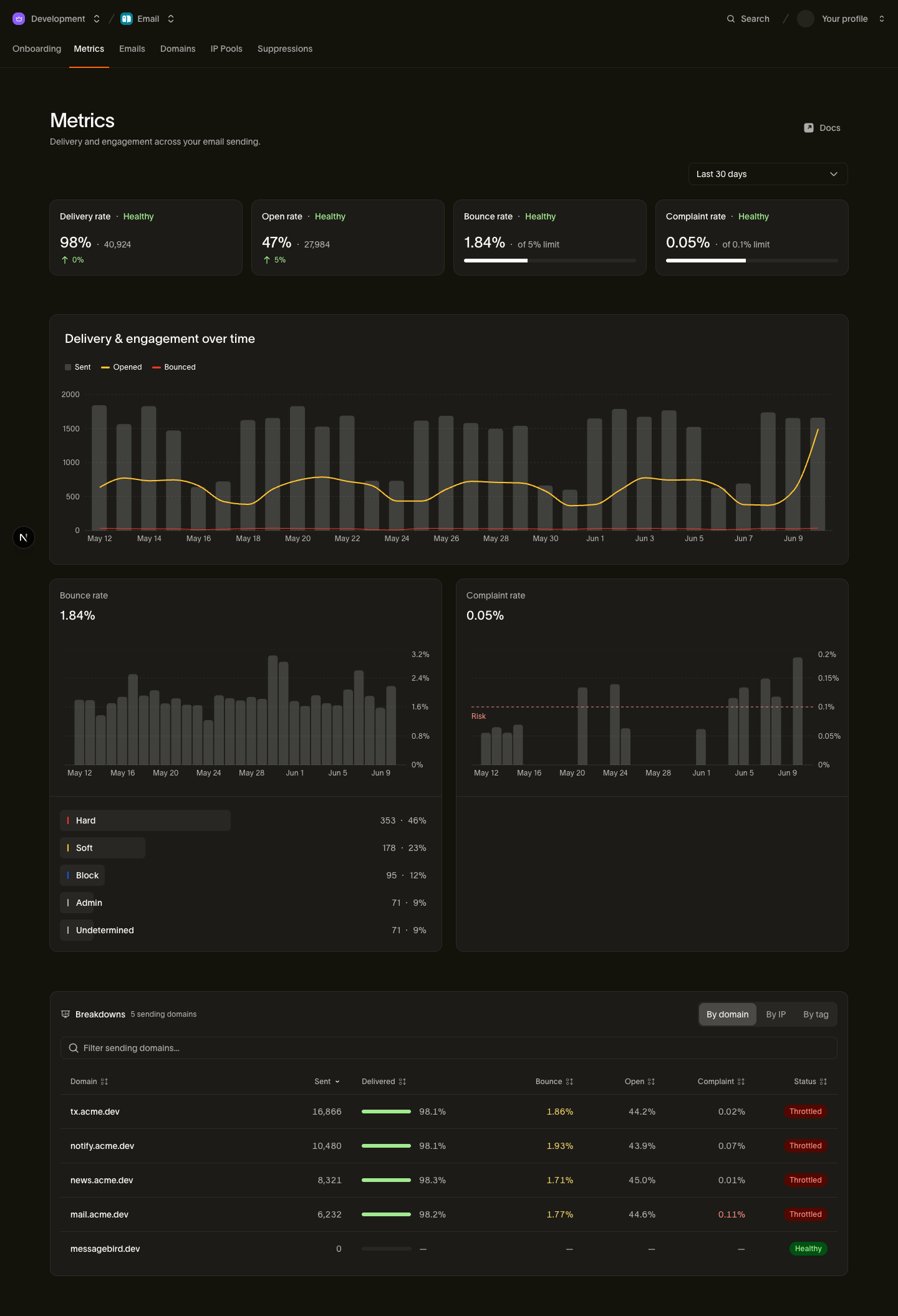
Les taux utilisent l'heure de l'événement pour l'attribution. L'heure d'envoi n'affecte pas la période dans laquelle un événement est inclus. Un clic qui arrive aujourd'hui pour un message envoyé la semaine dernière compte pour aujourd'hui, et un rebond compte au moment de son arrivée plutôt qu'au moment où le message a été envoyé. Les chiffres proviennent d'une agrégation glissante et suivent le trafic en temps réel avec quelques secondes de retard : recharger la page récupère tout ce qui est plus récent.
Le taux de livraison et le taux de rebond partagent un dénominateur, les tentatives de livraison : les messages qu'un serveur de réception a acceptés plus ceux qu'il a refusés. Un rebond tardif qui annule une acceptation antérieure déplace ce destinataire du compteur de livrés vers celui des rebonds.
Filtrer la page
Filters limite les quatre cartes, les trois graphiques et le tableau de latence à une seule valeur de Category, Sending domain, Recipient domain, Tag, Template ou Sending IP. Choisissez une dimension à gauche du menu, puis sa valeur à droite ; les listes les plus longues sont interrogeables et proposent vos 200 premières valeurs par volume.
Un seul filtre s'applique à la fois : choisir une valeur remplace ce qui était défini précédemment au lieu de restreindre davantage. Le bouton affiche ce qui est en vigueur, et le X à côté vous ramène à l'ensemble.
Breakdowns est volontairement laissé hors du filtre. Il continue de classer tous les expéditeurs, ce qui vous permet de comparer celui que vous avez filtré avec le reste de sa dimension, et il l'indique tant qu'un filtre est actif.
Les quatre cartes de santé
Chaque carte affiche un taux pour la période sélectionnée, le nombre qui le sous-tend, la variation par rapport à la période précédente de même durée, et une étiquette Healthy ou Risk.
- Delivery rate : livraisons maintenues, rapportées aux tentatives de livraison. Sain au-dessus de 95 %. En dessous, quelque chose refuse vos e-mails, et la ventilation des rebonds indique quoi : adresses mortes, un défaut d'authentification ou des serveurs de réception qui rejettent votre IP d'envoi.
- Open rate : ouvertures uniques rapportées aux e-mails livrés, une ouverture par destinataire. Les fonctions de confidentialité des messageries récupèrent les images automatiquement, et ces récupérations sont exclues de ce taux ; Apple Mail Privacy et le suivi des ouvertures explique pourquoi les ouvertures restent malgré tout un signal approximatif. Sain au-dessus de 35 %.
- Bounce rate : tous les rebonds, y compris les tardifs, rapportés aux tentatives de livraison. La carte affiche votre taux par rapport à une limite de 5 % et passe à Risk à 5 % ou plus. Des rebonds élevés prolongés sont un problème d'hygiène de liste et dégradent votre réputation d'envoi.
- Complaint rate : signalements de spam rapportés aux e-mails livrés. La limite est de 0,1 %, basse parce que les fournisseurs de messagerie agissent rapidement sur les plaintes. Surveillez ce taux avec la plus grande attention.
Une carte affiche Healthy jusqu'à sa limite, donc Healthy ne signifie pas nécessairement bon. La formule exacte derrière chaque taux est documentée par champ dans la référence du résumé des stats.
Livraison et engagement dans le temps
Le graphique principal trace le volume de Sent, Opened et Bounced sur la période. Utilisez les variations de ces séries pour identifier les envois à examiner ; elles n'établissent pas la valeur d'une campagne. Les intervalles sont horaires sur 24 heures et quotidiens sur les périodes plus longues.
Sous le graphique, une ligne indique la période couverte et le total de chaque série : Sent, Opened et Bounced.
Taux de rebond et ses causes
La carte de rebond ventile vos rebonds par cause, afin qu'un taux en hausse oriente vers une correction :
- Hard : un échec permanent, comme une adresse invalide ou un domaine qui n'existe pas. Ceux-ci suppriment l'adresse automatiquement.
- Soft : un échec transitoire, comme une boîte aux lettres pleine ou un serveur momentanément indisponible. Nous réessayons ces envois.
- Block : le serveur de réception a refusé votre IP d'envoi.
- Admin : un refus administratif, comme un relais refusé ou un domaine inscrit sur une liste de blocage.
- Undetermined : la réponse du serveur était trop ambiguë pour être classée.
- Out-of-band : un rebond tardif arrivé après que le serveur de réception a déjà accepté le message. Il annule cette acceptation, et le destinataire passe en rebond.
Ce sont les mêmes valeurs bounce_type que celles utilisées par le flux d'événements, et le tableau de classification des rebonds les associe aux codes plus détaillés.
Taux de plainte
La carte de plainte représente votre taux de plainte pour spam sur la période. La limite étant très basse, surveillez la tendance autant que le nombre : une montée régulière bien en dessous de 0,1 % est un avertissement précoce qu'un segment ou une campagne importune les destinataires.
Latence
Le tableau Latency sépare Processing (de l'acceptation à la préparation pour la livraison), Delivery (de la préparation à l'acceptation par le serveur de réception) et Total, chacun à p50, p95 et p99, avec un sparkline par étape. Ces mesures de temps n'indiquent ni le placement en boîte de réception ni la lecture. Lisez p95 et p99 pour la traîne lente : une médiane rapide avec un p99 lent signifie généralement qu'un fournisseur diffère vos e-mails.
Ventilations
Le panneau Breakdowns découpe les mêmes données de livraison et d'engagement une dimension à la fois, pour comparer les expéditeurs et isoler un problème à sa source. Six onglets sont toujours présents, et Broadcast apparaît dès que vous avez envoyé un broadcast :
- Domain : le domaine d'envoi depuis lequel un message est parti.
- IP : l'IP d'envoi qui l'a acheminé.
- Mailbox provider : Gmail, Microsoft, Yahoo, Apple et les autres. Commencez ici quand un fournisseur traite vos e-mails différemment des autres.
- Recipient domain : le domaine derrière l'adresse, ce qui isole un mauvais destinataire professionnel d'un fournisseur entier.
- Tag : les tags définis au moment de l'envoi, le découpage le plus flexible. Taguez une campagne ou une variante d'expérience et comparez-les directement.
- Template : le template avec lequel le message a été envoyé.
Chaque onglet liste les chiffres d'envoi, de livraison, de rebond, d'ouverture, de clic et de plainte par ligne, plus un Status. L'onglet IP diffère : il affiche le pool auquel chaque IP appartient, sans ouverture ni clic, car l'engagement n'est pas attribué à l'IP qui a acheminé le message. Les lignes sont classées, filtrables par nom et plafonnées : le panneau affiche "Top 50 of 120 sending domains" quand une période contient plus d'expéditeurs qu'il ne peut en afficher.
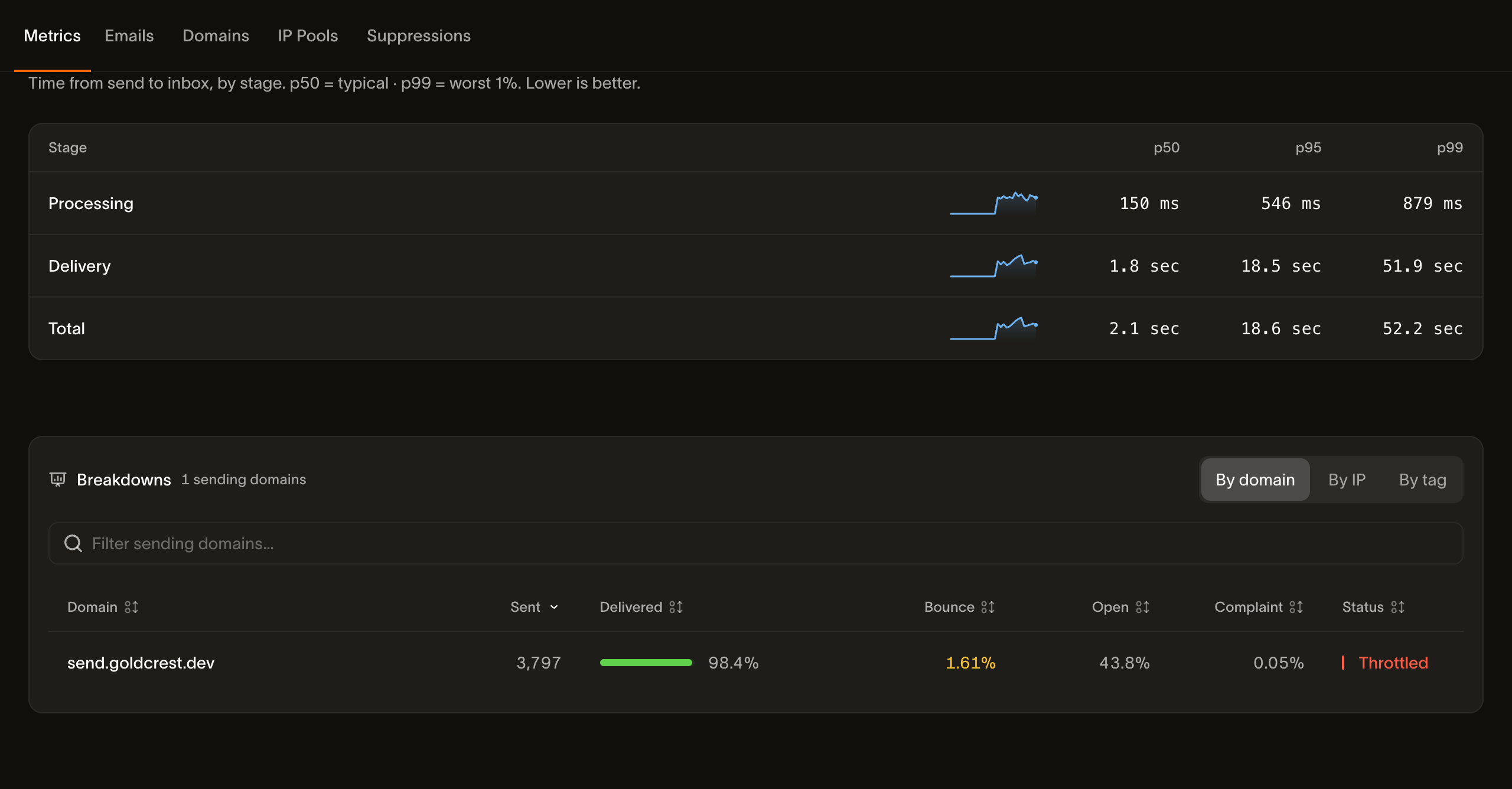
Le Status d'une ligne est dérivé de ses propres taux de livraison, de rebond et de plainte, et les seuils sont plus stricts que ceux des quatre cartes :
| Statut | Quand une ligne l'obtient |
|---|---|
| Healthy | Plaintes à 0,06 % ou moins, rebonds à 0,4 % ou moins, livraison à 99 % ou plus |
| Watching | Un de ces seuils franchi, mais plaintes encore à 0,1 % ou moins, rebonds à 0,6 % ou moins, livraison à 98,4 % ou plus |
| Throttled | Plaintes au-dessus de 0,1 %, ou rebonds au-dessus de 0,6 %, ou livraison en dessous de 98,4 % |
Les deux échelles étant différentes, un expéditeur unique peut afficher Throttled tandis que les quatre cartes affichent Healthy : la moyenne de l'espace de travail absorbe un mauvais domaine que la vue par ligne expose. Traitez une ligne Throttled comme l'expéditeur à examiner en priorité.
Entrant
L'onglet Inbound couvre ce que votre espace de travail reçoit, une fois que vous avez configuré une adresse de transfert ou votre propre domaine pour la réception. Il affiche un seul nombre, Messages received pour la période choisie, et un graphique de ce volume dans le temps.
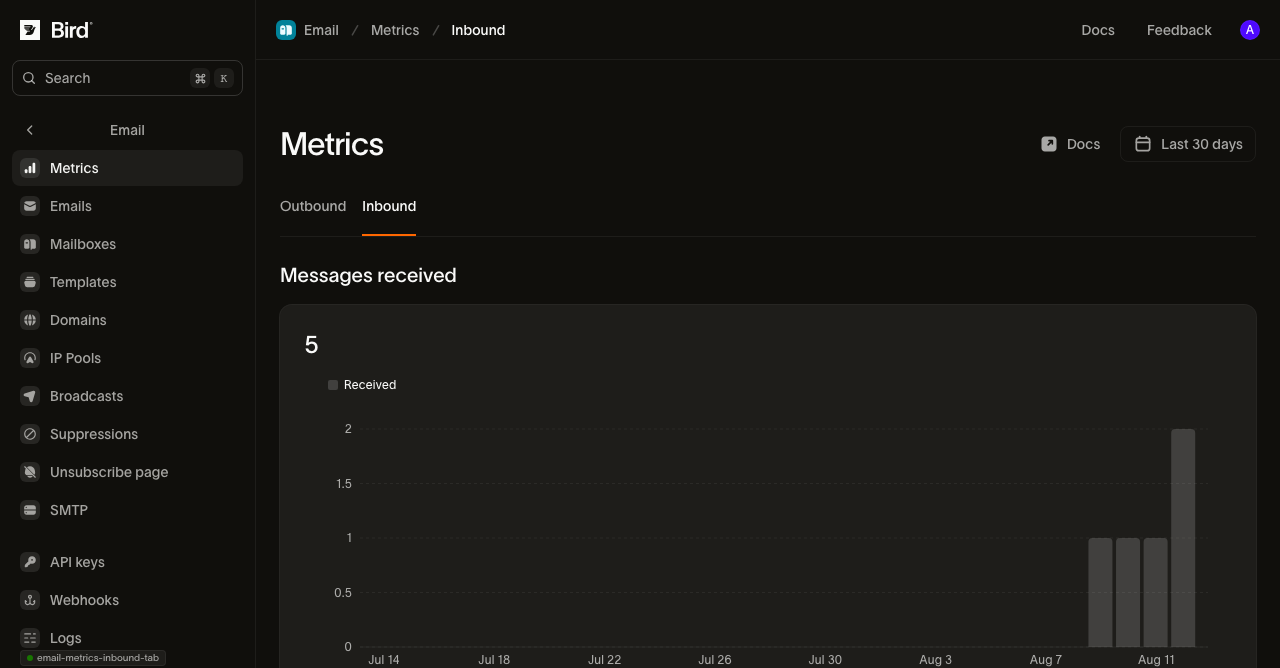
Un message que vous recevez n'a pas de résultat de livraison, de rebond ou de plainte comme un message que vous envoyez, donc ce compteur ne rejoint pas les cartes de santé sortantes. Tant que vous n'avez pas configuré la réception, l'onglet affiche zéro.
Trafic sandbox
Les envois vers les adresses sandbox sur messagebird.dev font bouger ces chiffres, y compris les taux de rebond et de plainte, car ils passent par le même pipeline que les vrais e-mails. Ils ne quittent jamais nos systèmes, donc ne peuvent pas affecter votre réputation d'envoi réelle, mais un gros cycle de test modifie ce qu'une période le contenant rapporte.
Analyses avancées
La page Metrics lit vos propres envois et réceptions. Deux autres pages du tableau de bord vont au-delà : Inbox Insights estime le placement chez les fournisseurs de messagerie à partir d'observations échantillonnées, et Competitive Insights montre ce que d'autres marques envoient et comment cela se compare à vos propres chiffres.
Pour mesurer la valeur client, comparez les actions complétées dans votre application, comme les achats ou les créations de compte finalisées, pour l'audience et la période étudiées. Les ouvertures et les clics sont des signaux de diagnostic ; aucun des deux ne prouve qu'un client a réalisé cette action.
Accès programmatique
Consultez le guide des stats API.
Étapes suivantes
- Stats API : récupérez chaque nombre de cette page depuis le code
- Suivi des ouvertures et des clics : l'instrumentation derrière les chiffres d'engagement
- Journal des e-mails : la vue par message derrière les agrégats
- Événements et webhooks : le flux d'événements par destinataire sur lequel les deux sont construits
- Pourquoi votre domaine d'envoi est limité : une vidéo qui explique les trois taux et ce qu'un domaine limité signifie pour vos envois
Ressources associées
Poursuivez avec la documentation, les guides et les exemples sur ce sujet.