Send your first email
This is the fastest path from zero to a delivered email: create an API key, send through Bird's shared onboarding domain, and watch the result come back. No sending domain to verify, no DNS records to publish. That comes later, when you're ready for production.
1. Create an API key
In the dashboard, go to Developers → API keys and create a key. Keys are scoped to a region and look like bk_us1_... or bk_eu1_...; the region in the prefix tells you which API host to call: https://us1.platform.bird.com or https://eu1.platform.bird.com.
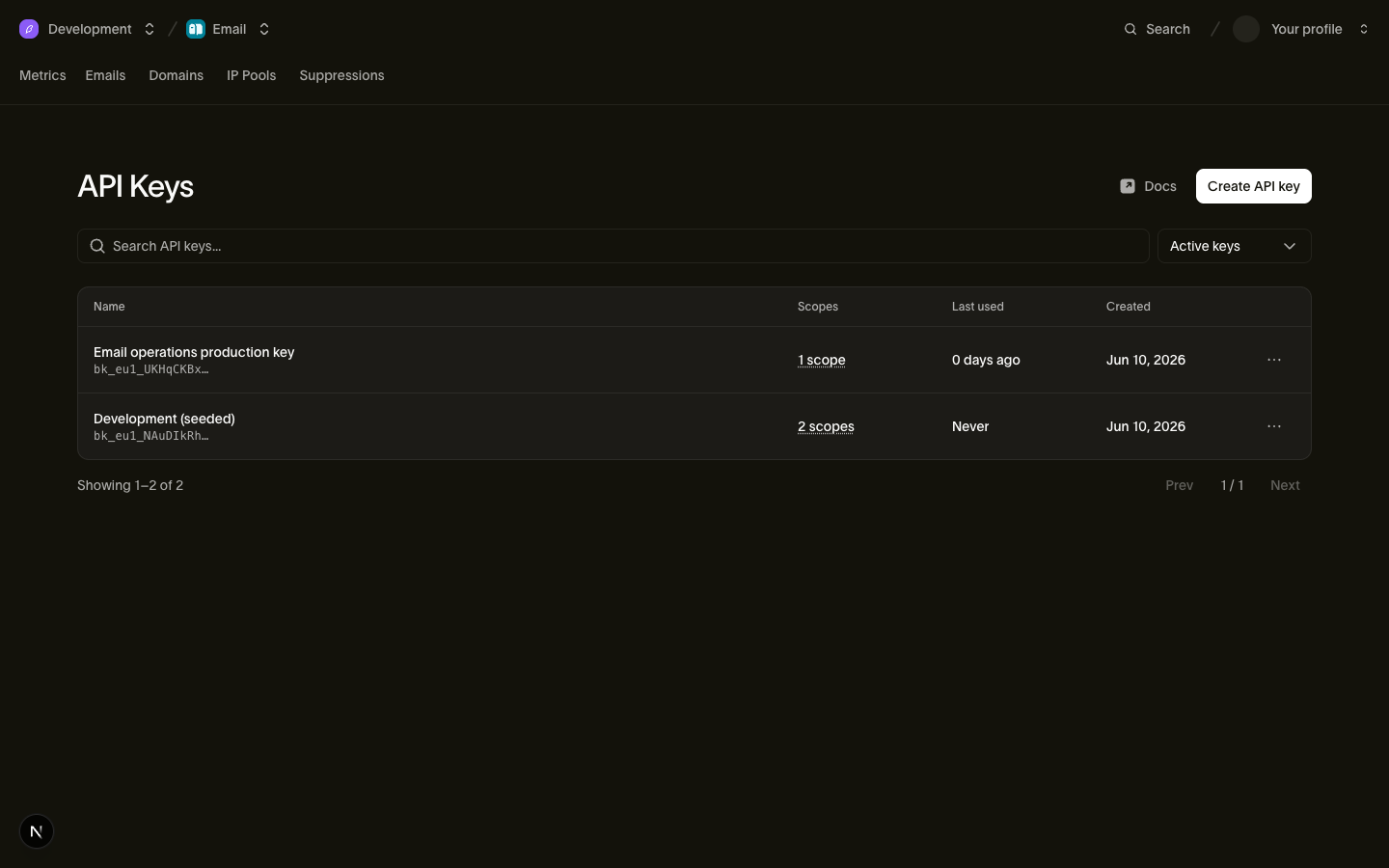
The full key is shown once, at creation time. Copy it somewhere safe, then export it so the step 2 snippets can read it:
Code example
export BIRD_API_KEY="bk_us1_..."2. Send an email
Send from onboarding@messagebird.dev, Bird's shared onboarding domain, available to every workspace with no setup. Address it to delivered@messagebird.dev, a sandbox recipient that always delivers, so the result is deterministic without a real mailbox.
curl
The snippet calls the US host; if your key starts with bk_eu1_, call https://eu1.platform.bird.com instead.
Code example
curl -X POST https://us1.platform.bird.com/v1/email/messages \
  -H "Authorization: Bearer $BIRD_API_KEY" \
  -H "Content-Type: application/json" \
  -d '{
    "from": "onboarding@messagebird.dev",
    "to": ["delivered@messagebird.dev"],
    "subject": "Hello from Bird",
    "html": "<p>My first Bird email.</p>"
  }'
TypeScript
Code example
npm install @messagebird/sdkThe SDK reads the region from your key, so you don't set a host:
Code example
import { BirdClient } from "@messagebird/sdk";

const bird = new BirdClient({ apiKey: process.env.BIRD_API_KEY! });

const msg = await bird.email.send({
  from: "onboarding@messagebird.dev",
  to: ["delivered@messagebird.dev"],
  subject: "Hello from Bird",
  html: "<p>My first Bird email.</p>",
});

console.log(msg.id, msg.status); // "em_…", "accepted"
Using a different language or framework? The per-SDK quickstarts have the same three steps for every SDK.
3. See the result
The API responds with 202 immediately: Bird has accepted the email and delivers it asynchronously. The *_count fields track your recipients through the delivery states; right now one recipient is accepted and none are delivered.
Code example
{
  "id": "em_01ky7ma8y2es1s2akzk53tmjn0",
  "status": "accepted",
  "category": "marketing",
  "from": { "email": "onboarding@messagebird.dev" },
  "to": [{ "email": "delivered@messagebird.dev" }],
  "subject": "Hello from Bird",
  "accepted_count": 1,
  "processed_count": 0,
  "delivered_count": 0,
  "deferred_count": 0,
  "bounced_count": 0,
  "complained_count": 0,
  "rejected_count": 0,
  "open_count": 0,
  "click_count": 0,
  "track_opens": true,
  "track_clicks": true,
  "created_at": "2026-07-23T13:58:20.866Z"
}
Fetch the message by its em_ ID to see where it is. A message moves from accepted through processed to delivered; in the sandbox that takes under a second, so the read usually shows the final state already:
Code example
curl https://us1.platform.bird.com/v1/email/messages/em_01ky7ma8y2es1s2akzk53tmjn0 \
  -H "Authorization: Bearer $BIRD_API_KEY"
Code example
const result = await bird.email.get(msg.id);
console.log(result.status); // "delivered"
The read now shows status: "delivered", delivered_count: 1, and a delivered_at timestamp.
Because you sent to delivered@messagebird.dev, the outcome is guaranteed: the message flows through Bird's real delivery pipeline, including the events and webhooks you'd see in production, but never touches a real mailbox. Want to see a bounce instead? Send to bounce@messagebird.dev. The testing sandbox guide lists every sandbox address and the bounce, complaint, suppression, and deferral outcomes each one simulates.
About the onboarding domain
The shared onboarding@messagebird.dev sender is permanently available, but deliberately limited:
- Apart from the @messagebird.dev sandbox addresses, it only delivers to verified members of your workspace; any other recipient is rejected with a 422.
- Sends are capped at 50 recipients per organization per UTC day, counting every to, cc, and bcc address, sandbox recipients included. Past the cap the API returns a 429.
When you're ready to email real customers, verify your own sending domain and put your own address in from; everything else in the request stays the same.
Next steps
- Per-SDK quickstarts: the same flow in your language and framework.
- Sending domains: verify your own domain for production sending.
- Testing sandbox: every sandbox address and the events it triggers.
- Email API reference: the full request and response schema.