WhatsApp metrics
The Metrics page at WhatsApp → Metrics shows how your WhatsApp sends are performing across the whole workspace. To check a single message, use the WhatsApp log instead. The page needs both WhatsApp read and analytics read access on your workspace role.
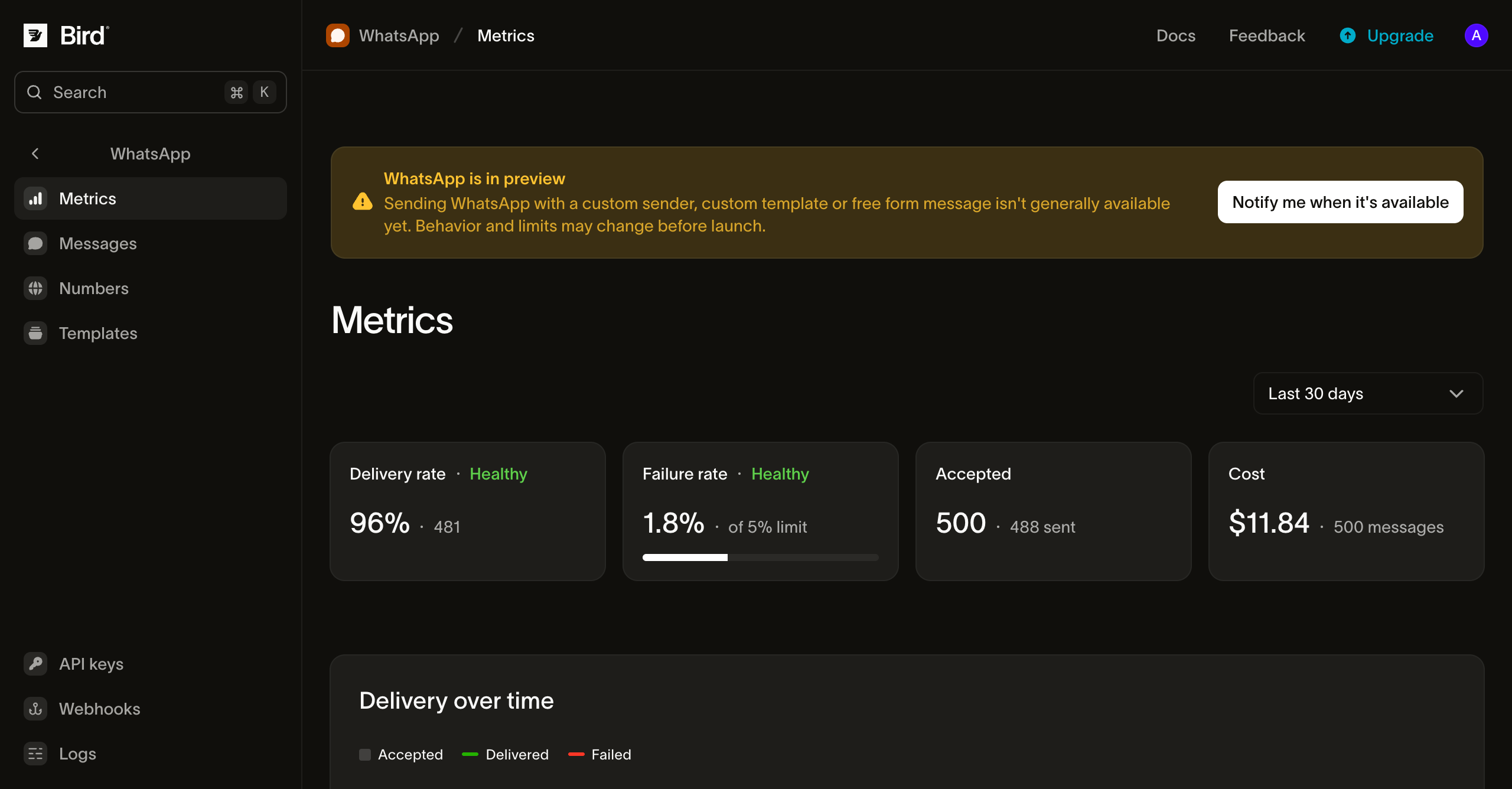
Read your metrics
Range, scope, and tabs
- Outbound / Inbound: the Outbound tab covers messages you sent. The Inbound tab counts messages your numbers received, in total and per number.
- Range: last 24 hours, 7, 30 (default), or 90 days. You can also drag across a chart to zoom in.
- Scope: on the Outbound tab only, narrow the page to one number, template, template category, or tag, one at a time. Two parts of the page ignore the scope and always cover the whole workspace: the error-code list and the Breakdowns panel.
Messages count toward the period in which Bird accepted them, so a delivery receipt that arrives today updates yesterday's numbers. The most recent hours can show fewer deliveries than they will once all receipts arrive.
Summary tiles
| Tile | Shows | Healthy when |
|---|---|---|
| Delivery rate | Delivered messages as a share of accepted messages | Above 90% |
| Failure rate | Failed messages as a share of accepted messages | Below 5% |
| Accepted | Messages Bird accepted, and how many reached WhatsApp | Not rated |
A tile outside its healthy range shows Needs attention. Check failure causes to see why.
Delivery over time
The chart plots accepted, delivered, and failed messages per hour (24-hour range) or per day (longer ranges). Use it to spot a spike, for example after a campaign goes out or a template starts getting rejected.
Failure causes
The failure-rate chart tracks the failure rate across the range. Below it, failures are grouped by error code, with the most common first. The list shows up to 50 codes that occurred in the range, so a rare code can be missing from a long list. The error codes always cover the whole workspace, even when you scope the page. The last row, Rejected, counts messages Bird refused before accepting them. They aren't part of the failure rate, so the row shows a count without a share.
Latency
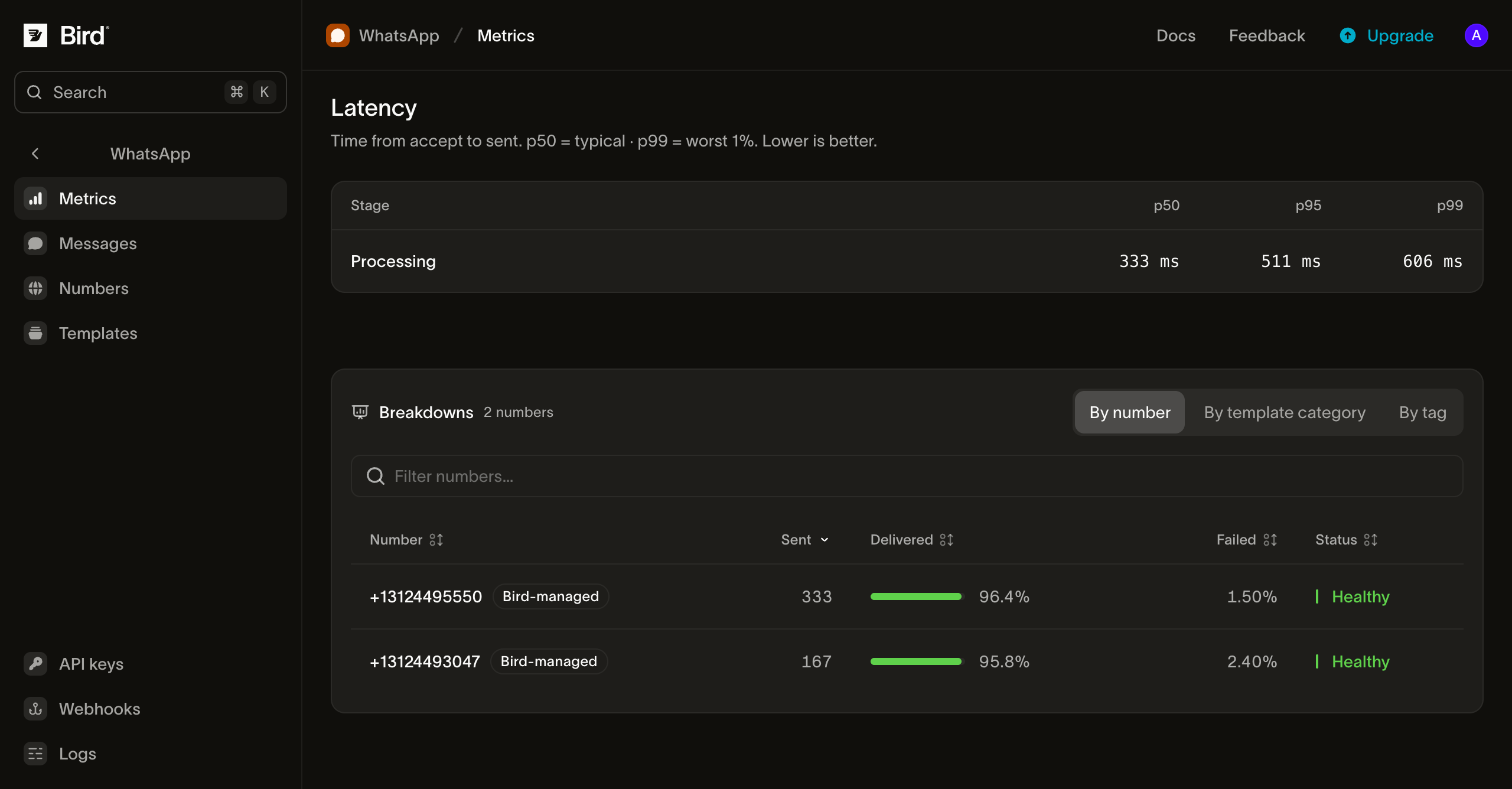
The latency table shows p50, p95, and p99 times for three stages:
- Processing: from Bird accepting the message to handing it to WhatsApp.
- Delivery: from the handoff to WhatsApp until WhatsApp confirms delivery to the recipient's device.
- Total: both stages together.
A slow Delivery stage usually means recipients' phones were offline, which Bird can't control. A slow Processing stage is worth investigating. If the p50 looks fine but the p99 is slow, a single template or destination is often the cause.
Breakdowns
The Breakdowns panel splits accepted, delivered, and failed messages by number, template, template category, tag, or country. Each row is marked Healthy or Needs attention using the same thresholds as the summary tiles. Each tab lists the top 50 rows for the range.
Tags are the ones you set when sending. A message with several tags appears in each of their rows. Recipients whose country can't be identified appear under ZZ, and group sends are left out of the country tab.
Programmatic access
The same numbers are available through the API, the SDKs (bird.whatsapp.stats), the CLI (bird whatsapp stats), and the MCP server. Start with these endpoints:
- Summary, daily, and hourly stats
- Breakdowns by number, template, template category, tag, country, and error code
- Inbound summary, daily, hourly, and by number stats
Each reference page lists the accepted time ranges, filters, and response fields.
Next steps
- WhatsApp log: look up a single message
- Message status events: the events these metrics are built from
- Message status webhooks: receive each status change as it happens
Related resources
Continue with the documentation, guides and examples for this topic.