Zahlungsmethoden und Wallet
Bird verbucht Nutzungsgebühren, Add-on-Abonnements und Verlängerungen älterer Email-Pläne auf dem Wallet Ihrer Organisation. Finanzierungspläne zahlen ihre monatlichen Einzahlungen in das Wallet ein. Eine gespeicherte Karte kann manuelle und automatische Aufladungen finanzieren und begleicht Ihre Planzahlungen.
Öffnen Sie Billing and payments > Overview, um das verfügbare Guthaben, die nächste Abbuchung, die automatische Aufladung, die Benachrichtigung bei niedrigem Guthaben, die Zahlungsmethoden und die Rechnungsadresse einzusehen. Organization Owners und Billing-Admins verwalten diese Einstellungen.
Das Wallet
Das verfügbare Guthaben ist der Betrag, den die Organisation ausgeben kann. Nutzungsgebühren verändern dieses Guthaben, sobald sie verrechnet werden. Eine Nachricht mit einer zustellungszeitabhängigen Gebühr wird zweimal verrechnet: einmal, wenn Bird sie verarbeitet, und einmal bei der Zustellung. Next charge zeigt Datum und Betrag der nächsten Verlängerung an und warnt, wenn das verfügbare Guthaben nicht ausreicht.
Zwei Zustände sind wichtig:
- Guthaben niedrig. Ein ausblendbarer Banner erscheint, wenn Sie unter Ihrem Schwellenwert liegen, und Ihre Rechnungskontakte erhalten eine E-Mail. Wenn Sie vor dem Verlängerungsdatum aufladen, passiert nichts weiter.
- Prepaid-Guthaben aufgebraucht. Nutzungsbasierte Gebühren werden pausiert, wenn das Wallet sie nicht decken kann. Ein negatives Prepaid-Guthaben blockiert den Versand, bis Sie ausreichend Mittel hinzufügen. Eine bei der Zustellung anfallende Gebühr verhält sich anders: Wenn das Guthaben nicht reicht, wird die Gebühr übersprungen, statt die Nachricht zurückzuhalten. Eine bereits unterwegs befindliche Nachricht kommt also trotzdem an. Während der Mahnphase bei der Verlängerung eines älteren Email-Plans bleibt dessen enthaltenes E-Mail-Kontingent verfügbar, es sei denn, das Wallet ist bereits negativ.
Aufladen
Wählen Sie unter Billing and payments > Overview die Option Add funds, um den Aufladevorgang zu starten. Geben Sie mindestens 15 Einheiten in der Wallet-Währung ein und bezahlen Sie per Karte. Vor der ersten Zahlung geben Sie eine Rechnungsadresse und den Umsatzsteuerstatus an. Fügen Sie gegebenenfalls eine USt-IdNr. hinzu.
Nach einer abgeschlossenen Aufladung sehen Sie sofort das neue Guthaben. Die Aufladung erscheint als Gutschrift auf der Seite Spend und erhält eine eigene Zahlungsquittung (getrennt von Ihrer monatlichen Rechnung, die nur Gebühren abdeckt).
Zahlung per Banküberweisung
Mit einer Pro-forma-Rechnung laden Sie das Wallet per Banküberweisung statt per Karte auf:
- Wählen Sie unter Billing and payments > Overview die Option Add funds.
- Geben Sie den Betrag ein und wählen Sie Get a pro forma invoice.
- Sobald der Dialog Pro forma ready anzeigt, wählen Sie Download PDF.
- Überweisen Sie von Ihrer Bank auf das Konto im PDF und geben Sie die Zahlungsreferenz als Verwendungszweck an.
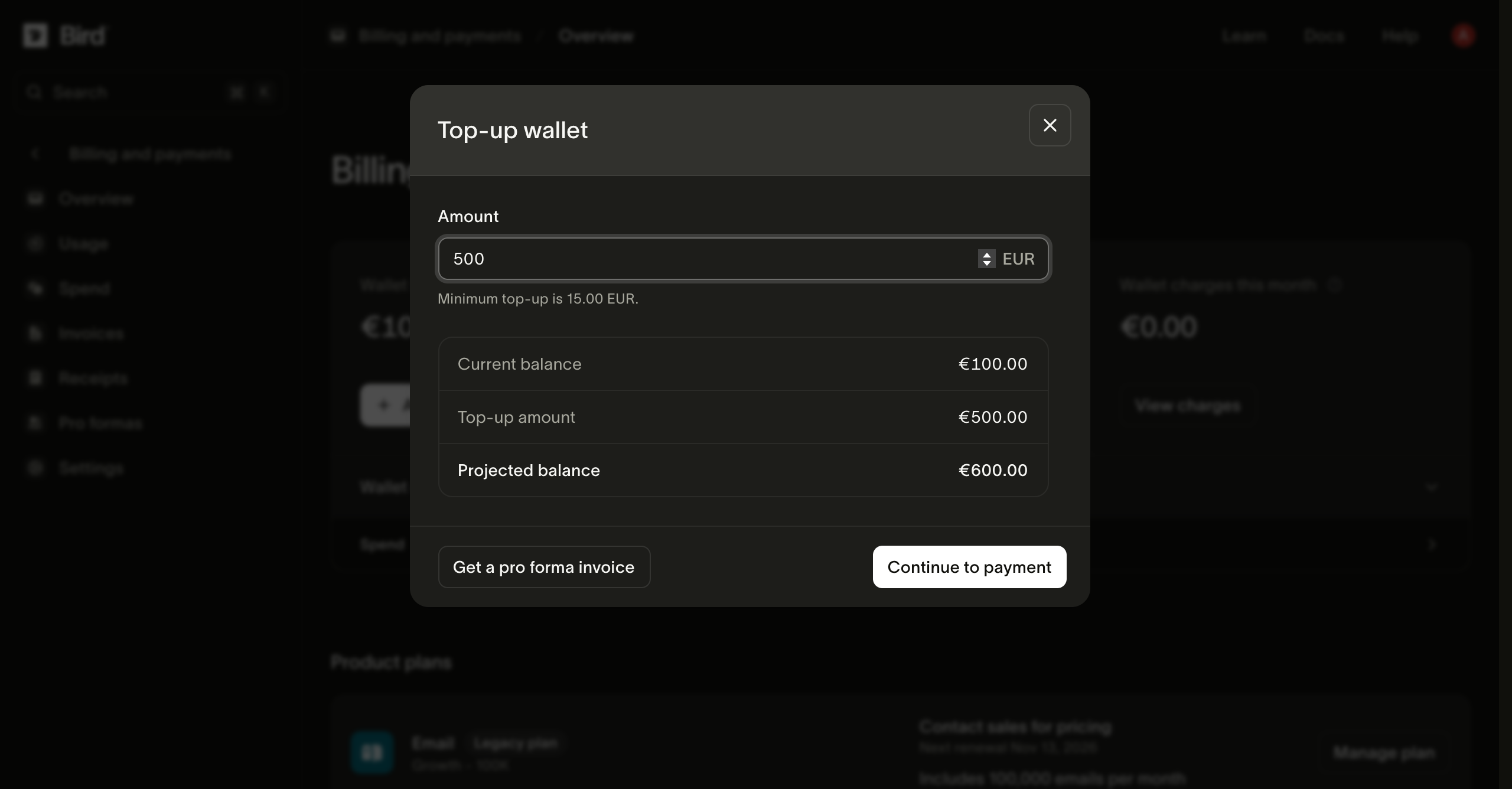
Das PDF enthält die Bankverbindung von Bird für die Wallet-Währung, den Betrag und eine Dokumentnummer wie PRO-2600001. Die Zahlungsreferenz ist ein separater kurzer Code wie R9NGKC, der im Dialog und im PDF angezeigt wird. Bird ordnet Ihre Überweisung anhand der Zahlungsreferenz der Pro-forma-Rechnung zu. Eine Überweisung ohne Zahlungsreferenz lässt sich daher nur langsamer nachverfolgen.
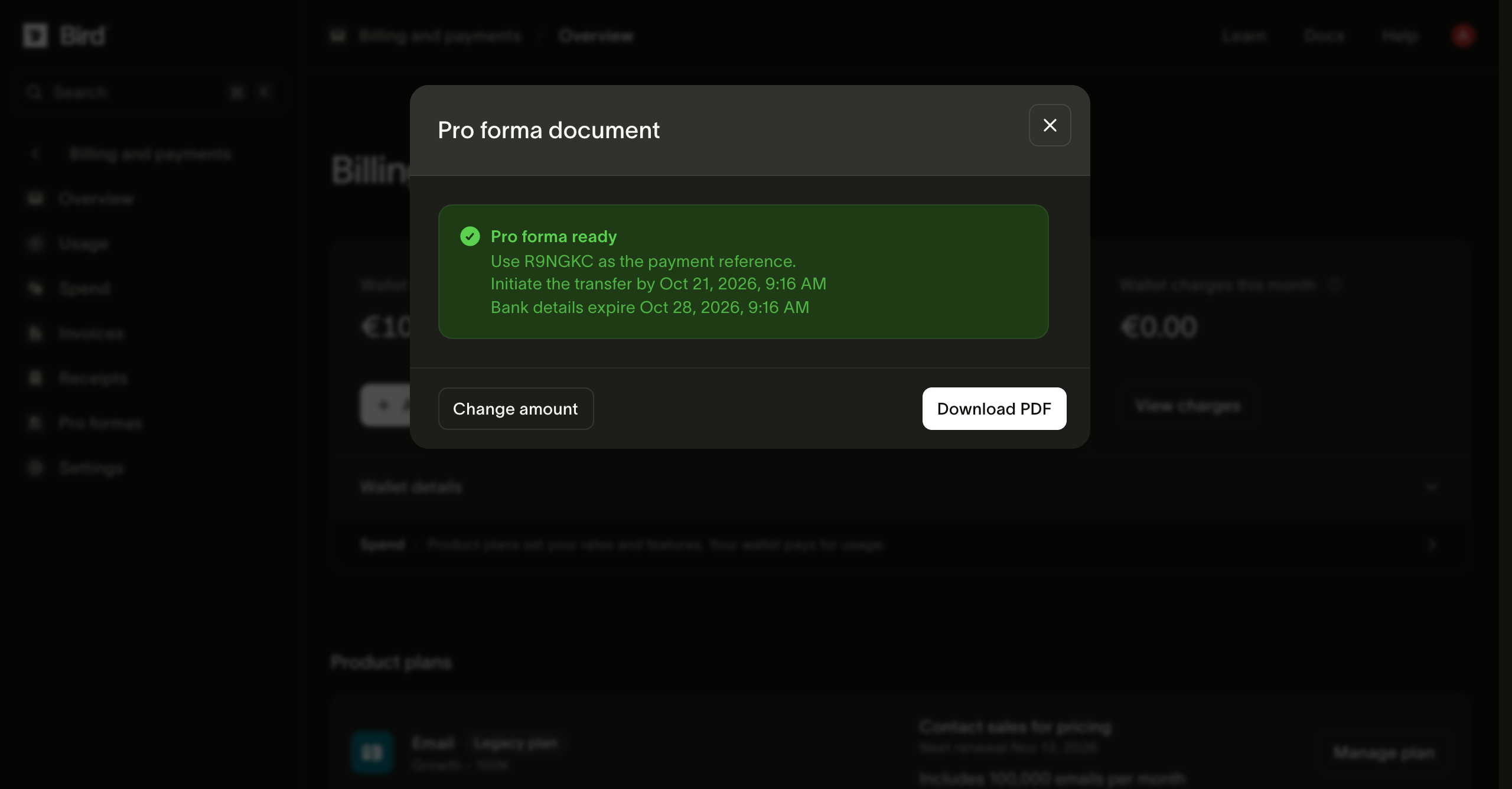
Der Dialog und das PDF zeigen außerdem zwei Daten. Starten Sie die Überweisung innerhalb von 7 Tagen. Die Bankverbindung läuft nach 14 Tagen ab. Erstellen Sie für eine spätere Zahlung deshalb eine neue Pro-forma-Rechnung.
Zwei Punkte, die Sie einplanen sollten:
- Eine Banküberweisung erfolgt nicht sofort. Bird schreibt das Guthaben dem Wallet gut, nachdem die Überweisung eingegangen und zugeordnet ist. Starten Sie den Vorgang, bevor Sie das Guthaben benötigen.
- Eine Pro-forma-Rechnung fordert zur Zahlung auf. Sie enthält keine USt-Aufschlüsselung und ersetzt nicht Ihre monatliche Steuerrechnung. Sobald die Überweisung gutgeschrieben ist, erhalten Sie dafür eine Zahlungsquittung, wie bei jeder anderen Aufladung.
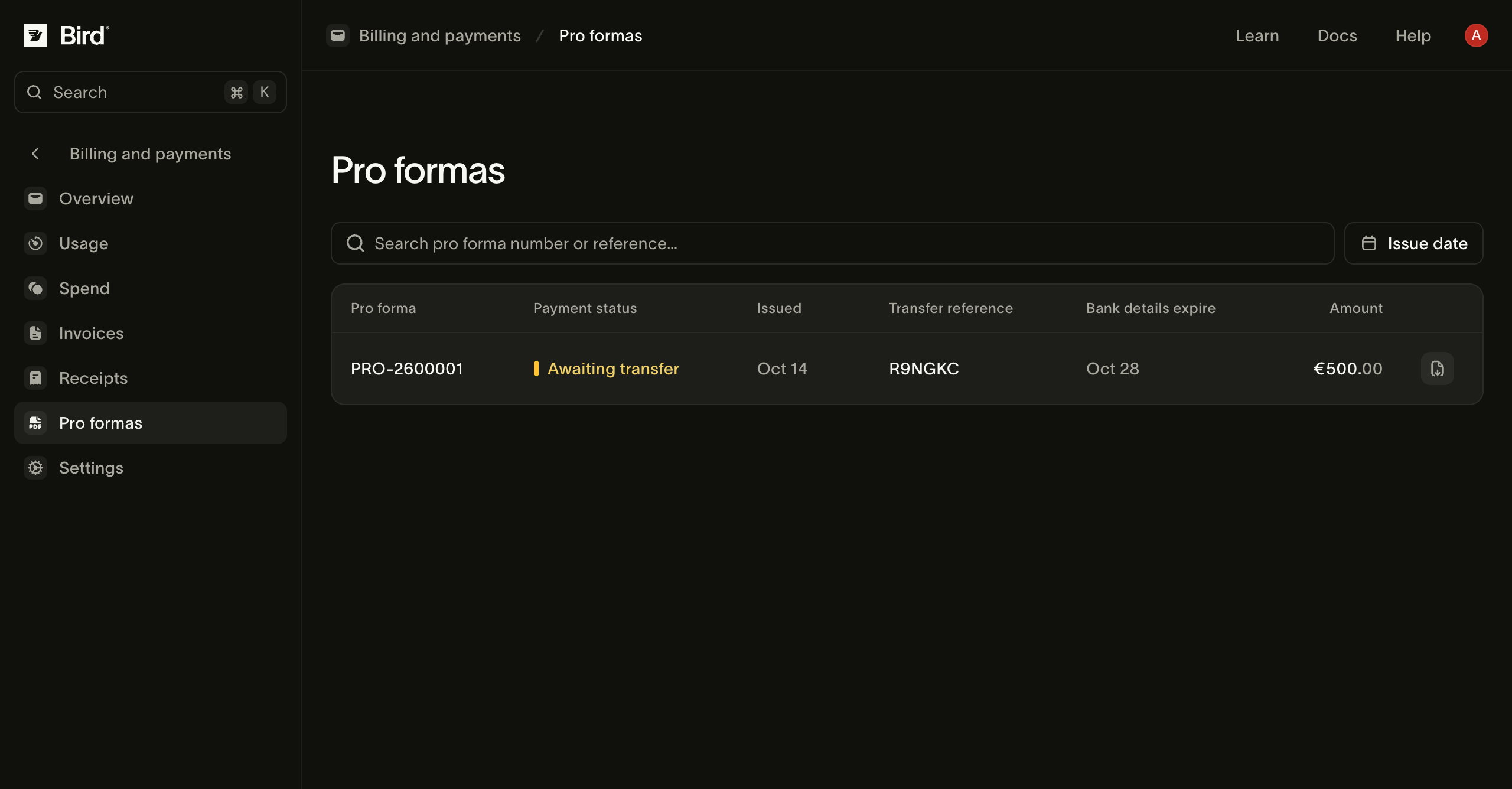
Der Betrag lautet auf die Wallet-Währung, und es gilt derselbe Mindestbetrag von 15 Einheiten wie bei einer Kartenaufladung. Frühere Dokumente finden Sie weiterhin unter Billing and payments > Pro formas. Jede Zeile zeigt den Zahlungsstatus, die Überweisungsreferenz und das Ablaufdatum der Bankverbindung und enthält eine Schaltfläche, mit der Sie das PDF erneut herunterladen. Eine Pro-forma-Rechnung zeigt Awaiting transfer, bis Bird Ihre Zahlung erhalten und zugeordnet hat, danach Paid.
Einzahlungen aus Finanzierungsplänen
Jede erfolgreiche Zahlung für einen Finanzierungsplan, etwa einen kostenpflichtigen SMS- oder Email-Plan, fügt dem Wallet den vollen Betrag hinzu. Die Einzahlung ist normales Guthaben: Sie kann die Nutzung und Add-on-Abonnements jedes Produkts bezahlen, und nicht genutztes Guthaben wird in den nächsten Monat übertragen. Die Overview-Seite listet Ihre wiederkehrenden Planeinzahlungen unter Wallet funds from plans auf, und jede Einzahlung erhält eine eigene Zahlungsquittung.
Ein Finanzierungsplan wird getrennt vom Wallet bezahlt. Vorhandenes Guthaben verringert die Planzahlung nicht, daher entfällt eine Verlängerung auch bei hohem Guthaben nicht. Wenn Ihre Nutzung Ihre Einzahlungen übersteigt, laden Sie zusätzlich auf oder aktivieren Sie das automatische Aufladen. Pläne und Preise erklärt Finanzierungspläne.
Automatisches Aufladen
Für fortlaufende Nutzung konfigurieren Sie Auto top-up in der Wallet-Seitenleiste. Legen Sie einen Guthabenschwellenwert und einen Aufladebetrag fest. Wenn das Guthaben unter den Schwellenwert fällt, versucht Bird, die Standardkarte zu belasten.
Automatische Aufladungen erscheinen auf der Spend-Seite. Eine Low balance alert sendet eine E-Mail an die Rechnungskontakte, wenn das Guthaben den Schwellenwert unterschreitet. Sie können beide Funktionen aktivieren; die Benachrichtigung kann Sie warnen, wenn eine automatische Aufladung fehlschlägt.
Zahlungsmethoden
Die Zeile Payment method listet gespeicherte Karten auf. Die Standard-Karte sichert die automatische Aufladung und die automatischen Zahlungen für Planverlängerungen ab. Den Zahlungsablauf finden Sie unter Planänderungen und Verlängerungen.
- Beim Hinzufügen einer Karte wird diese verifiziert, ohne sie zu belasten. Manche Banken zeigen eine temporäre Autorisierung an, die automatisch rückgängig gemacht wird.
- Make default legt fest, welche Karte für künftige Abbuchungen verwendet wird; vergangene Transaktionen bleiben unverändert.
- Eine Karte, deren letzte Abbuchung abgelehnt wurde, ist in der Liste markiert. Ersetzen Sie sie zeitnah: Eine veraltete Standardkarte plus ein leeres Wallet ist die einzige Kombination, die zum Pfad der fehlgeschlagenen Verlängerung führt.
- Sie können die Standardkarte nicht entfernen, solange andere Karten vorhanden sind; machen Sie zuerst eine andere Karte zur Standardkarte.
Rechnungsdaten
Die Rechnungsadresse und die USt-IdNr. erscheinen auf Rechnungen. Unter Billing and payments > Overview können Sie diese Daten über Billing address aktualisieren oder eine separate Rechnungsadresse festlegen. Unter Billing and payments > Settings ist der Rechnungskontakt gespeichert, und dort finden Sie die Abonnements und geplanten Änderungen der Organisation.
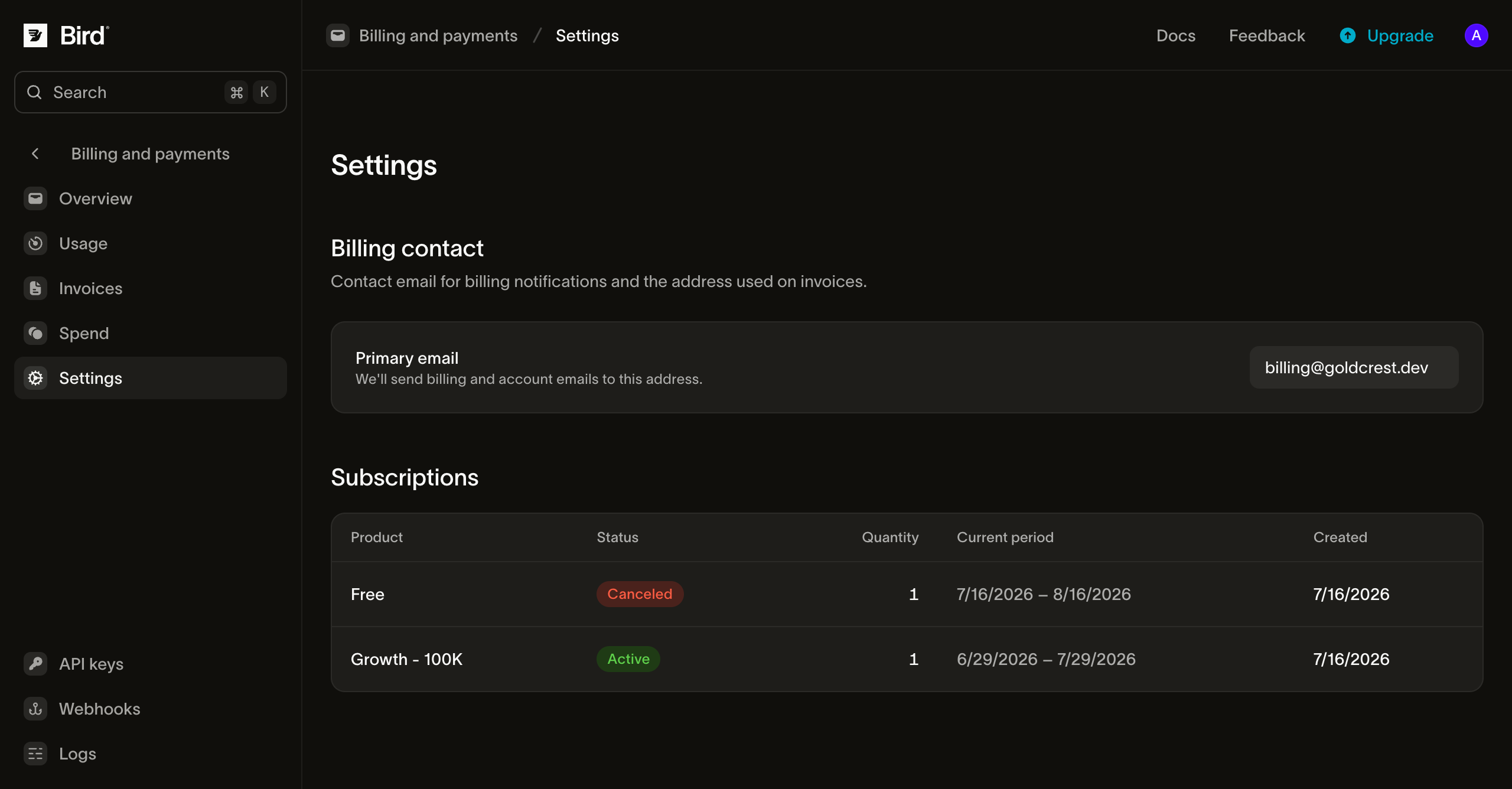
Verwenden Sie einen überwachten Team-Alias für den Rechnungskontakt, damit Zahlungs- und Guthabenbenachrichtigungen nicht von einer einzelnen Person abhängen.
Nächste Schritte
- Planänderungen und Verlängerungen: wie Planverlängerungen bezahlt werden und was passiert, wenn eine Zahlung fehlschlägt.
- Nutzung, Ausgaben und Rechnungen: das Kontobuch und die Monatsrechnung.
- Wie Aufladungen und das Wallet-Kontobuch hinter diesen Seiten funktionieren, erfahren Sie unter Abrechnung und Nutzung.
Verwandte Ressourcen
Weiter mit der Dokumentation, Anleitungen und Beispielen zu diesem Thema.