Verification settings
The General tab of the Configure page sets how every verification in your workspace behaves. It controls how long a code stays valid, how many wrong attempts end a verification, how soon a new code can be sent, and which website or Android app the code belongs to.
Each field shows the effective value: your override where you've set one, otherwise Bird's platform default. A field saves when you leave it. Duration, Maximum Retries, Website, and Android app hash are fixed when a verification is created, so a change to them applies to new verifications. A Retry Delay change applies to the next create call, including for a verification already in progress.
Changing a setting needs the verify_management permission at write level, which the admin and developer roles include. The analyst role can view the page. See Users, teams & roles.
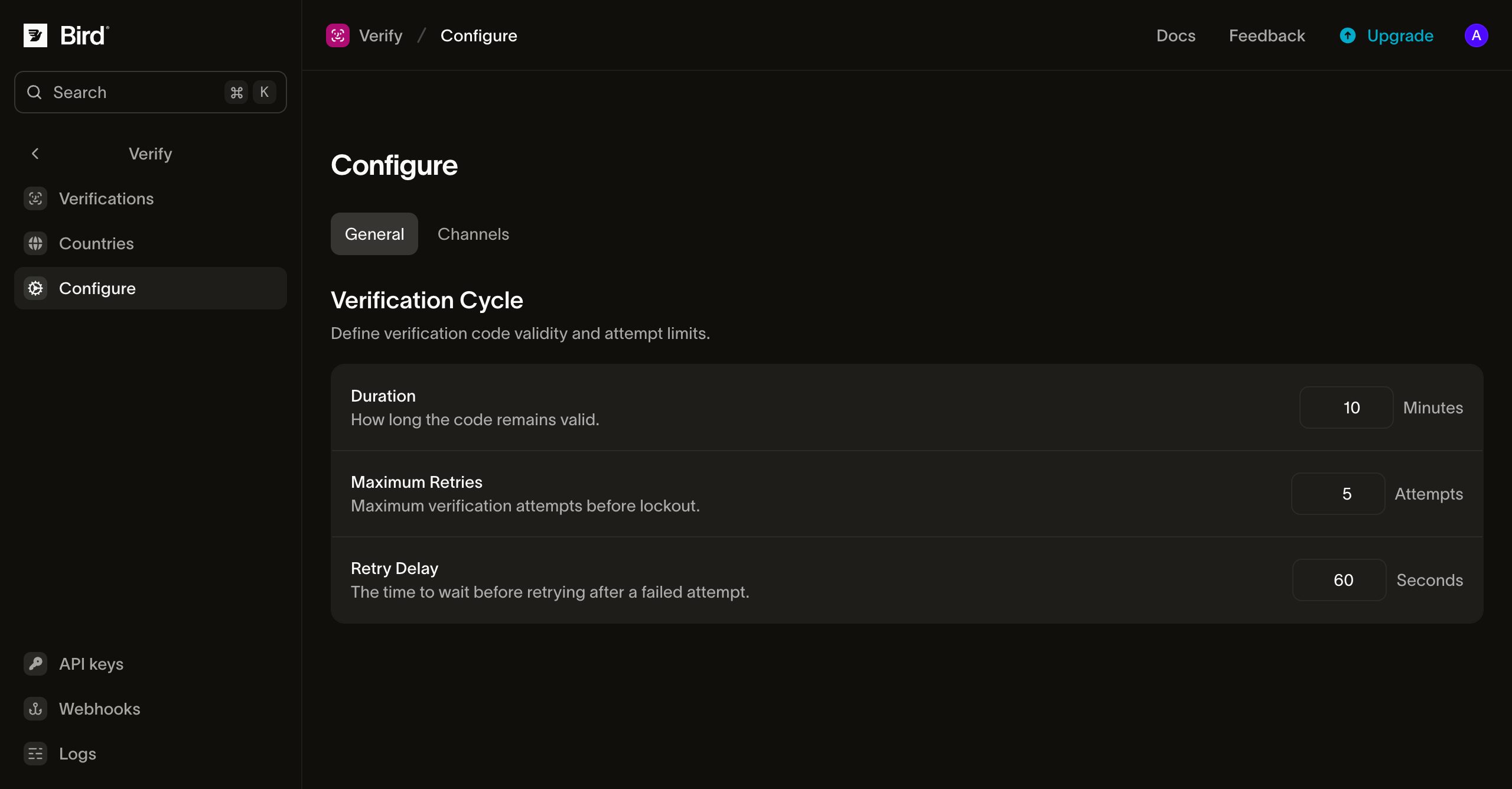
Verification cycle
| Setting | What it controls | Default | Range |
|---|---|---|---|
| Duration | How long a verification stays open. A check after this window returns reason expired, and the verification ends with reason ttl_elapsed. | 10 minutes | 1 to 999 minutes |
| Maximum Retries | How many incorrect codes end a verification. The last one fails it with reason attempts_exhausted. | 5 | 1 to 10 |
| Retry Delay | The resend cooldown: the minimum wait before another code is sent to the same recipient. | 60 seconds | 0 to 3600 seconds |
- Duration starts when the verification is created. A resend or a switch to another channel sends a new code but keeps the original expiry, so a late resend does not extend the window. Keep it at 10 minutes or less for authentication flows; Best practices explains why.
- Maximum Retries counts wrong codes across every code sent for the verification, so a resend does not reset it. A check with a wrong code that leaves the verification pending reports the tries left in
attempts_remaining. - Retry Delay applies when you call create again for the same recipient. Within the cooldown, the call returns the live verification without sending a new code. Send the code on another channel is exempt, because a channel switch is a different request from asking for the same channel again. Set it to 0 to send a new code on every create call, within the per-recipient limits in Abuse guardrails.
Code length isn't on this page. Codes are six numeric digits by default, and options.code_length sets 4 to 8 digits for one verification; see Options.
Autofill
Website names the site where your users enter their codes, such as https://login.example.com. With a website set, browsers can offer the code on that site and no other, which saves the user from copying it. Leave it empty to send codes that name no website.
Write the website as https:// followed by its lowercase domain, with no port, path, or trailing slash. An internationalized domain uses its xn-- form, for example https://xn--bcher-kva.example for bücher.example. Any other form is rejected, and the message names the form to enter when one exists. Use the exact site that shows the code field: a form on login.example.com needs https://login.example.com, not https://example.com.
Once a verification has a website, Verify adds it to the code messages:
- SMS: the message ends with a line such as
@login.example.com #123456, unless an Android app hash is set, which replaces it. Mark your code input withautocomplete="one-time-code"so Safari and other browsers offer the code, and call the WebOTP API from the page if you want the browser to fill it without a tap. The extra line can add an SMS segment: in many languages that need Unicode encoding, such as Arabic, Greek, or Russian, a bound code takes two segments instead of one, which doubles its SMS charge, and a long domain can do the same in other languages. - Email: the message carries an
OTP-Tokenheader with the code and the website, as defined by the OTP-Token Internet-Draft, revision 01. Mail apps are only starting to read this header, so treat it as an addition to the code in the message.
The website is fixed when a verification is created. A resend, a fallback to another channel, or another create call for the same recipient keeps it.
Android app hash
Android app hash names your Android app, so the app can read the code from the SMS through Google's SMS Retriever API, with no SMS permission and no tap. The value is the 11-character hash Google derives from your app's package name and signing certificate, such as FA+9qCX9VSu. Leave it empty to send codes that name no app.
With a hash set, the SMS is a short message that ends with the hash on its own line. It stays within the 140 bytes the SMS Retriever reads, in every language and at every code length:
12345678 is your verification code.
FA+9qCX9VSu
The short message leaves out the expiry, the warning, and the website line. Email doesn't change: it carries the OTP-Token header exactly as it would without a hash. The hash is fixed when a verification is created, like the website.
If you'd rather not compute a hash, Google's SMS User Consent API lets your app read Verify's codes after one tap, with nothing to set here.
Compute the app hash
The hash comes from your app's signing certificate, so Bird can't compute or check it for you. Compute it with the command in Google's guide, using your keystore, certificate alias, and package name:
keytool -exportcert -alias KEY_ALIAS -keystore MY_KEYSTORE.keystore | xxd -p | tr -d "[:space:]" | echo -n com.example.myapp `cat` | sha256sum | tr -d "[:space:]-" | xxd -r -p | base64 | cut -c1-11- Google Play signs your app: with Play App Signing, download the app signing certificate (
deployment_cert.der) from the App signing section of Play Console and compute the hash from it, not from your upload key. Google's guide shows how to import it into a keystore first. - Check for errors: the command still prints 11 characters when
keytoolfails, so read its output before you copy the hash. - Debug builds: a debug build is signed with a different key, so it has its own hash. Google's
AppSignatureHelpersample class prints the hash of the running build; remove it from your app once you have the value.
Bind a code per request
A request can name its own website with options.autofill_origin, which replaces Website for that verification. Use it when one workspace serves several sites.
options.android_app_hash replaces Android app hash the same way, for example to send a debug build's hash from a test environment.
When the code field sits in a cross-origin iframe, such as a payment form embedded in a shop's checkout, set options.autofill_origin to the iframe's website and options.autofill_top_level_origin to the page in the browser tab. The SMS line then names both sites, as in @shop.example #123456 @pay.example, which can add a segment in any language. Chrome autofills that form when the page embeds the iframe directly and grants it allow="otp-credentials". Email sends no OTP-Token header for these verifications, because the header can name one website. The request is rejected with 422 when the top-level website is malformed, when no website is set in the request or on this page, or when it equals that website.
Registered SMS senders
If you send SMS from your own registered sender, such as a US 10DLC campaign, add a sample message that ends with the bound line to the campaign before you set a website, and a sample of the short message before you set an Android app hash. Carriers can filter a message that differs from the campaign's registered samples.
Troubleshooting
- The website is rejected. The value isn't in the required form. Enter the form the message suggests, for example
https://example.comforhttps://Example.com/. - The browser doesn't offer the code. Check that the website matches the page's address exactly, including any subdomain, and that the code input has
autocomplete="one-time-code". For an iframe, check that the request sets both websites and that the embedding page grantsallow="otp-credentials". Autofill also depends on the browser: Chrome reads the SMS line through WebOTP and Safari through its code autofill, while Firefox doesn't support WebOTP (browser support). - The Android app doesn't read the code. Check that the hash comes from the certificate that signs the installed build: the Play App Signing certificate for an app installed from Google Play, and the debug key for a debug build. The app must start the SMS Retriever before the code is sent.
- The Android app hash is rejected. The value must be exactly 11 characters of
AtoZ,atoz,0to9,+, and/, as the command above prints it. - A code expired before the user entered it. Look at the attempt timing in the Verify log before raising Duration. A slow delivery path is usually the cause, and a longer window weakens the code.
Next steps
- Sending verifications: create and check verifications, including per-request options.
- Destinations: choose the channels and their order for each destination country.
- Senders and branding: see the messages Verify sends and pick the sender for each channel.
Related resources
Continue with the documentation, guides and examples for this topic.