Inspect Apple Messages history and failures
Use Apple Messages > Messages when you need the recorded result of a particular message. Use Conversations when you need the surrounding customer exchange.
Find and open a message
- Open Messages in the workspace that owns the business.
- Choose All, Received, or Sent to filter by direction. Use Business when available and the timeline to narrow the time of the exchange.
- Open the matching record. In Details, check Business ID, Conversation ID, Content type, and Source. Check the status and timestamp in the header.
- In Events, inspect the message content, event history, and any error details. Retain the message ID when reporting the issue.
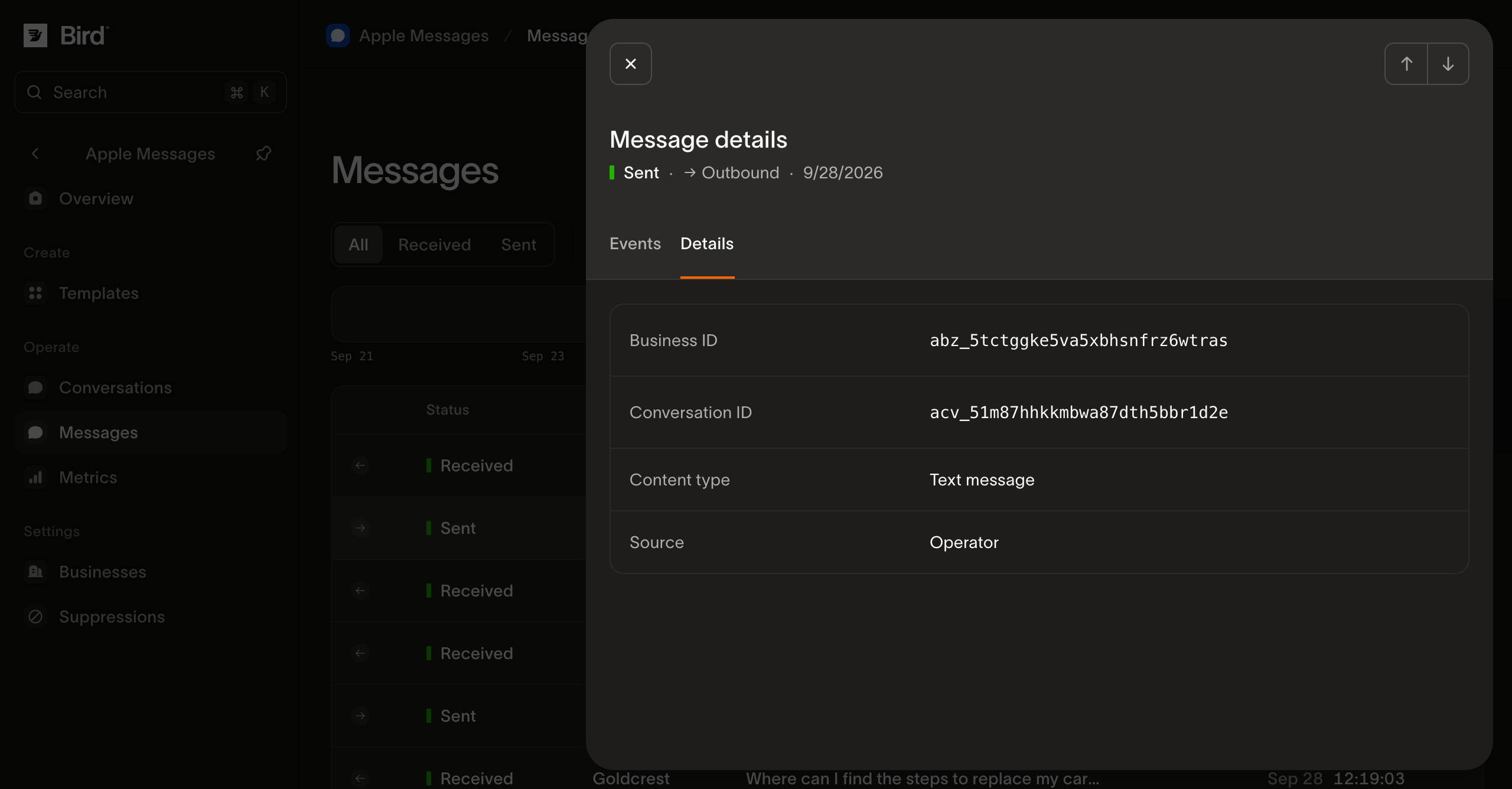
View the screenshot at full size.
After a template send, View message and events opens the submitted record directly.
Understand the status
| Status | Meaning | Your next action |
|---|---|---|
| Accepted | Bird queued the outbound request for processing. | Wait for processing and inspect subsequent events. |
| Sent | Apple's gateway accepted the message. | Check the customer interaction separately. |
| Send failed | Processing or the provider send failed after acceptance. | Inspect the error and possible earlier acceptance before deciding whether to retry. |
| Rejected | Bird refused the message before any send attempt. | Read the recorded reason, including any billing problem. |
| Received | Bird recorded an incoming customer message. | Open the conversation and handle the request. |
Bird does not provide Apple device-delivery or read receipts. An operator's Mark as read action changes the inbox state, not this status. A successful send also does not prove that a booking, payment, or account action succeeded.
A Send failed result can also follow a lost provider acknowledgement after Apple accepted the message. It is not proof that the customer received nothing. Check the error and attempt history before retrying; a new message can duplicate the original.
Investigate a failed or uncertain send
Start with the error on the record rather than submitting another message immediately.
- Media error: verify that the source URL is public HTTPS, serves the expected file and media type, and meets the media requirements. A browser that is signed in to the file host can conceal an authorization problem.
- Business or conversation error: inspect the business approval and conversation status. The customer must reopen a closed conversation.
- Suppressed destination: review Suppressions, including both business-specific and workspace-wide entries.
- Billing rejection: ask your organization administrator to resolve the recorded billing issue before another send.
- No final outcome yet: refresh the detail and retain the message ID. Acceptance is asynchronous; a second submission can create a duplicate if the first succeeded.
For API calls, retain the original idempotency key for retries of the same request. In the template review dialog, Retry this send retains the attempt while the recipient and content remain unchanged.
Inspect a structured customer response
Open the related conversation to see a native answer with its customer-facing label. Compare it with the choices, time slots, or form pages you sent. Your integration should use stable identifiers when taking a business action; translated labels and row positions can change.
If the recorded answer is unclear, collect the sent and received message IDs and a redacted device capture. Use the support checklist rather than sending credentials or unredacted customer records.
Next steps
- Read channel metrics to determine whether the issue affects other messages.
- Troubleshoot the channel for missing conversations or unsupported content.