Manage Apple Messages conversations
Use Apple Messages > Conversations to receive and reply to customer requests. You need channel read access to inspect conversations and write access to reply or change assignment.
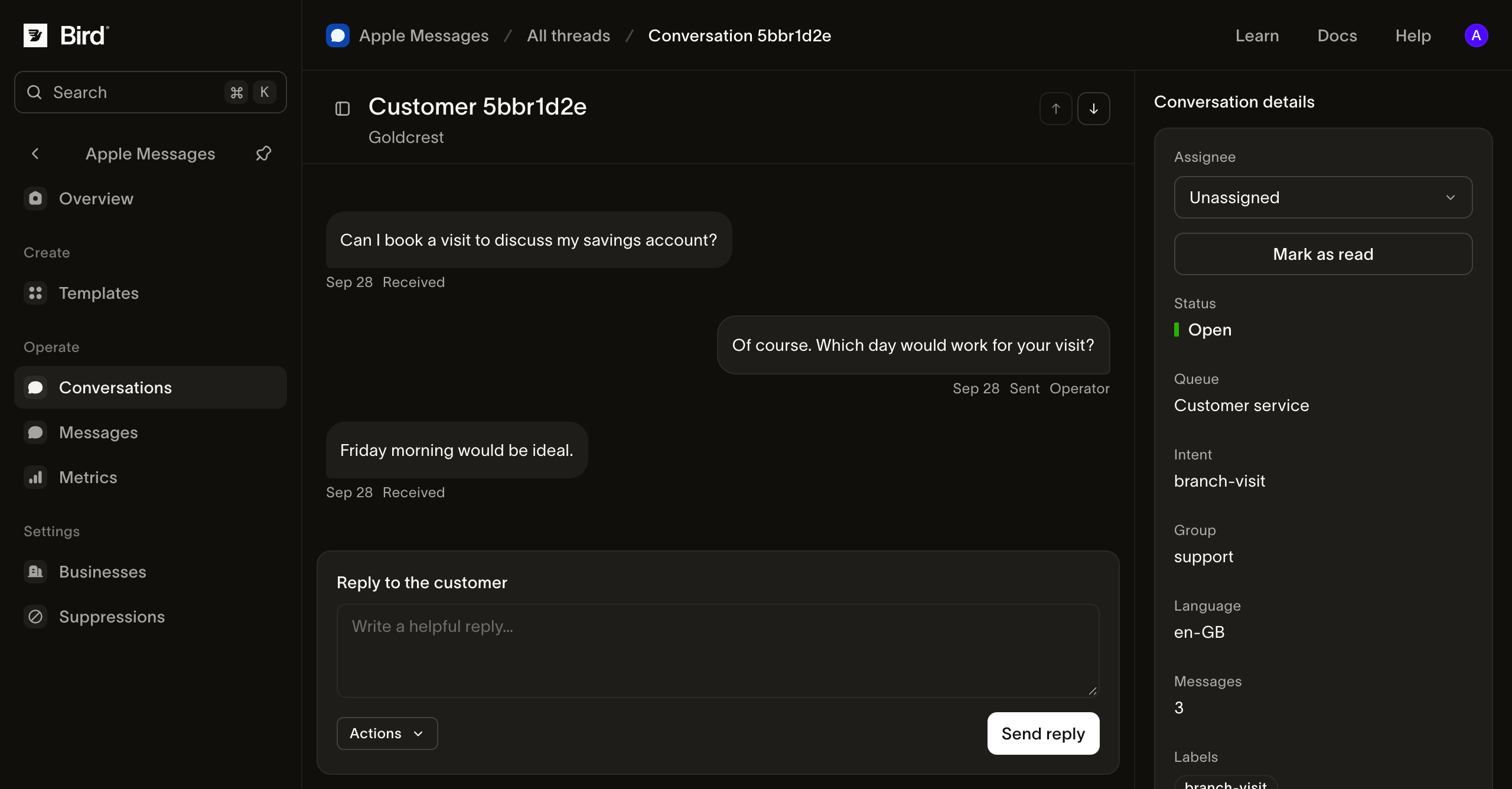
View the screenshot at full size.
Find the conversation
Filter the list by business, status, queue, assignment, or labels. Open a row to see its transcript beside the list. The header identifies the business; check it before replying when your workspace contains more than one.
Use Previous conversation and Next conversation to move within the filtered list page. Return to the full list to change your selection. In the transcript, Older messages and Newer messages load additional history.
An empty filtered list does not mean the workspace has no conversations. Clear filters before investigating a missing customer message.
Assign the work and add context
- Open Assignee and select Assign to me to take responsibility, or choose a workspace teammate.
- Use Unassign when returning work to the team. Tell the next operator what needs attention through your team's agreed handover process.
- Open Labels, select an existing label or add a meaningful one, then Save. Labels such as
store-visitandneeds-follow-updescribe work; they do not execute a workflow. - Use Mark as read after reviewing the conversation. This clears Bird's unread state; it does not create a customer-device read receipt.
A queue value describes the conversation's routing context. It does not establish that someone is assigned or available. Check Assignee explicitly.
Send a reply
Read the recent transcript and the customer's request before using Reply to the customer. Enter your response and select Send reply. Bird records acceptance and shows the message in the transcript.
For a native message, open Actions > Template, choose a saved draft, and follow template preparation and sending. The customer receives the prepared content; preview examples are not inserted automatically.
While you compose in the reply box, Bird sends typing signals to the customer. Outgoing replies also have a typing signal before the message. Verify the customer-visible behavior on an Apple device when preparing your Experience Review demo.
The conversation must be open. A business in Testing can reply in test conversations before approval. A Closed by customer conversation cannot receive an ordinary reply. The customer must start messaging again to reopen it; assigning it to someone else does not reopen it.
Read customer and device context
The details show status, queue, language, message count, labels, and available intent or group values. The customer is identified by Apple's opaque user ID. A phone number or an imported contact is not a replacement reply address.
Expand Device capabilities when checking an unavailable native interaction. Known capabilities can prevent preparation of an unsupported interaction. Not advertised means support is unknown; it does not prove that a device supports the content. Offer a text or accessible web alternative and verify complex interactions on a device.
Native choices and form answers appear in the transcript. Expand the sent message's options when you need to compare the answer with the original choices. A selected appointment or submitted form still needs the corresponding booking or case action in your business system.
Recover from a problem
- The reply control is unavailable: check Open status and your write permission. For a business in Testing, use a test conversation.
- A teammate is missing: check their workspace membership and refresh the assignment menu.
- A reply was accepted but the customer cannot see it: inspect the record in Messages before resending.
- A template is missing: use the browser and workspace where it was saved; template drafts are browser-local.
See troubleshooting for ordered checks and the information to provide to support.