Send your first WhatsApp message
Send a WhatsApp message to your own phone with Bird WhatsApp, then read the message back to confirm delivery. Business-initiated sends use a pre-approved template. This quickstart sends from Bird's managed template catalog (such as bird_delivery_update or bird_otp), which uses a shared Bird-managed WhatsApp sender. You do not need to connect a WhatsApp Business Account or register a number first.
Before you start, make sure your organization's wallet has funds. WhatsApp template sends draw on the wallet, and Bird refuses a send the balance cannot cover with 402 WalletInsufficientBalance. Payment methods and wallet covers topping up.
1. Create an API key
In the dashboard, go to Platform tools > API keys and create a key with the whatsapp:write scope, which covers sending and reading messages. Keys are scoped to a region and look like bk_us1_... or bk_eu1_.... The region in the prefix tells you which API host to call: https://us1.platform.bird.com or https://eu1.platform.bird.com.
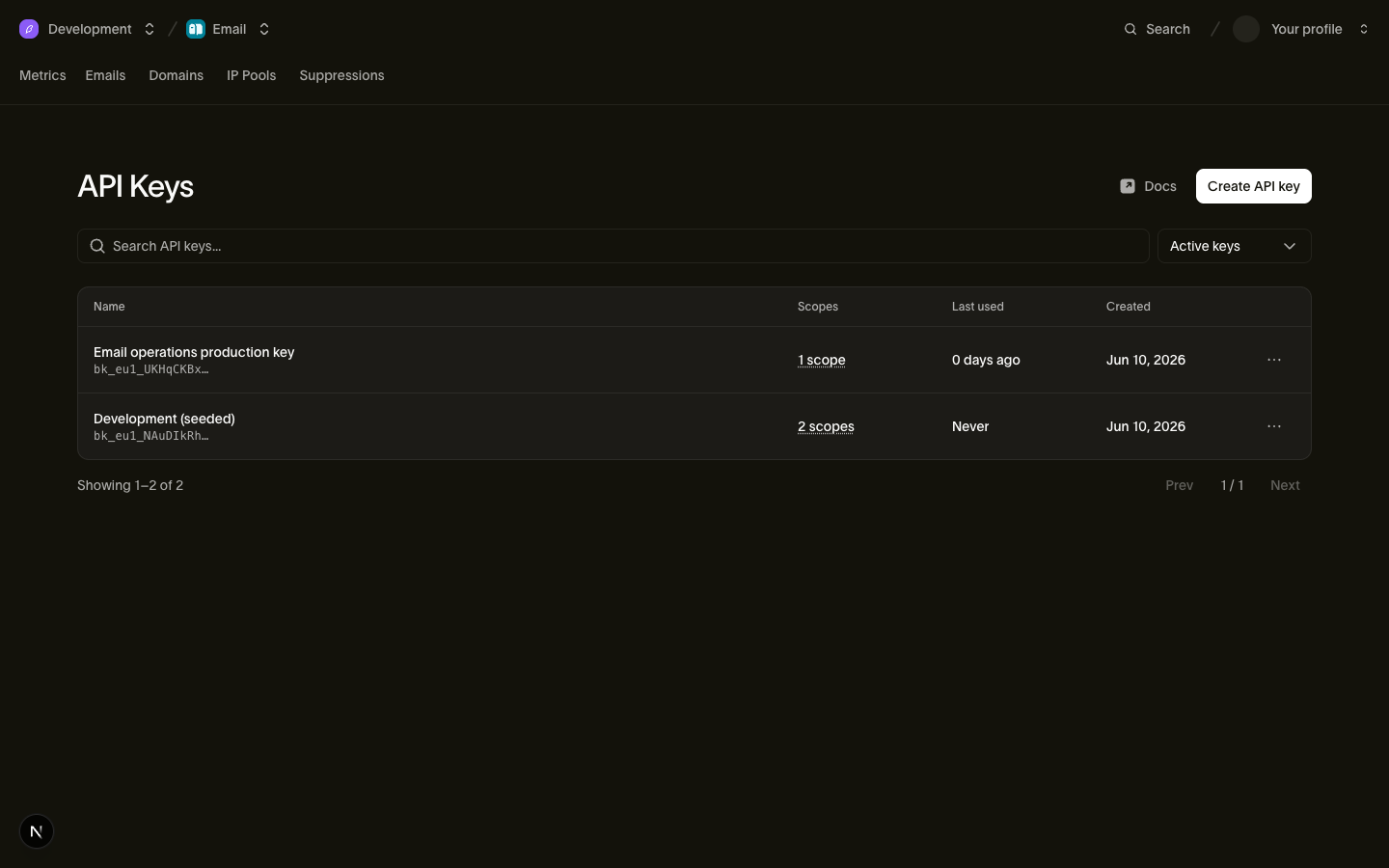
The full key is shown once, at creation time. Copy it somewhere safe, then export it for the cURL examples:
export BIRD_API_KEY="bk_us1_..."2. Send a template message
Send the pre-approved bird_delivery_update template from Bird's managed catalog to your phone, or use bird_otp to send a one-time passcode. Managed templates start with bird_ and send from a shared Bird number, so you omit from. Install the Bird SDK for your language by following its SDK quickstart. If you use the Bird CLI tab, install it (curl -fsSL https://cli.bird.com/install.sh | sh) and authenticate with write access first (bird auth login --scope whatsapp:write).
In the SDK tabs, replace the example API key, and replace +15551234567 with your mobile number in E.164 format. The CLI uses your login, and the cURL tab uses BIRD_API_KEY.
import { BirdClient } from "@messagebird/sdk";

const bird = new BirdClient({ apiKey: "bk_XXXXXXXXXXXXXXXXXXXXXXXX" });

const msg = await bird.whatsapp.send({
  to: "+15551234567",
  template: {
    slug: "bird_delivery_update",
    components: [
      {
        type: "body",
        parameters: [
          { type: "text", name: "ref", text: "A1B2C3D4" },
          { type: "text", name: "date", text: "10 Jul 2026" },
        ],
      },
    ],
  },
});

console.log(msg.id, msg.status);
from bird import APIError, Bird
with Bird(api_key="bk_XXXXXXXXXXXXXXXXXXXXXXXX") as client:
try:
message = client.whatsapp.send(
to="+15551234567",
template="bird_delivery_update",
components=[
{
"type": "body",
"parameters": [
{"type": "text", "name": "ref", "text": "A1B2C3D4"},
{"type": "text", "name": "date", "text": "10 Jul 2026"},
],
}
],
)
print(message.id, message.status)
except APIError as err:
print("send failed:", err)package main
import (
"context"
"fmt"
"log"
bird "github.com/messagebird/bird-sdk-go"
"github.com/messagebird/bird-sdk-go/option"
)
func main() {
client, err := bird.NewClient(option.WithAPIKey("bk_XXXXXXXXXXXXXXXXXXXXXXXX"))
if err != nil {
log.Fatal(err)
}
msg, err := client.Whatsapp.Send(context.Background(), bird.WhatsappSendParams{
To: "+15551234567",
Template: "bird_delivery_update",
Components: []bird.WhatsAppMessageTemplateComponent{{
Type: "body",
Parameters: &[]bird.WhatsAppMessageTemplateComponentParameter{
{Type: "text", Name: bird.String("ref"), Text: bird.String("A1B2C3D4")},
{Type: "text", Name: bird.String("date"), Text: bird.String("10 Jul 2026")},
},
}},
})
if err != nil {
log.Fatal(err)
}
fmt.Println(msg.Id, *msg.Status)
}<?php
declare(strict_types=1);
require __DIR__ . '/../vendor/autoload.php';
use MessageBird\Bird;
use MessageBird\Wire\Model\WhatsAppMessageTemplateComponent;
use MessageBird\Wire\Model\WhatsAppMessageTemplateComponentParameter;
$bird = new Bird('bk_XXXXXXXXXXXXXXXXXXXXXXXX');
$message = $bird->whatsapp->send(
to: '+15551234567',
template: 'bird_delivery_update',
components: [
(new WhatsAppMessageTemplateComponent())
->setType('body')
->setParameters([
(new WhatsAppMessageTemplateComponentParameter())->setType('text')->setName('ref')->setText('A1B2C3D4'),
(new WhatsAppMessageTemplateComponentParameter())->setType('text')->setName('date')->setText('10 Jul 2026'),
]),
],
);
echo $message->getId(), ' ', $message->getStatus(), "\n";bird whatsapp send \
--components '[{"parameters":[{"name":"ref","text":"A1B2C3D4","type":"text"},{"name":"date","text":"10 Jul 2026","type":"text"}],"type":"body"}]' \
--template bird_delivery_update \
--to +15551234567curl -X POST https://us1.platform.bird.com/v1/whatsapp/messages \
-H "Authorization: Bearer $BIRD_API_KEY" \
-H "Content-Type: application/json" \
-d '{
"to": "+15551234567",
"template": {
"slug": "bird_delivery_update",
"components": [
{
"type": "body",
"parameters": [
{ "type": "text", "name": "ref", "text": "A1B2C3D4" },
{ "type": "text", "name": "date", "text": "10 Jul 2026" }
]
}
]
}
}'If your key starts with bk_eu1_, call https://eu1.platform.bird.com instead.
The API responds with 202 Accepted and the created message. Its id starts with wam_, and its status is accepted: Bird has accepted the message and delivers it asynchronously. Keep the id for the next step.
3. Check the delivery status
Fetch the message by its wam_ ID. Replace WHATSAPP_MESSAGE_ID with the id from step 2, and replace the example API key in the SDK tabs with your own:
import { BirdClient } from "@messagebird/sdk";

const bird = new BirdClient({ apiKey: "bk_XXXXXXXXXXXXXXXXXXXXXXXX" });

const msg = await bird.whatsapp.get("WHATSAPP_MESSAGE_ID");

console.log(msg.id, msg.status);
from bird import APIError, Bird
with Bird(api_key="bk_XXXXXXXXXXXXXXXXXXXXXXXX") as client:
try:
message = client.whatsapp.get("WHATSAPP_MESSAGE_ID")
print(message.id, message.status)
except APIError as err:
print("read failed:", err)package main
import (
"context"
"fmt"
"log"
bird "github.com/messagebird/bird-sdk-go"
"github.com/messagebird/bird-sdk-go/option"
)
func main() {
client, err := bird.NewClient(option.WithAPIKey("bk_XXXXXXXXXXXXXXXXXXXXXXXX"))
if err != nil {
log.Fatal(err)
}
msg, err := client.Whatsapp.Get(context.Background(), "WHATSAPP_MESSAGE_ID")
if err != nil {
log.Fatal(err)
}
fmt.Println(msg.Id, *msg.Status)
}<?php
declare(strict_types=1);
require __DIR__ . '/../vendor/autoload.php';
use MessageBird\Bird;
$bird = new Bird('bk_XXXXXXXXXXXXXXXXXXXXXXXX');
$message = $bird->whatsapp->get('WHATSAPP_MESSAGE_ID');
echo $message->getId(), ' ', $message->getStatus(), "\n";bird whatsapp get WHATSAPP_MESSAGE_IDcurl https://us1.platform.bird.com/v1/whatsapp/messages/WHATSAPP_MESSAGE_ID \
-H "Authorization: Bearer $BIRD_API_KEY"The status field reports where the message is:
accepted: Bird admitted the message and is preparing to hand it to WhatsApp.sent: WhatsApp accepted the message, andsent_atrecords when.delivered: WhatsApp confirmed delivery to the recipient's device, anddelivered_atrecords when. When the recipient reads the message,read_atis set whilestatusstaysdelivered.failedorrejected: the message did not reach the phone.last_errorgives the reason, and Message status events lists the error codes.
Poll until the status leaves accepted and sent, or subscribe to WhatsApp webhooks to receive each delivery and read status change (whatsapp.sent, whatsapp.delivered, whatsapp.read, whatsapp.failed). Shared Bird-managed numbers are outbound-only and do not route inbound replies to your workspace; to receive replies, connect your own number. Every message also appears on the Messages page with its event timeline.
Fix a failed send
402WalletInsufficientBalance: the wallet cannot cover the message. Top up the wallet, then send again.403InsufficientScope: the API key lacks thewhatsappscope. Edit the key's scopes or create a key withwhatsapp:write.422WhatsAppInvalidRecipient: thetonumber is not a valid E.164 phone number. Check the leading+, country code, and subscriber digits.
Next steps
- Sending WhatsApp messages: send templates and free-form service messages inside the 24-hour customer service window.
- WhatsApp templates: browse the managed catalog (
bird_otp,bird_delivery_update, and others) or create your own templates. - Connect a phone number: bring your own WhatsApp Business Account and sender number so your workspace can also receive inbound replies.
- WhatsApp webhooks: receive delivery receipts and read receipts (plus inbound messages when using your own connected number).
- WhatsApp API reference: the full request and response schema.
Related resources
Continue with the documentation, guides and examples for this topic.