Authoring WhatsApp templates
Create a template on your connected WhatsApp Business Account to send messages in your own words. This overview covers drafts, languages, submission, and review. Choose a category for its authoring walkthrough:
- Authentication: verification codes with Meta's preset wording and a copy-code button.
- Utility: order updates, appointment reminders, and account notices.
- Marketing: promotional messages, carousels, and maximum pricing.
To browse and send an existing template, see WhatsApp templates.
Three things shape the whole flow:
- A template holds versions, and a version holds one entry per language. Each send uses an approved language from a version.
- Content is written to a draft. A template has at most one open draft, and nothing in it reaches WhatsApp until you submit it.
- Approval comes back per language. One language can be approved while another on the same version is rejected.
Before you start
You need a number of your own connected, which is what gives your workspace a WhatsApp Business Account to author on. An account you have not connected is refused, and so is editing one of Bird's built-in bird_ templates: those live on Bird's own account, so duplicate one onto yours instead.
Authoring an authentication template additionally needs a verified business; utility and marketing do not. See Authentication templates for that gate.
Author a template on the Approved templates page, with the bird CLI, or through the MCP server.
In the dashboard
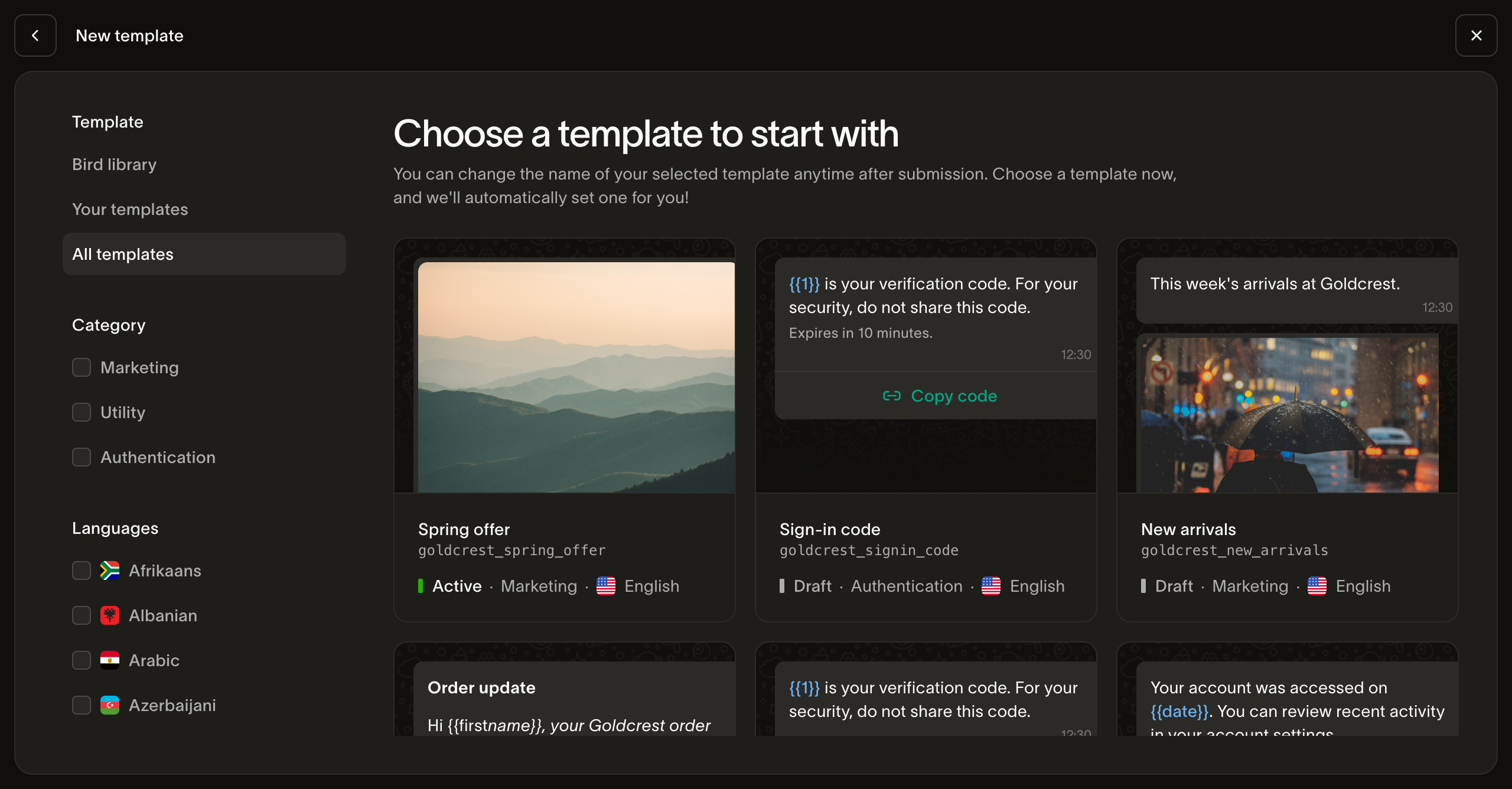
New template offers two ways in. Start with a template opens the gallery, the fastest route: pick one that already says nearly what you need, including one of Bird's, and the copy lands on your account as an open draft.
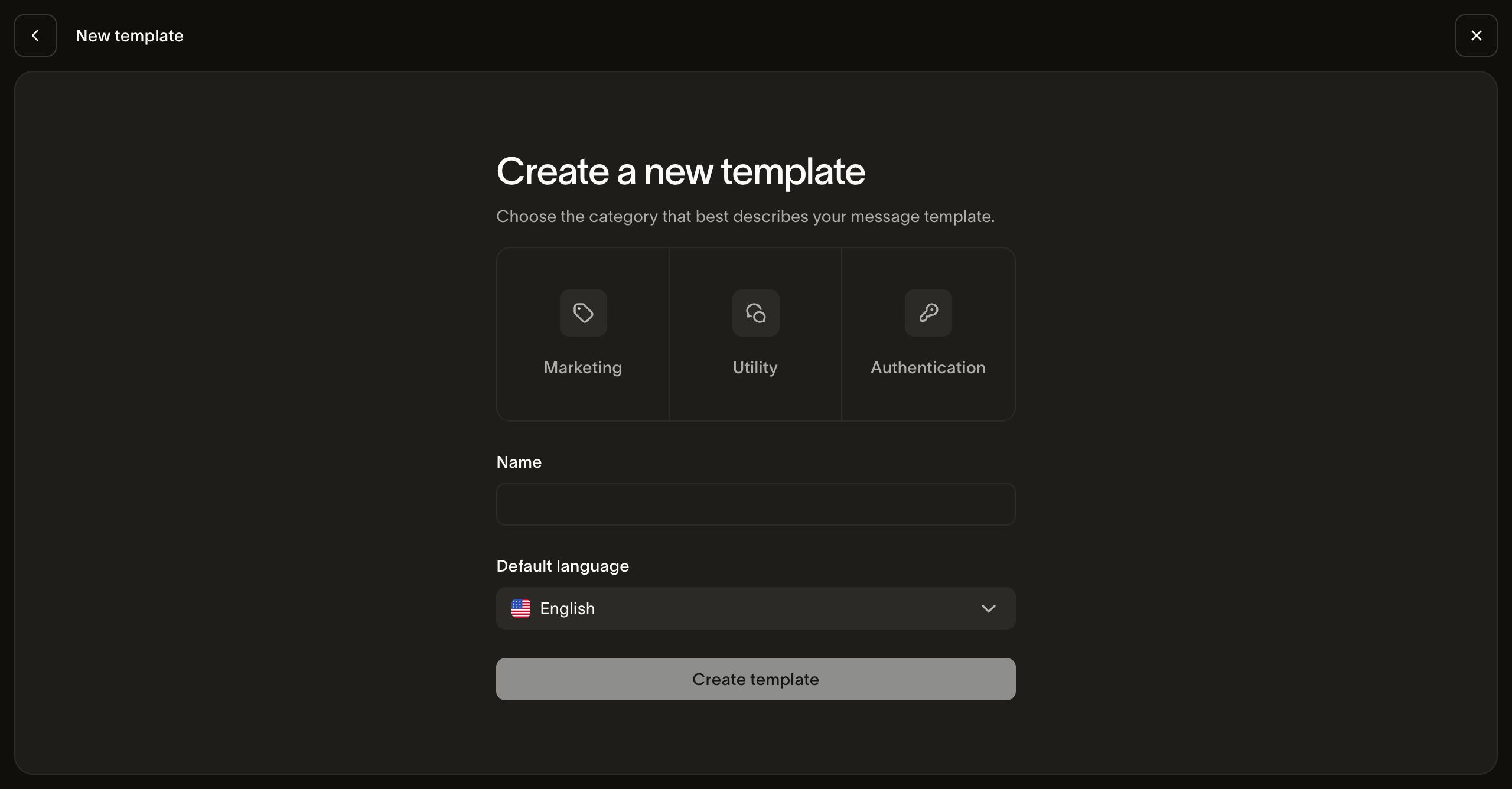
Start from scratch asks for the category, a name, and a default language before opening the editor. A marketing template also picks a message type. The name becomes the slug. You can change the slug in Settings until the first submission; the category is fixed when you create the template.
The editor writes one language at a time. Its language list shows each language's review state, and the phone preview renders your content with example values. Follow the authentication, utility, or marketing walkthrough for the controls available to your category.
Save as draft keeps your work without contacting WhatsApp. Submit for review freezes the version and sends it to WhatsApp.
Two ways to start
Duplicate an existing template
A duplicate carries the source's content as an open draft and calls WhatsApp zero times, so nothing is submitted until you choose to. Two things about a copy are worth knowing before you make one:
- The category is inherited and cannot be changed. If you need a different category, start from scratch instead.
- You can narrow the languages, never add to them. A catalog template stocking 70 languages does not have to become 70 languages of yours: pick the subset you will actually maintain. Asking for a language the source does not carry is refused with
E15060, and the response names which ones did not match. Add further languages to the copy afterwards.
Start from scratch
The category is fixed at creation; the slug is fixed after the first submission. Before submitting, you can correct the slug in Settings. WhatsApp derives its template name from the slug. To change the slug after submission or use a different category, create a new template. The bird_ prefix is reserved for Bird's catalog. The category you choose is not necessarily what a send is priced at: Meta applies its own category per language and can move one, and the price follows Meta's.
Writing each language
Every variable needs an example value. Meta reviews the message with those values filled in. Missing examples block submission. Supply each language's wording and samples yourself; Meta does not translate them. See Meta's template fundamentals.
For marketing languages, set a maximum price in the editor or with optimization_spec. The marketing guide covers price units, country overrides, estimates, and per-message multipliers.
Set how long WhatsApp retries a message. WhatsApp retries a message it cannot deliver for the language's time to live, then drops it. Choose a duration in Time to live, or select the default option: Default · 10 min for authentication, or Default · 30 days for utility and marketing. This limit starts after we hand the message to Meta. Through the API, set message_send_ttl_seconds in seconds, send null to return to the default, or leave the field out to keep the current value. The range depends on the category:
| Category | Range |
|---|---|
| Authentication | 30 seconds–15 minutes |
| Utility | 30 seconds–12 hours |
| Marketing | 12 hours–14 days |
A change to the time to live alone does not need a new review. On a marketing template, it applies while the business account is onboarded to Marketing Messages.
Check, then submit
Check each language's content and variable samples, then select Submit for review to submit the saved draft to Meta. Correct any validation errors before submitting.
Only languages whose content differs from their approved copy need content review. One that already matches carries its approval forward. Marketing price changes are applied separately. A submit where neither content nor pricing changed settles immediately with nothing to poll. No replacement draft opens afterwards: the next round of edits starts by creating a draft again.
Watching the review
Approval arrives later and per language. The template's pending_version_id stays set while any language is unresolved, and the per-language list carries each verdict:
approvedsends.available_languageson the template is exactly what a send can resolve right now.rejectedorsubmit_failedneed attention to the language's error before you retry. Correct content on a fresh draft when needed.pausedcannot send. Review the content and audience; Meta can resume a temporary pause. You can also edit and resubmit a paused language. See Meta's template pausing guide.disabled,limit_exceeded,in_appealcannot be edited. Check the language's error and follow the action Meta shows in WhatsApp Manager. If an appeal is pending, check its status for the decision.
The template's own status is an aggregate: active means at least one language is sendable, not all of them.
Sending what you authored
An authored template sends through the same endpoint as any other, with one difference from Bird's catalog: you must name from, and it has to be a number on the same WhatsApp Business Account as the template. A sender on a different account is refused 422 E15023 before anything is charged.
A template can require a recipient language through language_source_required. Otherwise, on_missing_language controls whether resolution fails or can use an approved base language or default_language. Test the configured policy against the template’s approved available_languages; an unapproved default is not sendable. The values you supply have to fill the placeholders of whichever language actually resolves, so read that language's content before sending. See Sending WhatsApp messages for the full payload.
Things to watch
- Check the live version before sending. A version list is newest-first and includes any open draft, so the top row is often a draft or a version still under review. The template names the version in service as
live_version_id; a template with no live version cannot be sent at all. - A language under review refuses a write. WhatsApp holds it until the review finishes, so an edit during
pendingfails rather than queueing. - A list row carries no content. Listing templates finds them and shows lifecycle state; reading what one actually says takes a version read.
- Deleting is unrecoverable. Discarding a language, deleting a draft, and deleting a template all take an explicit confirmation, and deleting a template stops every send by that slug.
Next steps
- WhatsApp templates: the catalog, categories, and the shared send-by-template contract
- Template guidelines: what Meta's review looks for
- Sending WhatsApp messages: the full send payload
- Template API: creating templates programmatically
- Building and submitting a WhatsApp template: a video that authors a utility template and a marketing carousel
Related resources
Continue with the documentation, guides and examples for this topic.