10DLC registration
US carriers only deliver business text messages from a local number (a 10-digit long code, or 10DLC) after the business behind it is registered with The Campaign Registry (TCR). You register in the Bird dashboard, and we submit your registration to TCR and track it for you. Open SMS > 10DLC to get started.
You pay a brand registration fee and a campaign vetting fee each time you submit a brand or campaign, including resubmissions. Each campaign also has a subscription, priced per month and billed every three months. See 10DLC fees for current prices. The dashboard also shows the exact amount before you pay.
How registration works
You register three things, in this order:
- Brand: your business. You register it once, and TCR checks your company details against government records.
- Campaign: what you send and why, such as account notifications or customer support replies. You can register several campaigns under one brand.
- Number: each US long code you send from. You link it to a campaign, which can be pending or approved. The number starts sending once the campaign is approved. A campaign can have up to 49 numbers.
You can't send to US recipients from a long code until all three steps are done.
Before you start
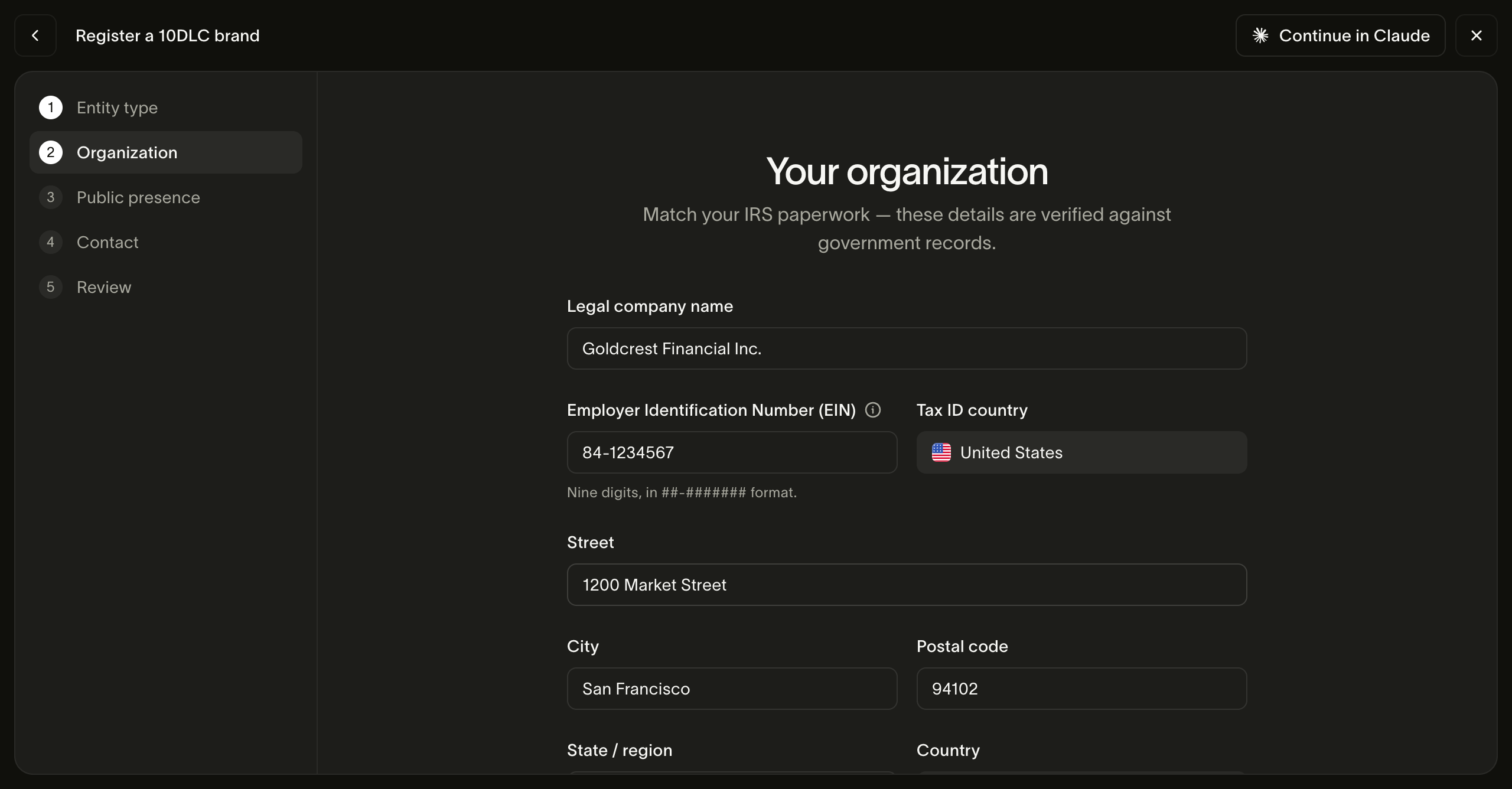
Have these details ready. TCR checks the legal name and tax ID against government records, and a mismatch between them is the most common reason a brand gets rejected. Copy them exactly from your official paperwork. For a US business, that's your IRS CP 575 or 147C letter.
For every brand:
- Legal company name
- Tax ID and the country that issued it: an Employer Identification Number (EIN) in
##-#######format for a US business, or a 9-digit Business Number (BN9) for a Canadian business - Registered address: street, city, state or province, postal code, and country (US addresses need a two-letter state code and a ZIP code)
- Brand name: the name your customers know you by, if it differs from your legal name
- A live website that describes what your business does
- Industry (vertical)
- Support email address and support phone number
For a public company, also:
- Stock symbol and stock exchange
- A business contact email
- Auth+ vetting, which has to pass before you can create a campaign
Private companies, non-profits, and government entities need only the details in the first list. You can't register a sole proprietor brand in the dashboard.
A DUNS number or LEI is optional. Adding one can raise your trust score, which sets how many messages a day carriers let you send.
Register your brand
-
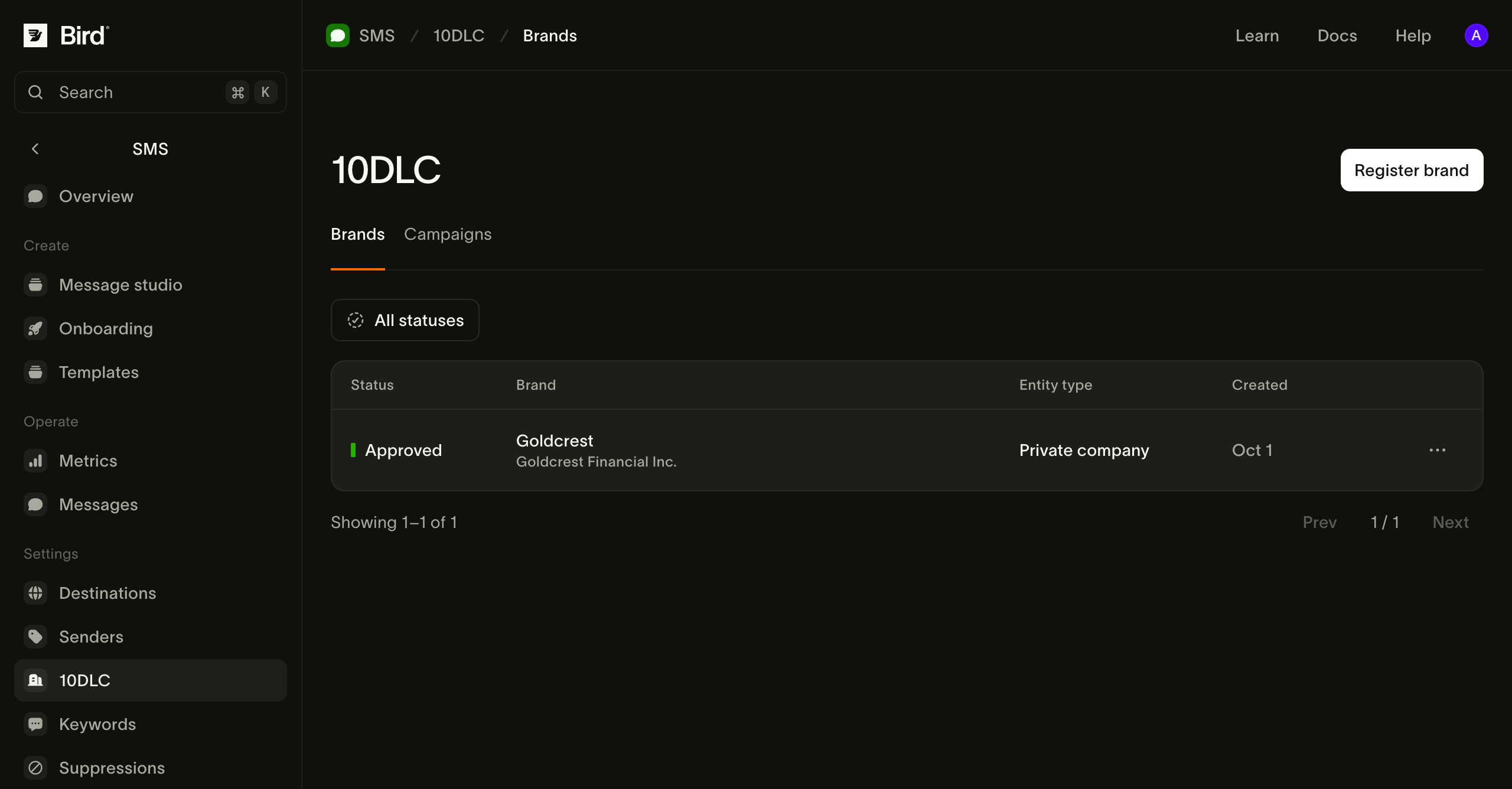
Open SMS > 10DLC and choose Register brand.
-
Pick your entity type: Private company, Public company, Non-profit, or Government.
-
Under Your organization, enter your legal name, tax ID, tax ID country, and registered address exactly as they appear on your official records.
-
Under Your public presence, enter your brand name, website, and industry. TCR visits your website, so make sure it's live.
-
Under Contact, enter the support email and phone number that recipients and carriers can use to reach you.
-
Check everything on the Review step, then choose Register brand. The payment dialog shows the fee before you confirm.
Your brand shows as Pending while TCR reviews it, and changes to Approved once it passes. You can create a campaign after that.
If you're registering a public company, turn on Request Auth+ vetting automatically in the organization step. We request Auth+ as soon as your brand is approved, so you don't have to come back and do it yourself.
Create a campaign
A campaign tells carriers what kind of messages you send. Pick its use case carefully: you can't change it after you register. If your messages change, create a new campaign.
-
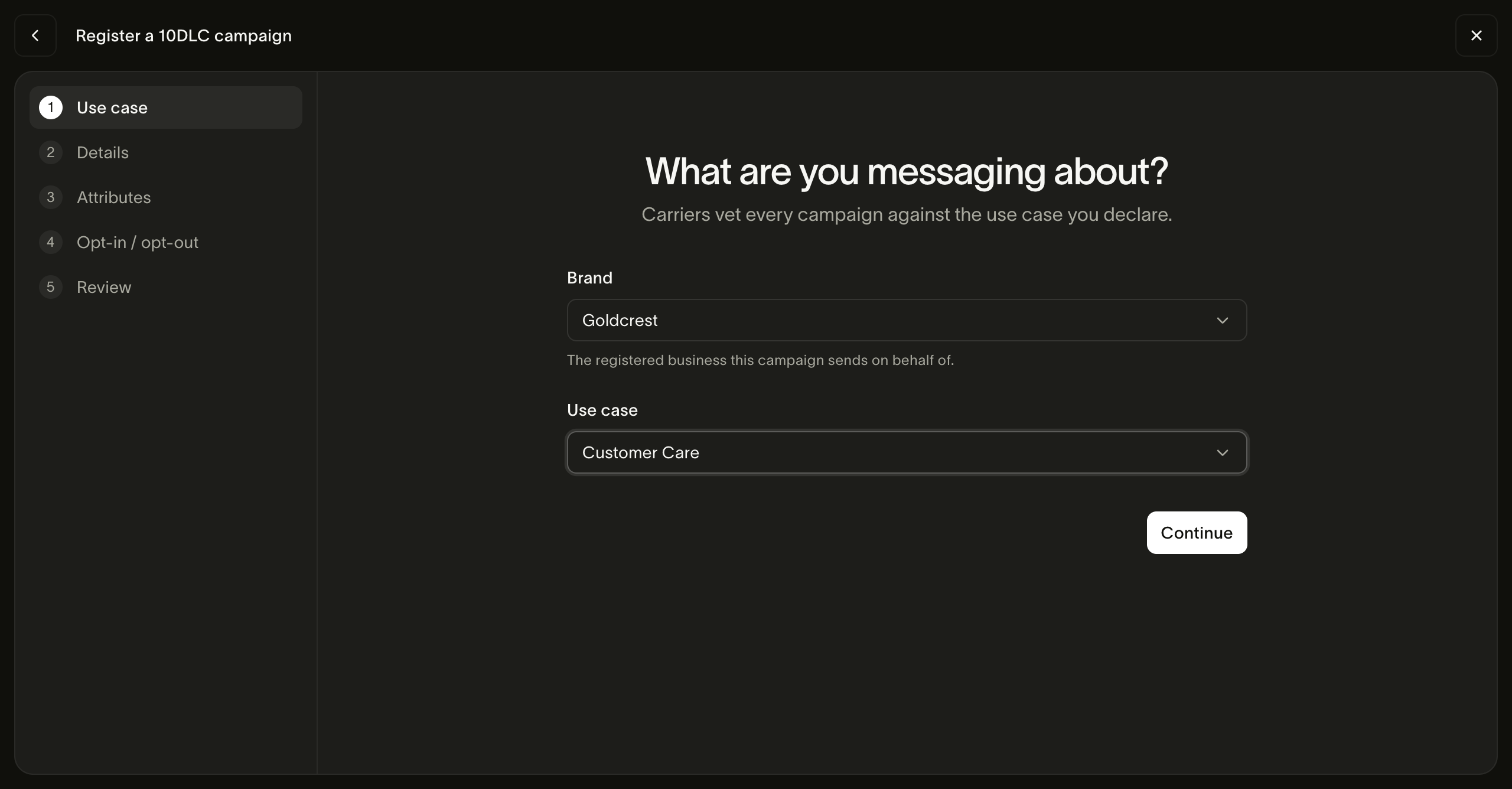
In SMS > 10DLC, open the Campaigns tab and choose Create campaign.
-
Pick the brand and the use case that best matches your messages, for example Two Factor Authentication, Account Notification, Customer Care, or Marketing.
-
Under Campaign details, describe the campaign and how people sign up to receive your messages, and add sample messages.
-
Under What's in your messages?, tick what applies: links, phone numbers, age-gated content, or direct lending.
-
Under Opt-in, opt-out and help, enter the replies people get when they sign up, text
STOP, or textHELP.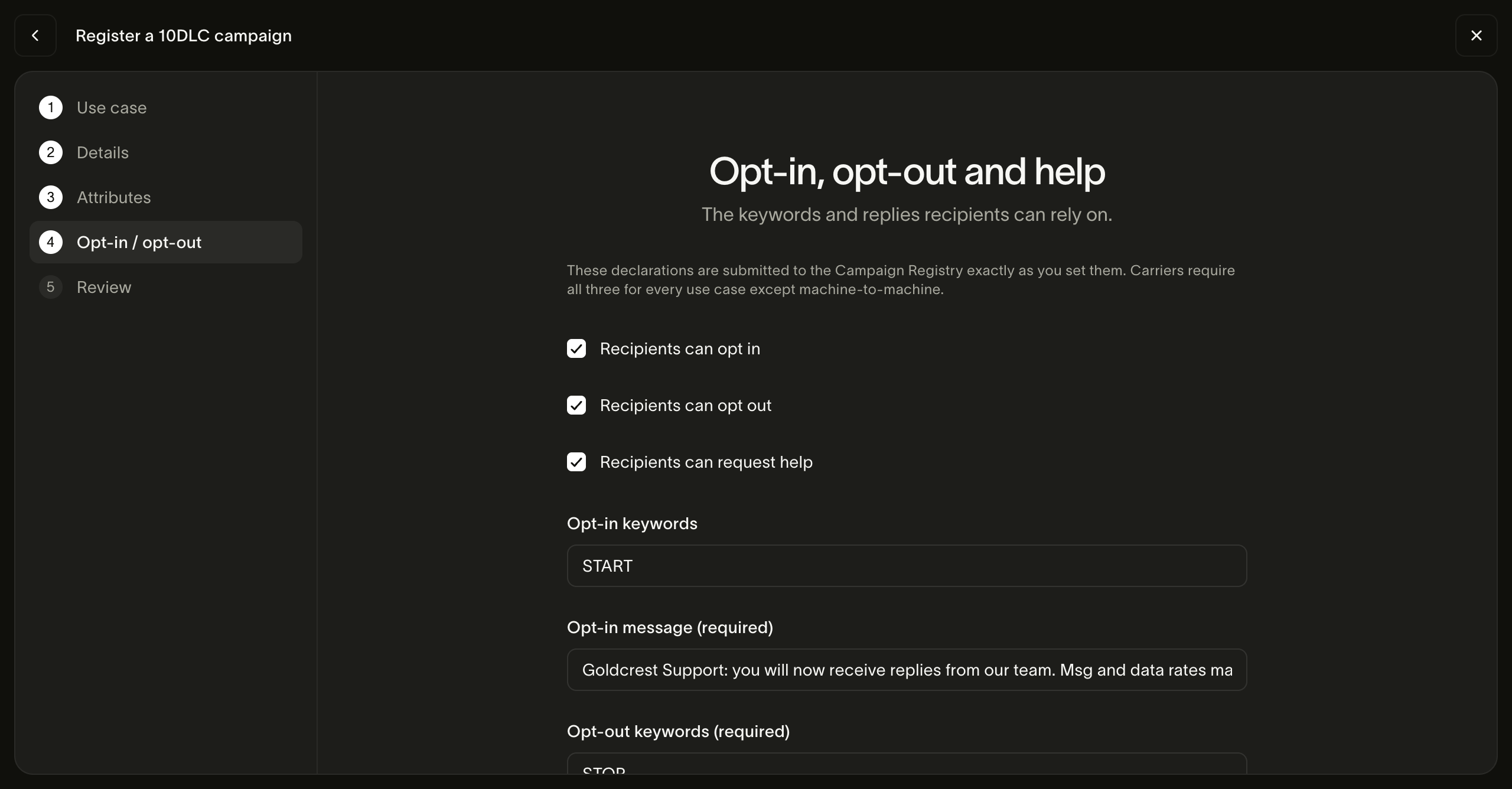
-
Check the Review step, then choose Create campaign. The payment dialog shows the campaign vetting fee and the campaign subscription before you confirm.
Carriers reject campaigns that are vague or that don't match the messages you actually send. To give yours the best chance:
- Write a description and a message flow of at least 40 characters each. The message flow should say exactly where and how people agree to receive messages, such as a checkbox on your sign-up form.
- Add one to five sample messages that look like the real thing, with your brand name in them. Marketing, mixed, charity, political, and a few other use cases need at least two.
- Support
STOPandHELPkeywords with a reply for each. Every use case needs these except machine-to-machine (M2M). - Don't use public link shorteners such as bit.ly in your messages. Carriers block them.
You can also upload supporting documents, such as a screenshot of your opt-in form or a PDF of your terms. The form accepts up to five PNG, JPEG, or PDF files of 10 MB or less. Attachments are optional.
Link your numbers
Once you've created a campaign, link the US long codes you want to send from.
- Open SMS > Senders and select the number.
- In the 10DLC registration section, choose Link to campaign.
- Pick the campaign and choose Link.
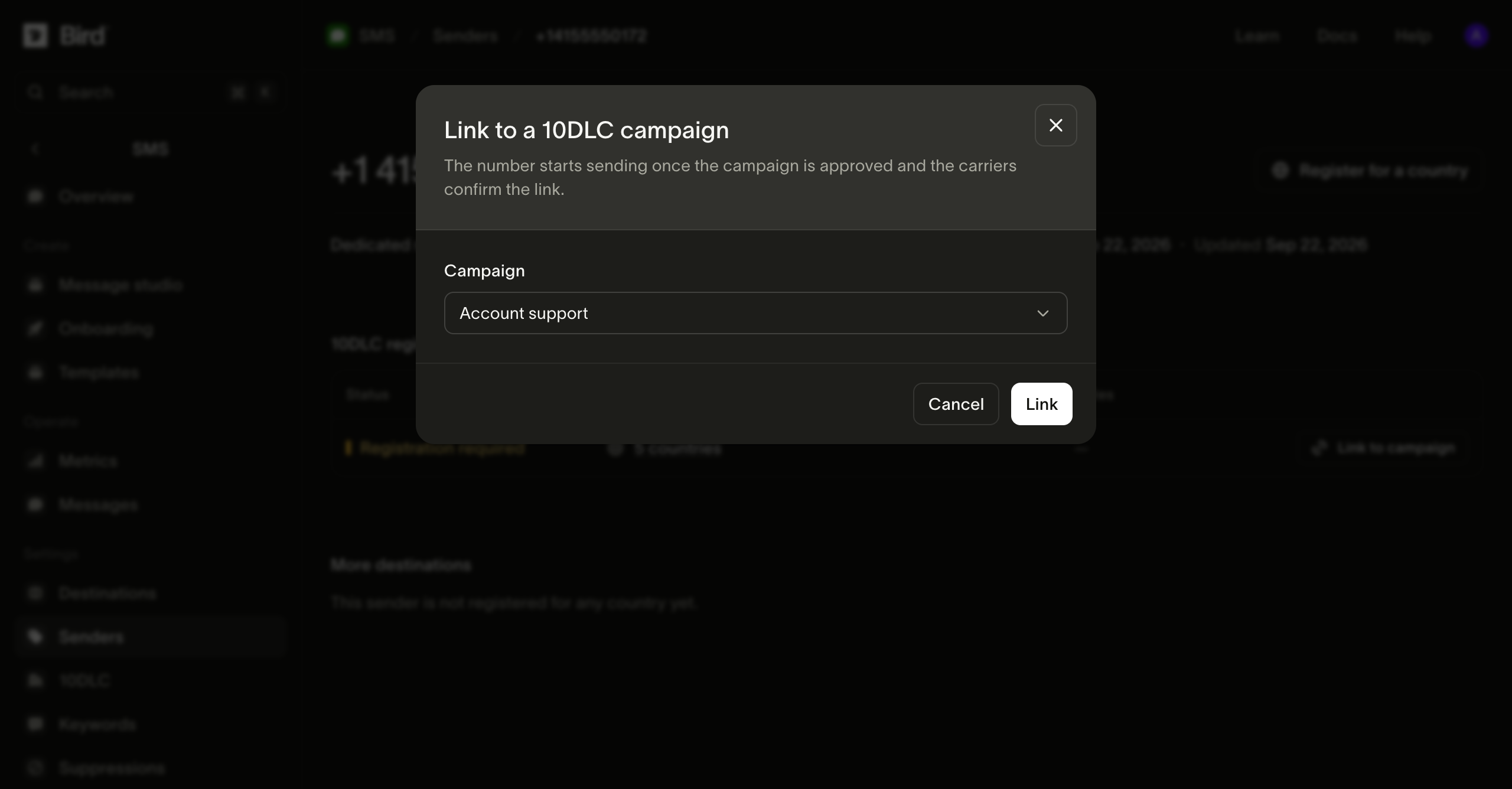
The number starts sending once the campaign is approved and the carriers confirm the link. Linking a number is free. If you unlink a number, it stops sending to US recipients right away.
Before you send, also turn on the United States as a destination. See Sending SMS.
If your registration is rejected
Open the brand or campaign to see why TCR rejected it. Each reason lists the fields involved. Fix them, then choose Resubmit. The form opens with your previous answers filled in. Each resubmission is a new attempt and is charged again.
For a campaign, you can't change the brand or use case when you resubmit. Create a new campaign to change those.
If your brand stays unverified even though its legal name, tax ID, and entity details match your official records, contact Bird support before you resubmit the same details. Include the brand ID and the rejection reason. Keep your official tax ID paperwork ready, such as an IRS CP 575 or 147C letter, and wait for support to tell you whether to send it and how.
Edit an approved brand
To update your brand after it's approved, open it and choose Edit details. Your brand stays approved and keeps sending while TCR reviews the changes. Editing is free.
You can't change the entity type, legal name, tax ID, stock symbol, stock exchange, or business contact email after approval. To change any of these, register a new brand.
Vetting
Vetting is an extra review by a third party. A higher vetting score can raise the number of messages carriers let you send each day. To request it, open an approved brand and choose Request vetting. Each vetting type has a one-off fee, shown before you pay.
Public companies need Auth+ vetting before they can create any campaign. If you didn't turn on the automatic request when you registered, request Auth+ from the brand and wait for it to finish.
Next steps
- Sending SMS: send messages and enable destination countries
- SMS senders: the numbers and sender IDs you send from
- 10DLC fees: brand, campaign, and vetting prices
Related resources
Continue with the documentation, guides and examples for this topic.