10DLC registration
US carriers deliver business text messages from a local number (a 10-digit long code, or 10DLC) only after the business and its use case are registered with The Campaign Registry (TCR). You fill in the registration in the Bird dashboard, and we submit it to TCR and track the outcome. To start, open SMS > 10DLC.
What is A2P 10DLC registration? explains why the program exists. To register from a terminal or through an agent, see Register from the CLI or an agent.
How registration works
You register three records, in this order:
| Record | What it describes | Who reviews it | Changes after approval |
|---|---|---|---|
| Brand | Your business: legal name, tax ID, address, and website | TCR, against government records | Some fields; see Change a registered brand or campaign |
| Campaign | One kind of message you send, such as account notifications, and how people opt in | TCR and the carriers | None. Create a new campaign instead. |
| Number | A US long code you send from, linked to one campaign | The carriers confirm each linked number | Unlink it and link it to another campaign |
One brand can have several campaigns. You can link a number while its campaign is still pending, but the number can't send to US recipients until the campaign is approved and the carriers confirm the number.
What registration costs
The payment dialog shows the exact amount before you confirm each charge. Current prices are on 10DLC fees.
| Charge | When you pay it |
|---|---|
| Brand registration fee | Each time you submit a brand, including each resubmission |
| Campaign vetting fee | Each time you submit a campaign, including each resubmission. It isn't refunded if the campaign is rejected. |
| Campaign subscription | The price is stated per month. Billing starts when you submit the campaign, before approval, and runs until you delete it. |
| Brand vetting fee | Once per vetting order, priced by vetting type |
Linking a number to a campaign and editing an approved brand are free.
Before you start
Verify your identity
Your organization needs identity verification in Identity Center before it can register or resubmit a brand. This is our check on who you are, and it comes before TCR reviews the brand.
Until verification is complete, Register brand and Resubmit open Verify your identity first instead of the form, with the steps still to do. If it says Your organization is under review or Not available for your organization, contact support.
Sign in with an email address at your website's domain
The brand's Contact email is the address you sign in to Bird with, and the form doesn't let you change it. That address must be on your website's main domain:
| Website | Sign-in email | Accepted |
|---|---|---|
acme.com | you@acme.com | Yes |
shop.acme.com | you@acme.com | Yes, acme.com is the main domain |
acme.com | you@mail.acme.com | No, the address is on a subdomain |
acme.com | you@gmail.com | No, free email providers aren't accepted |
If your sign-in address doesn't match, a teammate who signs in with an address at your website's domain can register the brand instead.
Gather your business details
TCR checks your legal name and tax ID against government records. A mismatch is the most common reason a brand is rejected, so copy both exactly from your official paperwork. For a US business, that's your IRS CP 575 or 147C letter.
Every brand needs these details:
| Field | What to enter |
|---|---|
| Legal company name | The name on your tax records, exactly as written there |
| Tax ID | For a US business, the nine-digit Employer Identification Number (EIN), such as 12-3456789. For a Canadian business, the first nine digits of your Business Number (BN9). |
| Tax ID country | The country that issued the tax ID |
| Address | Your registered street, city, postal code, state or region, and country. A US address needs a two-letter state code and a ZIP code. US territories can't be registered. |
| Brand name | The name your customers know you by |
| Website | A live website, starting with http:// or https://, that describes what your business does |
| Vertical | Your industry |
| Support phone | A phone number that recipients and carriers can call to reach you |
A public company also needs its Stock symbol, Stock exchange, and a Business contact email. It must also pass Auth+ vetting before it can create a campaign; see Request vetting.
You can also enter an Alternative business ID (optional): a DUNS number, GIIN, or LEI.
You can register a private company, public company, non-profit, or government entity. Sole proprietor brands can't be registered.
Register your brand
-
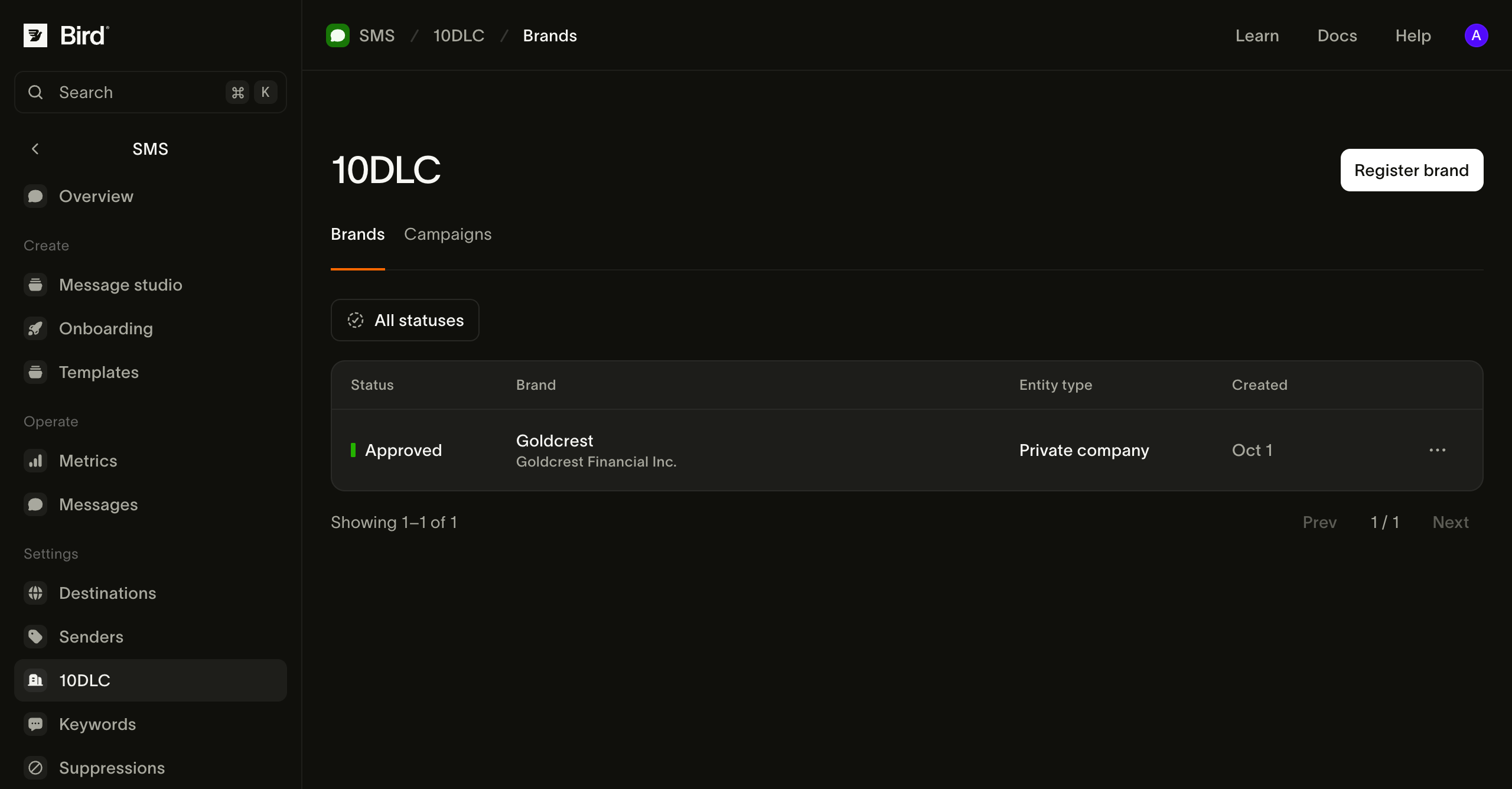
Open SMS > 10DLC and choose Register brand.
-
Under What kind of organization are you?, choose Private company, Public company, Non-profit, or Government.
-
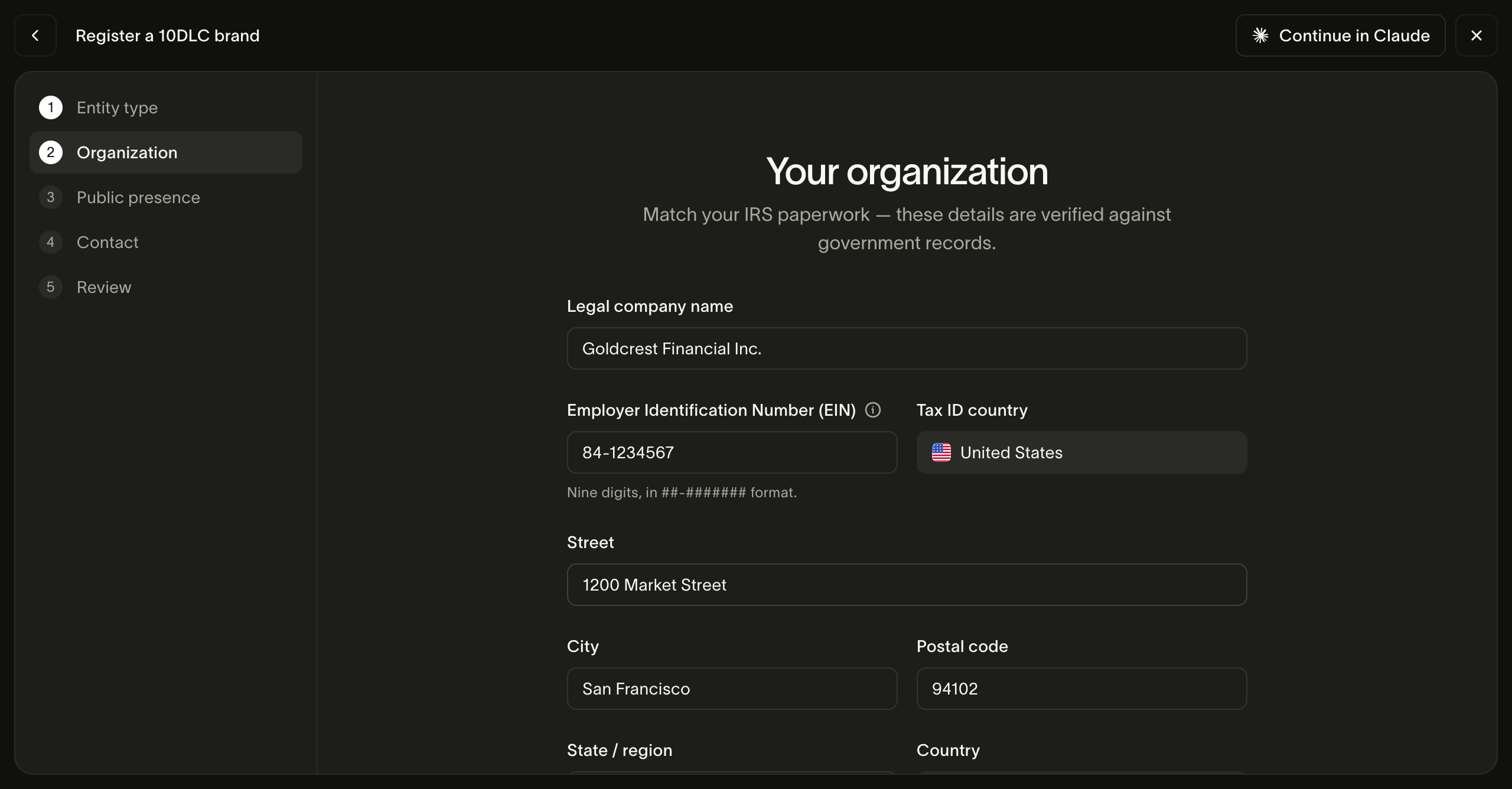
Under Your organization, enter your legal name, tax ID, tax ID country, and address exactly as they appear on your tax records. For a public company, also enter the stock details and business contact email, and turn on Request Auth+ vetting automatically. We then order Auth+ as soon as TCR approves the brand.
-
Under Your public presence, enter your brand name, website, and vertical.
-
Under Contact, enter your support phone. The contact email is already filled in with your sign-in address.
-
On Review registration, check your answers and any issues the automatic check lists, then choose Register brand.
-
Confirm the brand registration fee in the payment dialog.
The brand appears on the Brands tab as Pending.
Brand statuses
| Status | Meaning | What to do |
|---|---|---|
| Pending | TCR is reviewing the brand | Wait for the result. You can't create a campaign under a pending brand. |
| Approved | TCR verified the brand | Create a campaign. A public company needs active Auth+ vetting first. |
| Rejected | TCR couldn't verify the brand | Open the brand to read why, then resubmit. See Fix a rejected brand or campaign. |
Create a campaign
A campaign tells carriers what one kind of traffic contains, and how the people who get it agreed to receive it. You need an approved brand first.
-
In SMS > 10DLC, open the Campaigns tab and choose Create campaign.
-
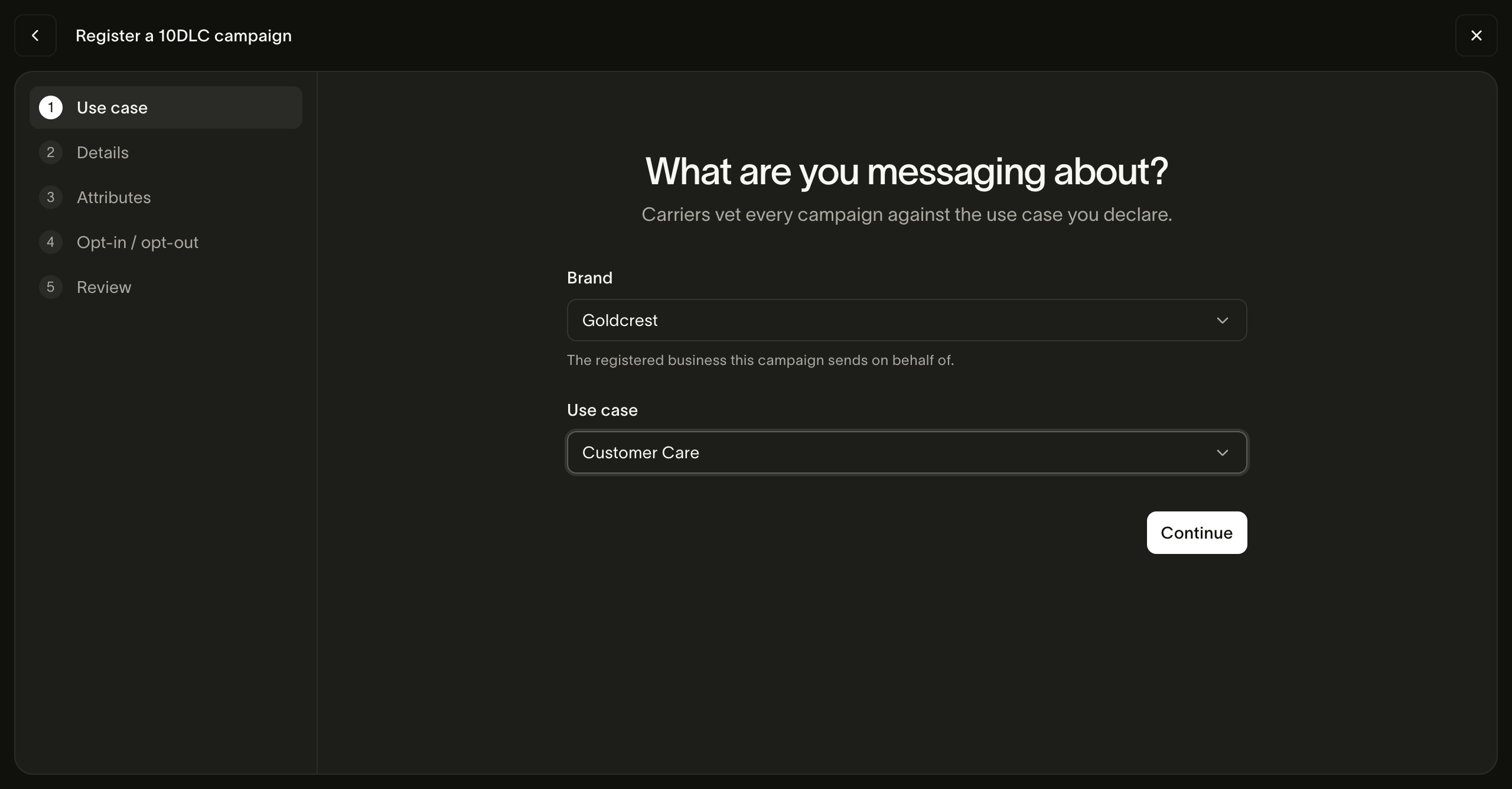
Under What are you messaging about?, choose the brand and the use case. You can't change the use case later; see Choose a use case.
-
Under Campaign details, enter a name, a description, and the message flow, choose where recipients opt in, and add sample messages. If recipients opt in somewhere reviewers can't open, attach a screenshot or photo that shows how they opt in.
-
Under What's in your messages?, select each option that applies: links, phone numbers, age-gated content, or direct lending.
-
Under Opt-in, opt-out and help, enter the keywords and the reply people get when they opt in, text
STOP, or textHELP.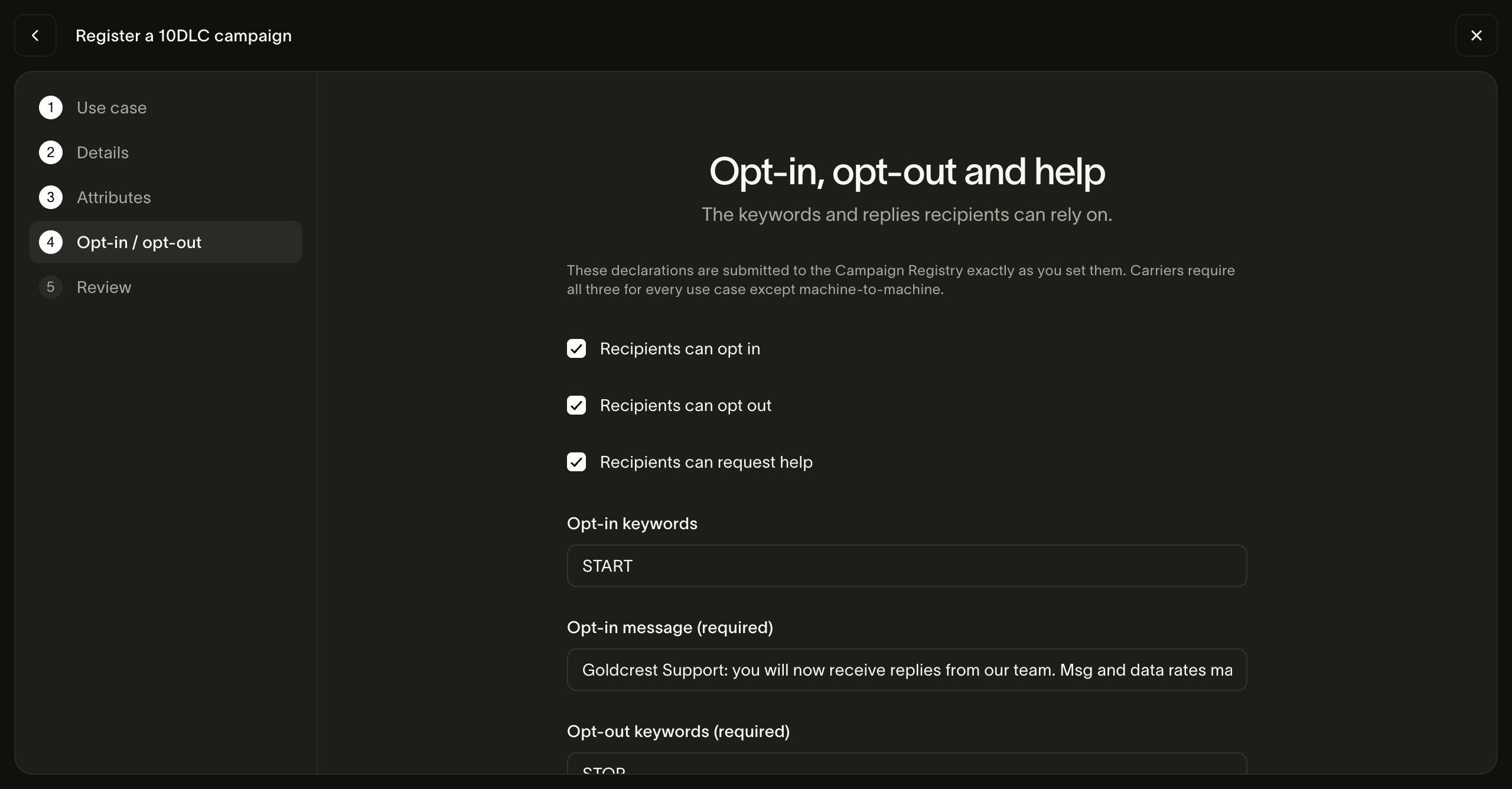
-
On Review campaign, wait for the automatic check to finish. Each error or warning it lists describes the problem, and Fix takes you to the field. Then choose Create campaign.
-
Confirm the campaign vetting fee and the campaign subscription in the payment dialog.
If errors are still listed when you submit, the dashboard asks you to confirm with Submit anyway. Every submission is charged, so fix the errors first.
The campaign appears on the Campaigns tab as Pending.
Choose a use case
The use case tells carriers what kind of messages the campaign sends, such as Two Factor Authentication, Account Notification, Customer Care, or Marketing. Choose the one that matches your real messages. You can't change it after you create the campaign, so if your messages change, create a new campaign.
Some use cases have extra requirements:
- Mixed and Low Volume need two to five sub-use-cases.
- Political needs a non-profit brand.
- M2M (machine-to-machine) doesn't need opt-in, opt-out, or help support.
Write a campaign carriers approve
Carriers reject campaigns that are vague or that don't match the messages you send. To give a campaign the best chance of approval:
- Write a description and a message flow of at least 40 characters each. The message flow says where and how people agree to receive your messages, such as a checkbox on your sign-up form.
- Add one to five sample messages that look like the real thing, each 20 to 1,024 characters long. K12 Education, Marketing, Mixed, Agents Franchises, Charity, Political, Proxy, and Sweepstake need at least two.
- Support opt-in, opt-out, and help, with a reply for each. The opt-out keywords must include
STOP, and the help keywords must includeHELP. - Leave public link shorteners such as bit.ly out of your messages. Carriers don't allow them.
- If people opt in somewhere reviewers can't open, such as in an app, behind a login, in person, by phone, or by text, attach a screenshot or photo that shows how they opt in. For an opt-in on a public web page, attachments are optional, but you can add a screenshot of the form or a PDF of your terms. You can attach up to five PNG, JPEG, or PDF files of 10 MB or less each.
Campaign statuses
| Status | Meaning | What to do |
|---|---|---|
| Pending | TCR and the carriers are reviewing the campaign | Link your numbers now. They start sending after approval. |
| Approved | The campaign can carry traffic | Link any numbers you haven't linked yet. |
| Rejected | The campaign failed review | Open the campaign to read why, then resubmit. See Fix a rejected brand or campaign. |
| Expired | The campaign's registration lapsed, and its numbers stopped sending | Create a new campaign and link the numbers to it. An expired campaign can't be resubmitted. |
| Suspended | A carrier suspended the campaign, and its numbers stopped sending | The numbers start sending again if the campaign is reinstated. A suspended campaign can't be resubmitted. |
Link your numbers
Link each US long code you send from to a campaign. The campaign can be Pending or Approved.
- Open SMS > Senders and select the number.
- In the 10DLC registration section, choose Link to campaign.
- Choose the campaign, then choose Link.
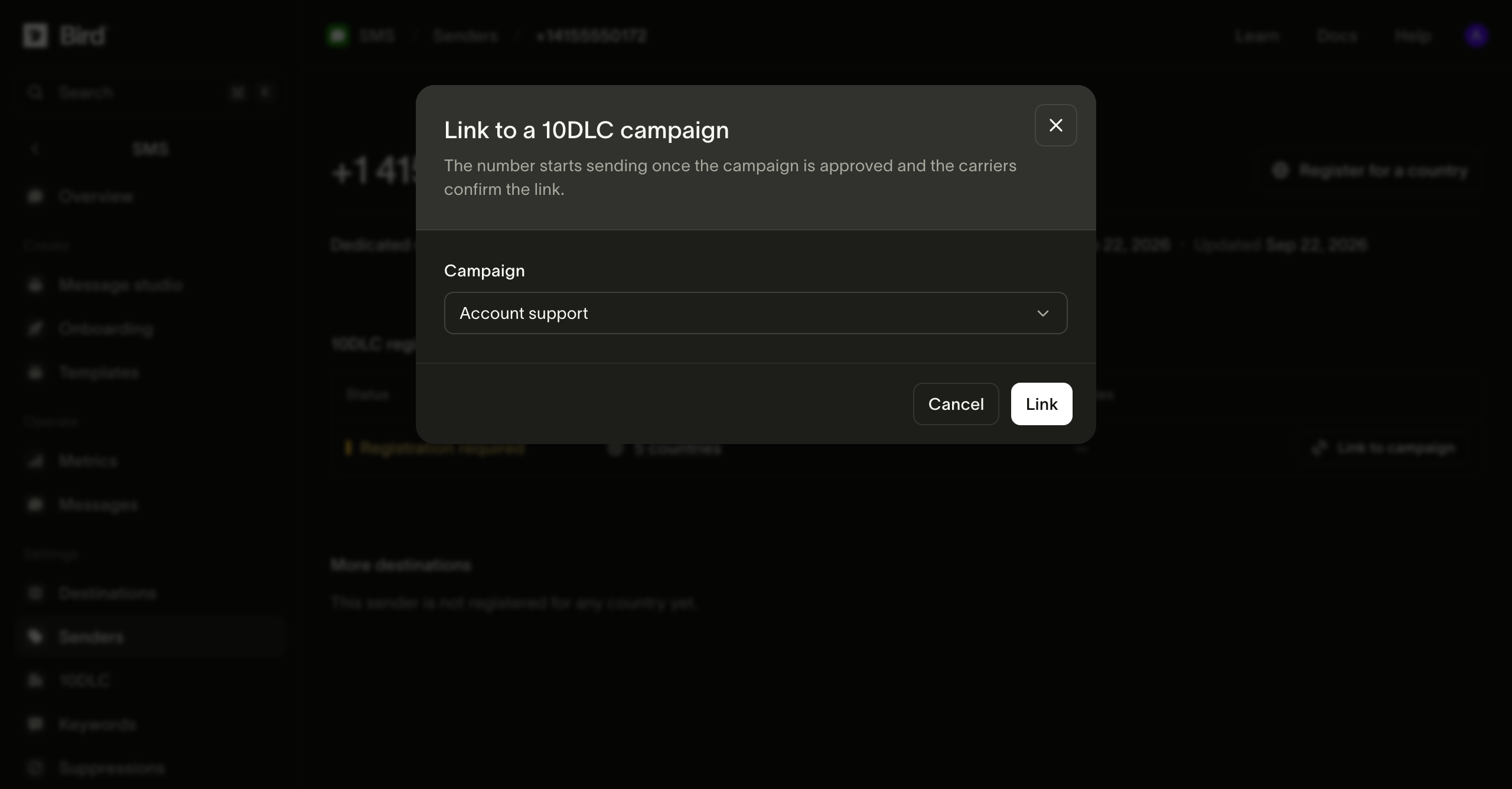
A number belongs to one campaign at a time, and a campaign holds up to 49 numbers. Pending and failed links count toward the 49 until you unlink them, so create a second campaign for more numbers.
The campaign's SMS senders table shows each link's status:
| Status | Meaning |
|---|---|
| Pending | Waiting for the campaign's approval or the carriers' confirmation. The number can't send to US recipients yet, and Senders shows it as Carrier pending. |
| Active | The carriers confirmed the number. It can send to US recipients under this campaign. |
| Failed | The carriers didn't accept the number for this campaign. Unlink it and try again, or link it to a different campaign. |
| Unlinked | The number was removed from the campaign and can be linked to another one. |
To unlink a number, choose Unlink in its 10DLC registration section and confirm with Yes, unlink. The number stops sending to US recipients right away.
Before you send, also turn on the United States as a destination country. See Sending SMS.
Request vetting
Vetting is an extra review of an approved brand by a third-party provider. Two vetting types are available:
- Auth+ is required for a public company before it can create any campaign. The provider emails the business contact email on the brand, and the vetting stays pending until that person confirms. It usually takes a few business days.
- Standard returns a score that can raise your carrier throughput, the volume of messages carriers accept from you.
To order vetting:
- Open an approved brand and choose Request vetting.
- Choose the Vetting type, then choose Continue.
- Confirm the vetting fee in the payment dialog.
Each order appears on the brand as its own tab, such as Standard vetting, with a timeline and a Score. A vetting that ends Failed or Expired needs a new order.
If you turned on Request Auth+ vetting automatically when you registered, the Auth+ order appears once TCR approves the brand. Its fee is charged when we place the order.
Fix a rejected brand or campaign
Open the rejected brand or campaign to see why TCR rejected it. Each reason lists the fields involved.
- Correct the fields the reasons name. If a reason concerns your legal name or tax ID, compare them with your tax paperwork character by character.
- Choose Resubmit. The form opens with your previous answers filled in.
- Submit the form and confirm the fee. Each resubmission is charged as a new submission.
When you resubmit a campaign, you can't change its brand, use case, sub-use-cases, or opt-in, opt-out, and help settings. To change any of these, create a new campaign.
If TCR rejects a brand whose legal name, tax ID, and entity type already match your official records, contact Bird support before you pay to resubmit the same details. Include the brand ID and the rejection reason. Keep your IRS CP 575 or 147C letter ready, and wait for support to tell you whether to send it and how.
Change a registered brand or campaign
To update an approved brand, open it, choose Edit details, make your changes, and choose Save changes. Updating a brand is free. The brand stays Approved while TCR reviews the update, so its campaigns keep sending. You can't start another update until TCR finishes reviewing the current one. If TCR accepts the update but can no longer verify the brand, the brand becomes Rejected.
The edit page lists the fields you can't change under Locked after approval: entity type, legal name, tax ID, tax ID country, and, for a public company, stock symbol, stock exchange, and business verification email. To change any of these, register a new brand.
You can't edit a campaign after you create it. To change what a campaign declares, create a new campaign. A number belongs to one campaign at a time and stops sending to US recipients as soon as you unlink it, so wait until the new campaign is Approved before you move numbers to it.
Register from the CLI or an agent
The bird sms 10dlc commands in the Bird CLI, and the matching sms_10dlc_* tools on the MCP server, register the same brands, campaigns, and number links as the dashboard. 10DLC has no public REST API operation.
Commands
- Read what the registration needs:
bird sms 10dlc brands requirements <business-entity-type>for a brand, orbird sms 10dlc campaigns requirements <use-case-category>for a campaign. - Register the brand with
bird sms 10dlc brands create. This submits the brand to TCR and charges the brand registration fee. - Create the campaign with
bird sms 10dlc campaigns create. This submits the campaign and charges the campaign vetting fee and the first campaign subscription charge. - Link numbers with
bird sms 10dlc campaigns numbers assign <campaign-id>.
To print a create request without sending it, add --dry-run.
Sign in with an OAuth credential
The commands that register, resubmit, or order vetting need an OAuth sign-in that holds the sms_management:write scope. The CLI doesn't accept an API key for them.
- The credential that
bird auth create-orgstored holds this scope. After a terminal signup, don't runbird auth loginfor 10DLC: a new login replaces the signup credential with one that holds only the scopes the login asks for. - An existing
bird auth loginor a connected MCP client works when its grant holds the scope. - Unset
BIRD_API_KEYbefore you run these commands. While it holds an API key, the CLI uses the key instead of your sign-in, and the command fails.
Confirm each registration in a browser
A person confirms each brand registration, brand resubmission, vetting order, campaign creation, and campaign resubmission in a browser before we submit and charge it:
- The CLI prints a review link and waits until the person confirms.
- Over MCP, the server asks the client to open the review link for the person, or returns a pending result right away with the review link and a
confirmation_id. The result is available after the person confirms.
Agent controls lists the other limits on what an agent can do and spend: scoped keys, the default-deny SMS country list, daily SMS spend limits, and the prepaid wallet.
Next steps
- Sending SMS: enable destination countries and send messages
- SMS senders: the numbers and sender IDs you send from
- 10DLC fees: brand, campaign, and vetting prices
Related resources
Continue with the documentation, guides and examples for this topic.