Email templates
A template is a subject line and an email body that you save once and send many times. You write the parts that change as {{ variable }} placeholders, publish the template, and then send it by slug instead of pasting the same HTML into every API call. A template belongs to your workspace.
Author and manage templates in Email > Templates, through /v1/email/templates, with the bird CLI, or through the MCP server. Typed methods ship in the TypeScript, Python, PHP, and Go SDKs under email.templates. Full request and response schemas are in the API reference. Send a published template through the regular send endpoint.
What's in a template
Every template has two names, and they do different jobs:
slugis the name you send the template by, for examplewelcome-email. You choose it when you create the template and it cannot be changed afterwards. A slug can contain lowercase letters, numbers, hyphens and underscores, has to start and end with a letter or a number, and can be up to 63 characters long. Two prefixes are off limits:bird_, which is reserved for our built-in templates, andemt_, which is the format used for template IDs. The dashboard calls this field Alias.nameis a free-text display label. It defaults to the slug, and you can change it at any time. Nothing resolves through the name, so renaming a template for display never breaks a send.
Alongside those, a template has a permanent emt_ ID, which is fixed for its whole life. It also has a category, either marketing or transactional, and an authoring source: html, finished markup you provide, optionally personalized with Liquid. The category and the source are both fixed when you create the template.
We provide a catalog of built-in templates, and their slugs all start with bird_. A built-in template belongs to no workspace, cannot be edited, and is always sendable as it is. Copy one into your workspace to make it yours, and it becomes an ordinary template you can edit. The copy arrives as an unpublished draft that inherits the original's category, source, and language settings, so publish it before you send it.
Drafts and published versions
Every template has exactly one draft, which is the working copy you edit. It also has any number of published versions, each one numbered (1, 2, 3, and so on) and never changed again once it exists. Editing changes the draft in place. Publishing takes a snapshot of the current draft, turns it into the next numbered version, and makes that version the one sends use. The draft itself stays editable, so you can carry on working on the next one.
The rule that matters for sending is this: a send always uses the template's published version, and a draft is never sent on its own. You can keep editing the draft while a stable version keeps going out, then publish when the change is ready. Publishing a new version changes what later sends render. A send that has already been accepted is not affected by a publish that happens afterwards.
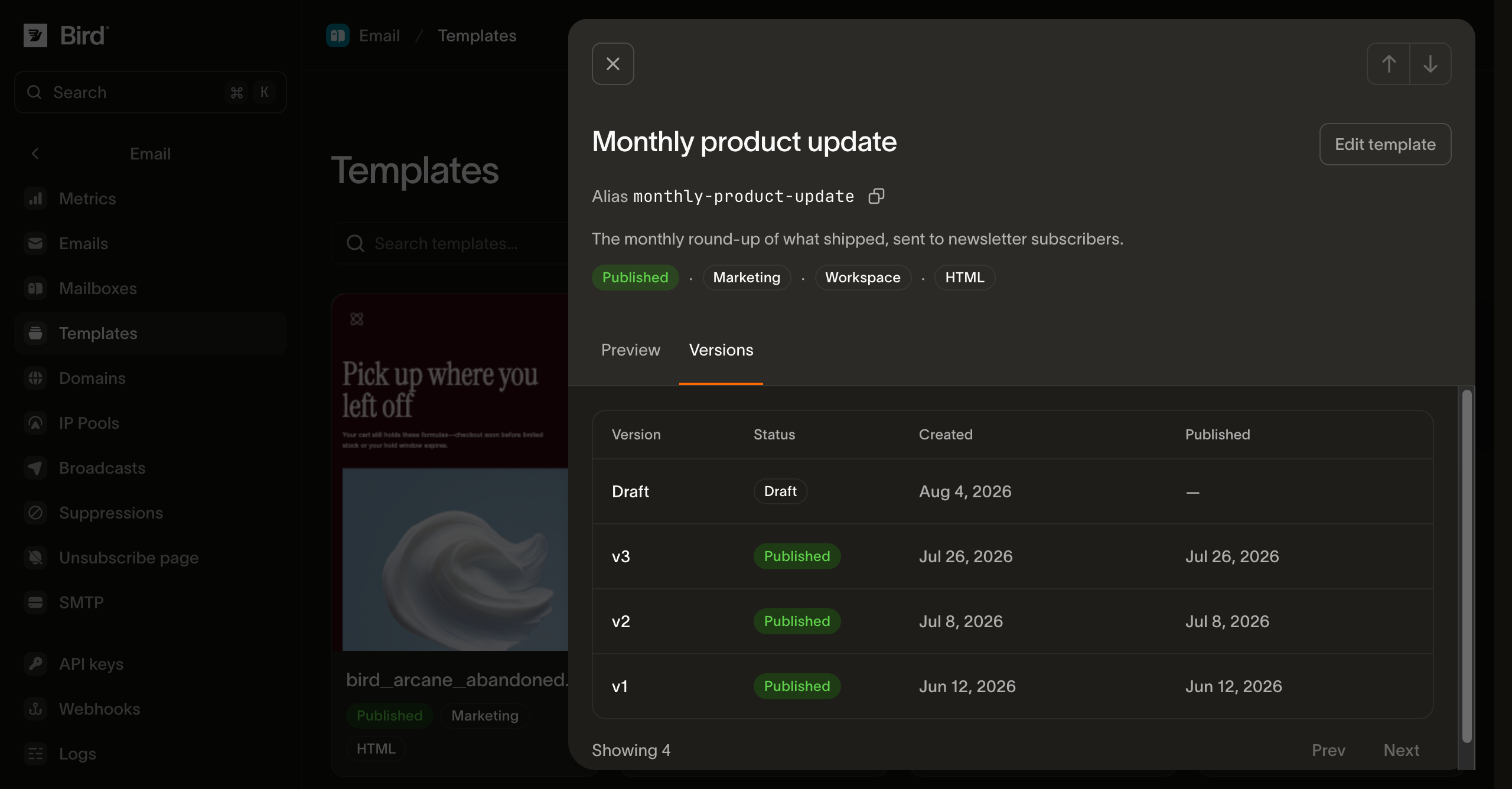
Versions support two more actions. Discard the draft's changes to reset the draft back to whatever is currently published. Or roll back to make an earlier published version the one that sends use again. You can only roll back to a version that was published, never to the draft itself. Rolling back replaces the draft with that version's content, so anything unsaved in the draft is lost, and further editing starts from the version you rolled back to. A rollback does not create a new version.
To choose an existing image, you need read access to the workspace media library. To upload, paste, or drop a new image, you need write access. If Insert image is disabled or you cannot browse or upload, ask a workspace administrator for the matching media-library permission. Template editing permission alone does not grant media-library access.
In the dashboard, choose Visual > Insert image to search your media library or upload a PNG, JPEG, GIF, or static WebP image within the media-library upload limits. Static WebP uploads are converted to PNG or JPEG. Select the image to set its Image description, display width, alignment, and link. Mark an image as Decorative image only when it adds no information; a linked image needs a description that explains its destination. Each language keeps its own image descriptions and layout.
Use Replace image to change a selected image while keeping its description, link, width, and alignment. You can also paste or drop one image file into the visual editor. Wait for the upload to finish, or cancel it, before saving or sending a test. Select Preview to check the rendered email, then select Send test email to send the current content to yourself. Code remains available for editing HTML.
Removing an image from the media library does not remove it from already-sent email. Replacing an image uses a new URL, so earlier messages keep showing the original.
Saving is guarded by a revision number. Send the revision you last read for the language you are saving. If someone else changed that language in the meantime, the save is refused as a conflict instead of overwriting their work. Leave revision out to save unconditionally. Publishing and rolling back use the draft's own revision the same way.
Content in more than one language
A template holds content in up to 25 languages, each with its own subject and body, tagged with a BCP-47 code such as en or pt-BR. One language is the template's default. Publishing a template publishes every language it holds at the same time. You cannot publish one language on its own, so all of them have to be finished first. Every language needs a subject and a body, and the template's default language has to be one of the languages you have filled in. If any of that is missing, nothing is published, and the error tells you what is missing in each language so you can fix it all in one pass. You do not have to finish every language up front: publish the ones that are ready, and add the rest later.
In the dashboard, you choose the default language when you create a template. To change it later, switch the editor to another language and choose Set as default… in the language menu. Send test email in Preview can send any language the template has. It needs a subject and content in the language on screen, so fill those in or switch to a finished language first. The language on screen sends as it looks now, and any other language sends its last saved draft.
A language needs an HTML body. You can leave its text out: publishing then creates a plain-text alternative from the HTML automatically, so you get both parts without writing the second one yourself.
Each language can also carry preview text, sometimes called a preheader: the line an inbox shows after the subject in its message list. It's optional, up to 255 characters, and takes the same {{ variable }} placeholders as the subject. Leave it out and the inbox falls back to whatever line the body opens with instead, which is rarely the line you'd choose. Publishing refuses preview text on a language whose body has no HTML part, since a mail client only reads the preview line out of hidden HTML markup, and refuses {{ bird.unsubscribe_url }} inside it for the same reason the subject can't carry it: neither is a place a link can go.
Two settings cover a send that does not name a language the template has content for, and they guard against different mistakes:
| Setting | What it controls |
|---|---|
on_missing_language | What happens when a send asks for a language the template does not have. fallback, the default, serves the closest match. It tries a broader form of the same language first, so a stored pt can serve a request for pt-BR. It then falls back to the template's default language. fail rejects the send instead, for content where sending the wrong language is worse than not sending at all. |
language_source_required | Whether a send has to name a language at all. This is off by default, so a send that names none gets the default language. Turn it on, and that send is rejected instead. A broadcast names one language for its whole audience, so a template with this setting on needs that language chosen before the broadcast can send. |
You can set these two independently. On its own, fail only applies when a send names a language we do not have, so a send that names none still gets through. Turn on both settings together when you want every send to name a language on purpose.
Personalizing with variables
Individual, batch, and scheduled template sends can use contact values. Each To address must match a contact when the template reads bird.contact.*.
Write {{ variable }} placeholders in the subject, preview text, and body. We pick them up automatically, combined across every language, so you never have to declare them separately. The placeholder prefix distinguishes the two kinds. A path starting with bird. reads from our data, either a contact record or the unsubscribe link. Everything else is a parameter you give a value for when you send.
A parameter's name is a single word, like {{ animal }}. A dotted name reaches for a structure a parameter does not have, so publishing one is rejected: write the value as its own parameter, or read contact data with bird.contact.<attribute> instead.
On a single send or a batch, a parameter's value comes from the send's template.parameters object, keyed by its name. One set of values covers every recipient of that send. bird is the one name you cannot use there: a template.parameters key named bird is rejected with a 422.
Use bird.contact.<attribute> to read the recipient's contact properties, including the built-in first_name, last_name, and email fields. Individual and batch sends match each To address to a contact in the same workspace. Cc and Bcc recipients receive a copy of each To recipient's personalized email; they do not need matching contacts. A broadcast reads its audience contacts and also accepts caller values in its template parameters.
Hi {{ bird.contact.first_name }},Supply the required caller parameters used by the resolved language. A missing required parameter returns 422. A null required value also returns 422; an intentional empty string remains valid. The version's variables list covers its languages, so a parameter used only by another language does not need a value for this send.
Publishing records the contact attributes used by each language. Sending fetches only the attributes used by the selected language and send fields. A send without contact references skips contact lookup.
A template that reads bird.contact.* requires a matching workspace contact for each To recipient. If a To recipient has no contact, the request returns 422 with E04099 before accepting any message, including in a batch or a scheduled send. Create or update the contact first, or use caller parameters instead. A Liquid default filter or conditional does not remove this requirement. Templates that use caller parameters or bird.unsubscribe_url without contact attributes need no matching contact.
For example, send Hello {{ bird.contact.first_name }} to Alice and Bob, with Charlie in Cc:
| Delivery | Greeting | Visible To |
|---|---|---|
| Alice | Hello Alice | Alice |
| Charlie, copied on Alice's email | Hello Alice | Alice |
| Bob | Hello Bob | Bob |
| Charlie, copied on Bob's email | Hello Bob | Bob |
Charlie receives two copies, so this request makes four deliveries. Bcc works the same way, with the Bcc address hidden. These separate personalized emails apply when the template uses contact attributes; ordinary sends keep their existing addressing behavior. The same rule applies to each message in the batch API.
An existing contact can have an empty first or last name. Missing names render as empty, and you choose the greeting in the template. For a first-name greeting, use Hello {{ bird.contact.first_name | default: "there" }}!. For a full name, combine both parts, trim the space, and then choose a default:
{% assign full_name = bird.contact.first_name | append: " " | append: bird.contact.last_name | strip %}
Hello {{ full_name | default: "there" }}!
This renders Hello Jane Doe!, Hello Jane!, or Hello Doe! when the corresponding names are present, and Hello there! when both are missing. No workspace-wide replacement names are needed.
Contact properties you create keep their configured fallback values. Stored null counts as absent; an explicit empty string, false, or zero remains a value. An absent property without a fallback renders as empty. Unknown properties and invalid stored values reject acceptance. A failed lookup is retryable and does not substitute fallbacks.
A bird.contact.* placeholder must name a built-in attribute or a registered custom property. Caller parameter names remain separate from those platform paths. Individual and batch template sends save recipient values at acceptance, including scheduled sends, and reuse them for delivery retries and message reads. Broadcasts keep their own preparation timing. Individual and batch sends reject sensitive inputs before acceptance.
Archiving a property removes it from the property picker in the editor. New template versions that read it cannot be published, and the error names the property. Templates already published keep sending. Unarchive the property to use it in new versions again.
Placeholders use Liquid, so filters and control flow work alongside plain substitution. A {% if %} conditional and a {% for %} loop over an array value are both fine. A handful of constructs are rejected when you publish, and the error names exactly what to change:
- Partial includes, using
{% include %}or{% render %}. - The
increment,decrement, andifchangedtags. - The
money,format_date,format_time,json,inspect, andtypefilters. - Comparing against
emptyorblank. Use.size == 0instead. - Blocks nested far deeper than real email markup needs.
Broadcast template parameters accept scalar values; arrays and objects are unsupported. Without caller parameters, both {% for %} and {% tablerow %} support literal ranges such as (1..3) and lists created inside Liquid with split. A broadcast that uses caller parameters supports {% for %} over a split list, but rejects ranges and {% tablerow %}. In either case, a loop tag that reads a caller parameter or contact property directly is rejected, including a range whose endpoint reads one of those values.
Every template uses Liquid, including one that contains only {{ variable }} placeholders. Before publishing, we validate the subject, preview text, HTML, and plain-text content as Liquid. We also add the escape filter to each HTML output that does not already end with escape or escape_once, so a value containing & or < cannot alter the surrounding markup. The reserved unsubscribe output stays unchanged so sending can replace it. The subject line and plain-text body are left as written. Because publishing adds these filters, the HTML you read from a published version may not be byte-identical to what you submitted.
Put a complete URL directly in an href, such as <a href="{{ sign_in_url }}">Sign in</a>. Do not add url_encode to the whole value. It percent-encodes https://, /, ?, and &, which stops the result from working as an absolute link. We add HTML escaping while preserving the URL structure. When a parameter supplies one URL component, encode that component explicitly: <a href="https://example.com/search?q={{ query | url_encode }}">Search</a>.
Previewing before you publish
Render a template with sample values and get back the subject line and the HTML and plain-text bodies a send would deliver. Preview uses our local Liquid renderer and renders the draft by default, which is how you check a change before it goes live. It can render a published version instead. It works for your own templates and for our built-in ones, and nothing is sent.
You can also hand it the content yourself instead of having it read the draft. Pass a subject and bodies and those are rendered, treated exactly as a draft would be, which is what lets an editor show a change as it is typed without saving anything first.
Personalization is filled in for you, so what comes back reads as finished copy instead of {{ }} placeholders. Name a contact and every bird.contact.<attribute> resolves against that contact's own properties, which is how you check your wording against a real record before anyone receives it. The values come out of the same projection a broadcast uses to fill its placeholders, so the preview answers with what a send would answer.
Leave contact out and stand-in values are substituted instead: Bird and Test for the first and last name, bird.test@example.com for the email, and each other property's own registered fallback. A referenced property with no fallback renders as its key in brackets, like [loyalty_tier], which tells you both that the value is a placeholder and which property still wants a fallback.
A contact is read as it stands right now. That makes a preview the right tool for checking content you are about to send, and the wrong one for asking what an earlier send contained. To read what one send actually delivered, open that message in the email log instead, which renders it from the values that send carried.
Add language to render one specific language, or leave it out for the template's default. The response tells you which language it rendered, which matters when the one you asked for is not stocked and the template's on_missing_language served a close match.
If the draft has personalization that would be rejected when you publish, preview returns that same error, so it doubles as a way to find problems early.
In the dashboard's template builder, select Preview above the email to see the rendered subject line, preview text, and body. Save a new template once before you preview it. Until then, Preview stays unavailable. This works from both the visual and the code editor. The left panel then shows Preview as, which chooses whose data fills the placeholders, Send test email, which mails the email personalized for that contact, and a field for each parameter's sample value. Sample data is the stand-in values above. Turn on View as plain text to read the plain-text version the email sends with, at the Desktop or Mobile width. Select Edit to return to the editor. While you edit, hovering a variable shows the value it renders with.
Sending with a template
Set the send's template field to an object that names the template, either by id (emt_...) or by slug, using exactly one of the two. Put its variable values in template.parameters. Add language to pick a specific language, or leave it out to send the template's default language, unless the template requires every send to name one. Leave subject, html, and text out entirely, because the template already provides them.
{
  "from": "hello@yourdomain.com",
  "to": ["delivered@messagebird.dev"],
  "category": "transactional",
  "template": {
    "slug": "welcome-email",
    "parameters": { "first_name": "Jane" }
  }
}
One behavior worth planning for: the template's category is a default, and the send's own category overrides it. Leave category off, and the send inherits the template's category, so an operational template sends as transactional without you repeating it on every call. Set category, and your value wins instead. The rest of the send-side contract is in sending with a template.
Authoring outside the dashboard
The whole lifecycle is available outside the dashboard: through the API, the SDKs under email.templates, the bird CLI, and the email_templates_* MCP tools. In the SDKs, the version and language operations sit under email.templates.versions and email.templates.versions.languages. The publish step is named submit there, and it turns the draft into the next published version.
You can keep templates in your own repository and sync them from a build step. A draft and a published version read back different HTML, so choose the read that matches what your tool needs:
- A draft reads back exactly as you saved it. The HTML you save to a draft language comes back byte-for-byte from that language's read (
GET /v1/email/templates/{id}/versions/{draft_version_id}/languages/{language}) and from the version read, including the doctype,<style>blocks, comments, whitespace, line endings, and non-ASCII text. A save returns no content, so read the language back when you need to confirm what was stored. - A published version reads back ready to send. Publishing rewrites the HTML in three ways: each
{{ }}output that does not already end withescapeorescape_oncegains theescapefilter, except{{ bird.unsubscribe_url }}, which stays as written; preview text is folded into a hidden block right after the opening<body>tag, or at the very start when the HTML has none; and an emptytextis filled with a plain-text alternative derived from the HTML. Reading that version returns the rewritten content, so it differs from your source file.
To export the source you authored, read the draft. Reading a template or listing templates returns metadata and per-language state, but no HTML.
The examples below use {{ first_name }}, a caller parameter supplied in template.parameters, as in "parameters": {"first_name": "Jane"}. Use {{ bird.contact.first_name }} when the template should read the recipient's workspace contact instead. Address recipients by email in both individual and batch sends. Styling saved in the published template stays part of that version. There is no runtime bird.brandkit.* namespace.
Create the template with its first language. The response carries the template id and the draft_version_id, which the version and language operations take. The example also sets preview_text, the preview text an inbox shows after the subject in its message list. Publishing folds it into the HTML as a hidden block, which is one reason a published version reads back different HTML from the draft:
const template = await bird.email.templates.create({
  slug: "welcome-email",
  category: "transactional",
  source: "html",
  languages: {
    en: {
      subject: "Welcome, {{ first_name }}",
      preview_text: "Your account is ready",
      html: "<!DOCTYPE html>\n<html>\n<body>\n<p>Hi {{ first_name }}, thanks for signing up.</p>\n</body>\n</html>\n",
    },
  },
});
console.log(template.id, template.draft_version_id);
template = client.email.templates.create(
slug="welcome-email",
category="transactional",
source="html",
languages={
"en": {
"subject": "Welcome, {{ first_name }}",
"preview_text": "Your account is ready",
"html": "<!DOCTYPE html>\n<html>\n<body>\n<p>Hi {{ first_name }}, thanks for signing up.</p>\n</body>\n</html>\n",
},
},
)
print(template.id, template.draft_version_id)template, err := client.Email.Templates.Create(context.Background(), bird.EmailTemplatesCreateParams{
Slug: "welcome-email",
Category: "transactional",
Source: "html",
Languages: map[string]bird.EmailTemplateLanguageContent{
"en": {
Subject: bird.String("Welcome, {{ first_name }}"),
PreviewText: bird.String("Your account is ready"),
Html: bird.String("<!DOCTYPE html>\n<html>\n<body>\n<p>Hi {{ first_name }}, thanks for signing up.</p>\n</body>\n</html>\n"),
},
},
})
if err != nil {
log.Fatal(err)
}
fmt.Println(template.Id, *template.DraftVersionId)$template = $bird->email->templates->create(
slug: 'welcome-email',
category: 'transactional',
source: 'html',
languages: [
'en' => [
'subject' => 'Welcome, {{ first_name }}',
'preview_text' => 'Your account is ready',
'html' => "<!DOCTYPE html>\n<html>\n<body>\n<p>Hi {{ first_name }}, thanks for signing up.</p>\n</body>\n</html>\n",
],
],
);
echo $template->getId(), ' ', $template->getDraftVersionId();bird email templates create --body-file - <<'EOF'
{
"slug": "welcome-email",
"category": "transactional",
"source": "html",
"languages": {
"en": {
"subject": "Welcome, {{ first_name }}",
"preview_text": "Your account is ready",
"html": "<!DOCTYPE html>\n<html>\n<body>\n<p>Hi {{ first_name }}, thanks for signing up.</p>\n</body>\n</html>\n"
}
}
}
EOFcurl -X POST https://us1.platform.bird.com/v1/email/templates \
-H "Authorization: Bearer bk_us1_..." \
-H "Content-Type: application/json" \
-d '{
"slug": "welcome-email",
"category": "transactional",
"source": "html",
"languages": {
"en": {
"subject": "Welcome, {{ first_name }}",
"preview_text": "Your account is ready",
"html": "<!DOCTYPE html>\n<html>\n<body>\n<p>Hi {{ first_name }}, thanks for signing up.</p>\n</body>\n</html>\n"
}
}
}'To change a language later, save it again with bird email templates versions languages set or a PUT to the same language path. The body is flat: subject, which is required, plus preview_text, html, and text. A field you leave out is cleared. Add the revision you last read to refuse the save if someone else changed that language in the meantime.
The dashboard's visual editor layout is one of the fields cleared this way, because the API, SDKs, and CLI cannot send it. Saving a language you built in the visual editor keeps its HTML but removes the layout, so the dashboard reopens that language in the code editor.
The next steps use TEMPLATE_ID and DRAFT_VERSION_ID for the id and draft_version_id the create call returned. Read the draft language back to get the HTML exactly as it is stored:
const language = await bird.email.templates.versions.languages.get(
  "TEMPLATE_ID",
  "DRAFT_VERSION_ID",
  "en",
);
console.log(language.content?.html);
language = client.email.templates.versions.languages.get(
"TEMPLATE_ID",
"DRAFT_VERSION_ID",
"en",
)
if language.content is not None:
print(language.content.html)language, err := client.Email.Templates.Versions.Languages.Get(context.Background(),
"TEMPLATE_ID", "DRAFT_VERSION_ID", "en")
if err != nil {
log.Fatal(err)
}
if language.Content != nil && language.Content.Html != nil {
fmt.Println(*language.Content.Html)
}$language = $bird->email->templates->versions->languages->get(
'TEMPLATE_ID',
'DRAFT_VERSION_ID',
'en',
);
echo $language->getContent()?->getHtml();bird email templates versions languages get "$TEMPLATE_ID" "$DRAFT_VERSION_ID" en \
| jq -j .content.html > welcome-email.htmlcurl "https://us1.platform.bird.com/v1/email/templates/$TEMPLATE_ID/versions/$DRAFT_VERSION_ID/languages/en" \
-H "Authorization: Bearer bk_us1_..." \
| jq -j .content.html > welcome-email.htmljq -j writes the string without adding a trailing newline, so the file holds the same bytes the API stored.
Submit the draft with validate_only first. It runs the same checks as a real submit across every language and reports the problems it finds in one response, without publishing anything. Then submit without validate_only to publish the next version, which sends then use:
const templateId = "TEMPLATE_ID";
const draftVersionId = "DRAFT_VERSION_ID";
const check = await bird.email.templates.versions.submit(templateId, draftVersionId, {
  validate_only: true,
});
for (const problem of check.errors) {
  console.log(problem.language, problem.field, problem.message);
}
if (check.valid) {
  const result = await bird.email.templates.versions.submit(templateId, draftVersionId);
  console.log(result.version?.version_number);
}
template_id = "TEMPLATE_ID"
draft_version_id = "DRAFT_VERSION_ID"
check = client.email.templates.versions.submit(template_id, draft_version_id, validate_only=True)
for problem in check.errors:
print(problem.language, problem.field, problem.message)
if check.valid:
result = client.email.templates.versions.submit(template_id, draft_version_id)
if result.version is not None:
print(result.version.version_number)ctx := context.Background()
templateID := "TEMPLATE_ID"
draftVersionID := "DRAFT_VERSION_ID"
check, err := client.Email.Templates.Versions.Submit(ctx, templateID, draftVersionID,
bird.EmailTemplatesVersionsSubmitParams{ValidateOnly: bird.Bool(true)})
if err != nil {
log.Fatal(err)
}
if check.Errors != nil {
for _, problem := range *check.Errors {
fmt.Println(*problem.Message)
}
}
if check.Valid != nil && *check.Valid {
result, err := client.Email.Templates.Versions.Submit(ctx, templateID, draftVersionID,
bird.EmailTemplatesVersionsSubmitParams{})
if err != nil {
log.Fatal(err)
}
fmt.Println(*result.Version.VersionNumber)
}$templateId = 'TEMPLATE_ID';
$draftVersionId = 'DRAFT_VERSION_ID';
$check = $bird->email->templates->versions->submit(
$templateId,
$draftVersionId,
(new EmailTemplateSubmit())->setValidateOnly(true),
);
foreach ($check->getErrors() ?? [] as $problem) {
echo $problem->getLanguage(), ' ', $problem->getField(), ' ', $problem->getMessage(), "\n";
}
if ($check->getValid() === true) {
$result = $bird->email->templates->versions->submit($templateId, $draftVersionId, new EmailTemplateSubmit());
echo $result->getVersion()?->getVersionNumber();
}bird email templates versions submit "$TEMPLATE_ID" "$DRAFT_VERSION_ID" --validate-only
bird email templates versions submit "$TEMPLATE_ID" "$DRAFT_VERSION_ID"curl -X POST "https://us1.platform.bird.com/v1/email/templates/$TEMPLATE_ID/versions/$DRAFT_VERSION_ID/submit" \
-H "Authorization: Bearer bk_us1_..." \
-H "Content-Type: application/json" \
-d '{"validate_only": true}'
curl -X POST "https://us1.platform.bird.com/v1/email/templates/$TEMPLATE_ID/versions/$DRAFT_VERSION_ID/submit" \
-H "Authorization: Bearer bk_us1_..." \
-H "Content-Type: application/json" \
-d '{}'The submit body takes validate_only and expected_revision. Pass the template's revision as expected_revision to refuse the publish if the draft changed since you last read it.
List your workspace's templates to find the slug a send names:
for await (const tpl of bird.email.templates.list({ scope: "workspace" })) {
  console.log(tpl.slug, tpl.name);
}
for template in client.email.templates.list(scope="workspace"):
print(template.slug, template.name)for tpl, err := range client.Email.Templates.List(context.Background(), bird.EmailTemplatesListParams{Scope: "workspace"}) {
if err != nil {
log.Fatal(err)
}
fmt.Println(*tpl.Slug, tpl.Name)
}foreach ($bird->email->templates->list(['scope' => 'workspace']) as $template) {
echo $template->getSlug(), ' ', $template->getName(), "\n";
}bird email templates list --scope workspacecurl "https://us1.platform.bird.com/v1/email/templates?scope=workspace" \
-H "Authorization: Bearer bk_us1_..."Send the published template by slug, with a value in template.parameters for each parameter it uses, here first_name:
const msg = await bird.email.send({
  from: { email: "onboarding@messagebird.dev", name: "Bird" },
  to: ["delivered@messagebird.dev"],
  category: "transactional",
  template: {
    slug: "welcome-email",
    parameters: { first_name: "Jane" },
  },
});
console.log(msg.id, msg.status);
msg = client.email.send(
from_={"email": "onboarding@messagebird.dev", "name": "Bird"},
to=["delivered@messagebird.dev"],
category="transactional",
template="welcome-email",
parameters={"first_name": "Jane"},
)
print(msg.id, msg.status)msg, err := client.Email.Send(context.Background(), bird.EmailSendParams{
From: "onboarding@messagebird.dev",
To: []string{"delivered@messagebird.dev"},
Category: "transactional",
Template: "welcome-email",
Parameters: map[string]any{"first_name": "Jane"},
})
if err != nil {
log.Fatal(err)
}
fmt.Println(msg.Id, *msg.Status)$message = $bird->email->send(
from: 'Bird <onboarding@messagebird.dev>',
to: ['delivered@messagebird.dev'],
category: 'transactional',
template: (new EmailMessageSendRequestTemplate())
->setSlug('welcome-email')
->setParameters(['first_name' => 'Jane']),
);
echo $message->getId(), ' ', $message->getStatus();bird email send \
--category transactional \
--from hello@yourdomain.com \
--parameters '{"first_name":"Jane"}' \
--template welcome-email \
--to delivered@messagebird.devcurl -X POST https://us1.platform.bird.com/v1/email/messages \
-H "Authorization: Bearer bk_us1_..." \
-H "Content-Type: application/json" \
-d '{
"from": "hello@yourdomain.com",
"to": ["delivered@messagebird.dev"],
"category": "transactional",
"template": {
"slug": "welcome-email",
"parameters": { "first_name": "Jane" }
}
}'Next steps
- Sending email: the full send payload, and how templated sends fit it
- Categories: choosing
marketingvstransactionalon each send bird email templates: managing templates from the terminal- API reference: full request and response schemas for all eighteen template operations
- SDKs: the typed
email.templatesmethods in TypeScript, Python, PHP and Go - MCP server: letting an agent author and publish templates
- How to build an email template: a video that builds one in the dashboard and then has an agent build another
Related resources
Continue with the documentation, guides and examples for this topic.