WhatsApp templates
Business-initiated WhatsApp sends use a pre-approved template. A template contains fixed text and variables, so a send supplies only values such as an OTP code or order number.
Bird ships a managed catalog, registers its contents with WhatsApp, and sends it from Bird's own numbers; its slugs begin with bird_. A workspace that has connected a number of its own can also author templates on its own WhatsApp Business Account. The Approved templates page shows every template the workspace can send and how each one renders.
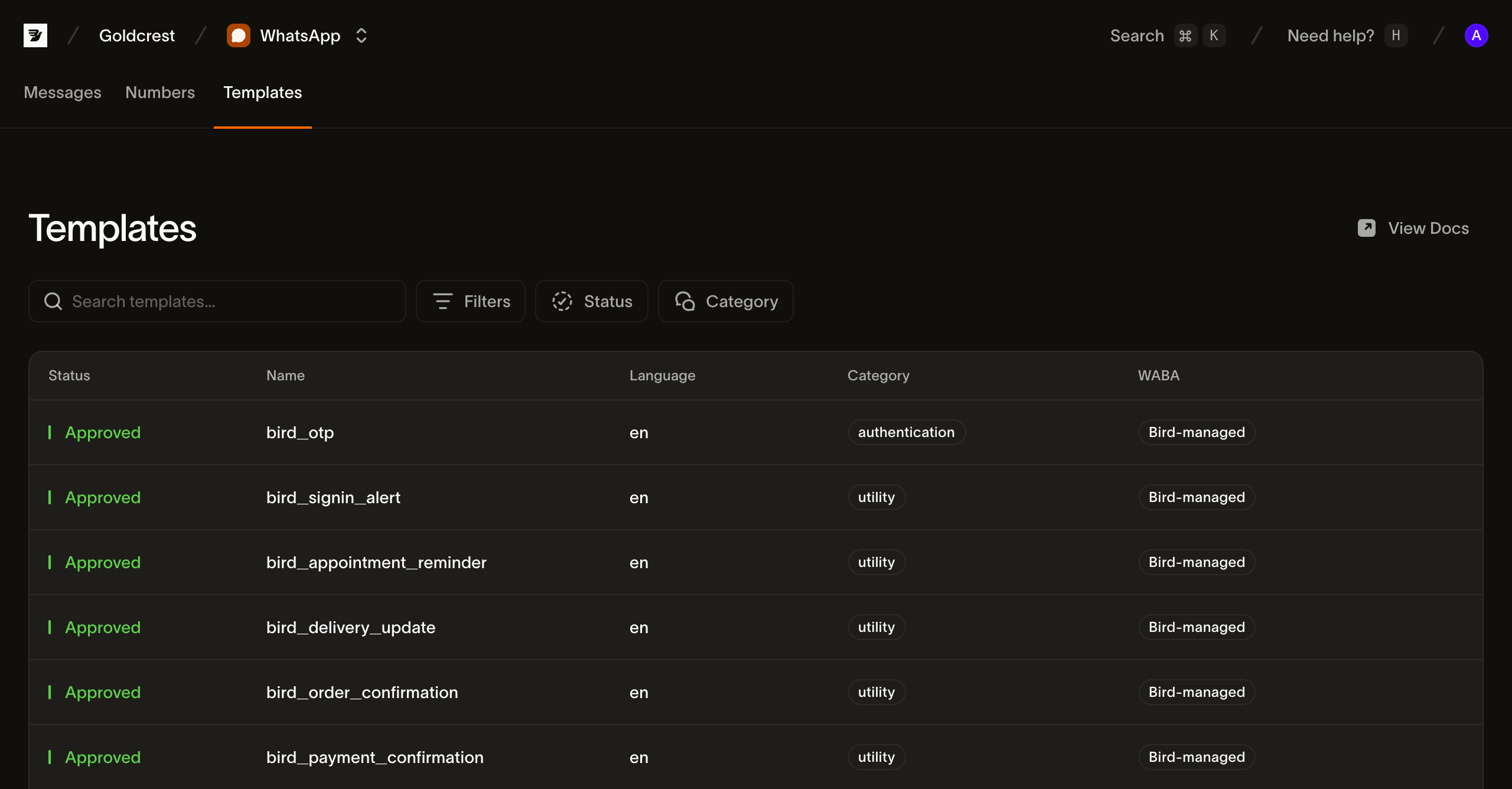
Browsing templates in the dashboard
Open Approved templates at WhatsApp > Approved templates. Your templates holds the templates this workspace authored; All templates adds the Bird-managed catalog. Search by name or filter by status and category, and switch between the card grid and the list view with the toggle beside the filters.
In list view, each row shows the fields you need to pick and send a template:
- Status: whether the template is sendable overall. Managed catalog templates report
active; a template of your own reports where its own approval stands. Check the language list to confirm that the required language is available. - Name: the display label, with the template's
slugbeneath it. Send with theslug. - Languages: the languages the template is registered in, such as English and Dutch.
- Category:
authentication,utility, ormarketing. The category governs how WhatsApp treats the message, which Bird number a managed template sends from, and, with the destination country, the price. - WABA: Bird-managed for catalog templates. A template of your own shows the WhatsApp Business Account holding it, and sends only from a number on that same account.
- Updated: when the template last changed.
Click a row to open the template's detail.
What's in a template
The detail view renders the message body, variables, and buttons in a WhatsApp-style preview.
The detail also provides a cURL example for POST /v1/whatsapp/messages, using the regional host and the template's example values. Replace the API key, recipient, and variable values before sending.
The example is the fastest way to see the shape a send has to match. Over the API, the same content comes from the template's version (Reading a template's content).
Listing templates from the API
GET /v1/whatsapp/templates returns a cursor-paginated catalog. The request requires whatsapp_management read access. Use HTTP or an SDK raw-request method.
type Templates = { data: Array<{ slug: string; status: string }> };

const templates = await bird.request<Templates>({
  method: "GET",
  path: "/v1/whatsapp/templates",
});
templates = client.get("/v1/whatsapp/templates")var out struct {
Data []struct {
Slug string `json:"slug"`
Status string `json:"status"`
} `json:"data"`
}
if err := client.Get(context.Background(), "/v1/whatsapp/templates", &out); err != nil {
log.Fatal(err)
}$templates = $bird->get('/v1/whatsapp/templates');curl https://us1.platform.bird.com/v1/whatsapp/templates \
-H "Authorization: Bearer $BIRD_API_KEY"Each entry identifies the template, its category, and its available languages. Read the live version separately for message content.
{
  "available_languages": ["en", "es", "pt-BR", "..."],
  "category": "authentication",
  "default_language": "en",
  "description": "One-time passcode",
  "id": "wat_01ky4x8e4genzb7way45txfkm1",
  "languages": {
    "en": { "status": "approved" },
    "es": { "status": "approved" },
    "pt-BR": { "status": "approved" },
    "...": "..."
  },
  "name": "bird_otp",
  "on_missing_language": "fail",
  "scope": "system",
  "slug": "bird_otp",
  "status": "active"
}
The example response abbreviates the bird_otp language lists.
The fields a send depends on:
slug: the handle used in a send. Managed template slugs begin withbird_, a prefix reserved for them.waba: the WhatsApp Business Account holding the template's languages at Meta, and the account a sender number has to belong to. Absent on a managed template because Bird manages its account.available_languages: languages that can be sent. A paused, disabled, archived, or limited language leaves this list.on_missing_language: what happens when the requested language is unavailable. Bird-managed WhatsApp templates usefail, which rejects the send rather than substituting another language.
Status and language status
Bird-managed templates report status: active. languages.<tag>.status reports WhatsApp's state for one language, such as approved, paused, or disabled.
An active template can still have an unavailable language. Use available_languages to decide whether a language is sendable.
Reading a template's content
Message content belongs to a language in the live version. Read live_version_id from the template, then request the required language:
const language = await bird.request({
  method: "GET",
  path: "/v1/whatsapp/templates/bird_order_confirmation/versions/{version_id}/languages/en",
});
language = client.get(
"/v1/whatsapp/templates/bird_order_confirmation/versions/{version_id}/languages/en"
)var language map[string]any
if err := client.Get(context.Background(),
"/v1/whatsapp/templates/bird_order_confirmation/versions/{version_id}/languages/en",
&language); err != nil {
log.Fatal(err)
}$language = $bird->get('/v1/whatsapp/templates/bird_order_confirmation/versions/{version_id}/languages/en');curl https://us1.platform.bird.com/v1/whatsapp/templates/bird_order_confirmation/versions/{version_id}/languages/en \
-H "Authorization: Bearer $BIRD_API_KEY"The template reference accepts a slug or wat_ ID. GET …/versions/{version_id}/languages lists the version's languages without their content.
{
  "category": "utility",
  "components": [
    {
      "example_parameters": [
        { "name": "ref", "text": "A1B2C3D4", "type": "text" },
        { "name": "amount", "text": "USD 49.99", "type": "text" }
      ],
      "text": "Your order {{ref}} has been confirmed for a total of {{amount}}. Thanks for shopping with us.",
      "type": "body"
    }
  ],
  "language": "en",
  "status": "approved"
}
The send's components must match the template. example_parameters identifies each placeholder. In this example, the body parameters use name: "ref" and name: "amount". A positional template omits name and takes values in {{n}} order. Parameterized buttons have their own example_parameters.
The language category is the Meta category used for pricing. It can differ from the template's registered category if Meta reclassifies the language.
The version's variables list summarizes every placeholder with its key, type, required flag, and constraint. Named placeholders use their names as keys. Positional placeholders use their number.
Sending with a template
Name the template in the send's template object and fill its variables through components; see Sending WhatsApp messages for the full payload:
const msg = await bird.whatsapp.send({
  to: "+15551234567",
  template: {
    slug: "bird_otp",
    components: [{ type: "body", parameters: [{ type: "text", text: "123456" }] }],
  },
});
console.log(msg.id, msg.status);
msg = client.whatsapp.send(
to="+31612345678",
template="bird_otp",
language="en",
components=[{"type": "body", "parameters": [{"type": "text", "text": "123456"}]}],
)
print(msg.id, msg.status)code := "123456"
msg, err := client.Whatsapp.Send(context.Background(), bird.WhatsappSendParams{
To: "+15551234567",
Template: "bird_otp",
Language: "en",
Components: []bird.WhatsAppMessageTemplateComponent{{
Type: "body",
Parameters: &[]bird.WhatsAppMessageTemplateComponentParameter{{Type: "text", Text: &code}},
}},
})
if err != nil {
log.Fatal(err)
}
fmt.Println(msg.Id, *msg.Status)$message = $bird->whatsapp->send(
to: '+15551234567',
template: 'bird_otp',
language: 'en',
components: [
(new WhatsAppMessageTemplateComponent())
->setType('body')
->setParameters([
(new WhatsAppMessageTemplateComponentParameter())->setType('text')->setText('123456'),
]),
],
);
echo $message->getId(), ' ', $message->getStatus();bird whatsapp send \
--components '[{"parameters":[{"text":"1234","type":"text"}],"type":"body"},{"parameters":[{"text":"1234","type":"text"}],"type":"button"}]' \
--language en \
--template bird_otp \
--to +31612345678curl -X POST https://us1.platform.bird.com/v1/whatsapp/messages \
-H "Authorization: Bearer $BIRD_API_KEY" \
-H "Content-Type: application/json" \
-d '{
"to": "+14155550100",
"template": {
"slug": "bird_otp",
"language": "en",
"components": [
{ "type": "body", "parameters": [{ "type": "text", "text": "481920" }] },
{ "type": "button", "parameters": [{ "type": "text", "text": "481920" }] }
]
}
}'Sending by category
Every template carries one of Meta's three categories, and the category changes what you have to do before a send succeeds as well as what it costs. Authoring or copying an authentication template of your own needs a verified business, but sending one doesn't: Bird's managed bird_otp sits on Bird's own WhatsApp Business Account and sends with no verification of yours. Marketing templates always send from a WhatsApp Business Account of your own, over a second Meta API that Bird routes to automatically. Utility templates have the fewest prerequisites of the three.
- Authentication templates: one-time passcodes, the copy-code button, and the verification gate on authoring one
- Utility templates: order updates, appointment reminders, and account notices
- Marketing templates: promotional sends, the business account you need, and the opt-out expectation
Next steps
- Sending WhatsApp messages: the full send payload the
templateobject slots into - WhatsApp template guidelines: the rules Meta reviews a template against
- Authentication templates: one-time passcodes and the business-verification gate on authoring one
- WhatsApp pricing: how category and destination set the price
Related resources
Continue with the documentation, guides and examples for this topic.