Legitimate vs. Spam Messages: Breaking Down Microsoft’s Rating System
·

Key Takeaways
Microsoft applies three hidden scores to every email — SCL, BCL, and PCL — and these directly determine whether your message lands in the inbox or goes to Junk.
SCL (Spam Confidence Level) measures how “spammy” your message looks based on content and patterns.
BCL (Bulk Complaint Level) reflects how likely your audience is to complain about your messages.
PCL (Phishing Confidence Level) evaluates whether your content resembles phishing attempts.
High scores in any of these categories can cause instant Junk folder placement across Outlook/Hotmail.
Pulling these values from your headers is one of the most reliable ways to diagnose Microsoft deliverability issues.
Q&A Highlights
What exactly is Microsoft scanning when my email hits their servers?
Microsoft’s Exchange Online Protection (EOP) immediately analyzes the message and inserts an anti-spam report into your headers.
The most important fields are:
SCL → How spam-like the message appears
BCL → How likely recipients are to complain
PCL → How suspicious or phishy the content seems
These values heavily influence inbox placement.
How does the SCL score affect inboxing?
SCL is Microsoft’s internal “spam scorecard”:
–1 → Safe sender, guaranteed inbox
0–1 → Clean content, inbox
5–9 → Increasingly spammy → goes to Junk
Scores 2, 3, 4, 7, 8 aren’t used at all — you’ll only see the ones above.
What does the BCL score mean for my reputation?
BCL measures historical complaint patterns:
0 → Not considered a bulk sender
1–3 → Low complaint risk
4–7 → Mixed complaint behavior
8–9 → High complaints → strong Junk folder risk
If your BCL trends high, your audience is signaling negative engagement.
How does the PCL score relate to phishing?
PCL determines how “phishy” your message appears:
0–3 → Not likely phishing
4–8 → Suspicious, likely phishing content
If you see PCL ≥ 4, Outlook probably distrusts your message’s structure or links.
How can I use these ratings to fix Microsoft deliverability issues?
Check your headers for all three values:
SCL high? → Content looks spammy, needs cleanup
BCL high? → Your list is generating complaints, fix audience hygiene
PCL high? → Content resembles phishing, adjust structure and links
Whichever score is highest usually tells you the root cause.
Does Microsoft reveal how they calculate SCL, BCL, and PCL?
No — the exact formulas are proprietary.
But these header values still give you a clear directional signal on whether you need to improve:
content quality
subscriber engagement
domain/IP reputation
phishing-sensitive elements
Fighting Spam
Every email marketer would love to know the special sauce that gets their messages directly into the intended recipient’s inbox. However, most marketers, especially those who’ve been doing it for a while, know just how complicated and tricky that task can be.
ISPs give us a few of their secret ingredients here and there, but most scanning and filtering tools that ISPs use are not shared publicly — and for good reason! No one wants spam in their inbox! And if spammers knew all the secrets, they could circumvent them. But for legitimate senders who need to get an email to people who have asked for their messages, sometimes it can be frustrating.
One of the clues Microsoft gives us into how they measure the legitimacy of your email message lies in the headers. In the last few years, they’ve introduced a rating system that determines how spammy or phishy they believe a message to be as well as how likely the sender is to generate spam complaints.
Microsoft’s Anti-Spam Message Headers: SCL, PCL & BCL
As soon as an email message hits Microsoft’s servers, their proprietary Exchange Online Protection (EOP) filtering service scans the message and then inserts an anti-spam report into the message headers. You can read more about all of the different fields and filters they use here, but the three fields that I’m going to focus on today that have helped us understand how messages are being processed are:
SCL = The Spam Confidence Level
PCL = The Phishing Confidence Level
BCL = The Bulk Complaint Level
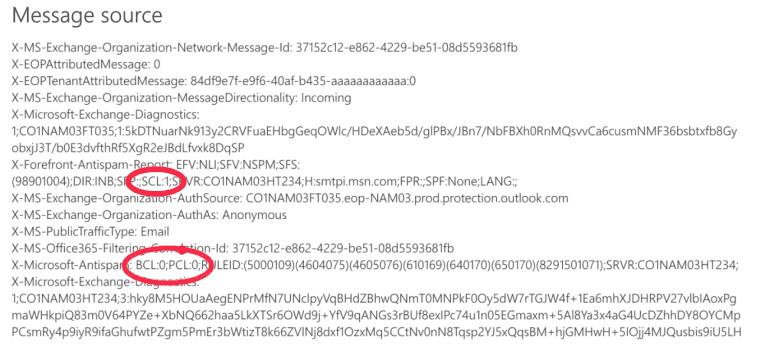
When opening the message headers you can do a search for X-Forefront-Antispam-Report and find the SCL ratings underneath. BCL and PCL ratings can be found under the X-Microsoft-Antispam section. Here’s a screenshot of the message headers from a message I received in my Outlook account where I’ve highlighted these ratings.
SCL — Spam Confidence Level
After the email is received and goes through the EOP spam filtering it’s given an SCL score. Here’s a breakdown of what each means:
Rating | Meaning | Inbox/Junk Behavior |
|---|---|---|
-1 | Trusted safe sender | Delivered to inbox |
0–1 | Not spam | Delivered to inbox |
5–9 | Increasing confidence of spam | Sent to Junk folder |
2, 3, 4, 7, 8 | Not assigned | N/A |
-1 = A special value that means the message is a safe sender and is not spam. This score tells Microsoft to put the message in the inbox.
0-1 = The content of the message was scanned and determined to not be spam. These two scores also tell Microsoft to deliver the message to the inbox.
5-9 = Starting with a score of 5 the message is suspected to be spam and is increasingly suspect to the highest score of 9 which indicates there’s a high confidence it’s spam. Any rating between 5 and 9 means the message should be sent to the Junk folder.
*Note: 2, 3, 4, 7, and 8 are ratings that are not assigned by Microsoft.
For more information, refer to Microsoft’s official documentation on SCL.
BCL — Bulk Complaint Level
BCL ratings range from 0-9 depending on how likely the message is to generate complaints based on historical data. Microsoft says they use both an internal and third-party tool to assign messages a rating — a message that receives a 2 is unlikely to generate many complaints versus a message that receives a score of 8, which is likely to generate a high number of complaints. Here’s the breakdown of BCL ratings:
BCL Score | What It Means | Complaint Expectation |
|---|---|---|
0 | Not a bulk sender | Very low complaints |
1–3 | Bulk sender with low complaints | Low complaint likelihood |
4–7 | Mixed complaint history | Medium complaint likelihood |
8–9 | High-complaint sender | High likelihood of user complaints |
0 = Indicates the message is not from a bulk sender.
1-3 = This bulk sender generates few complaints.
4-7 = This bulk sender generates a mixed number of complaints.
8-9 = This bulk sender generates a high number of complaints.
For more information, refer to Microsoft’s official documentation on BCL
PCL — Phishing Confidence Level
This rating simply determines how likely the message is a phishing message based on the content. These range from:
PCL Score | Phishing Likelihood | Microsoft Behavior |
|---|---|---|
0–3 | Not likely phishing | No warning |
4–8 | Likely phishing | Marked as suspicious |
0-3 = Not likely to be phishing.
4-8 = Likely to be phishing and marked as suspicious content.
For more information, refer to Microsoft’s official documentation on PCL.
What Do These Ratings Mean?
So what can we take away from these ratings? If you’re having junk foldering issues at any of the Microsoft domains check your SCL, BCL, or PCL ratings. If any of these are high, it could be the cause of the junk foldering. Microsoft doesn’t disclose the specific criteria for how they assign these ratings, but looking at the ratings will let you know what aspect of your email sending you may need to improve to get better inbox placement, be it the message content or your sending practices.