Erste Automatisierung in der Vorschau ansehen
Verwenden Sie die Vorlage Send an SMS notification, um zu sehen, wie aus einem Ereignis eine personalisierte Nachricht wird. Diese Anleitung endet mit einem simulierten Ergebnis. Sie sendet keine SMS.
Automations befindet sich im Early Access. Ihre Workspace-Berechtigungen bestimmen, welche Aktionen Sie ausführen können.
Vorlage öffnen
Die Vorlage enthält Beispieldaten, sodass Sie sie erkunden können, bevor Sie einen Absender oder eine Anwendungsverbindung einrichten.
- Öffnen Sie Automation templates und suchen Sie nach Send an SMS notification.
- Öffnen Sie die Vorlage. Prüfen Sie den Workflow und die Voraussetzungen.
- Klappen Sie unter Example scenarios den Eintrag Message accepted auf.
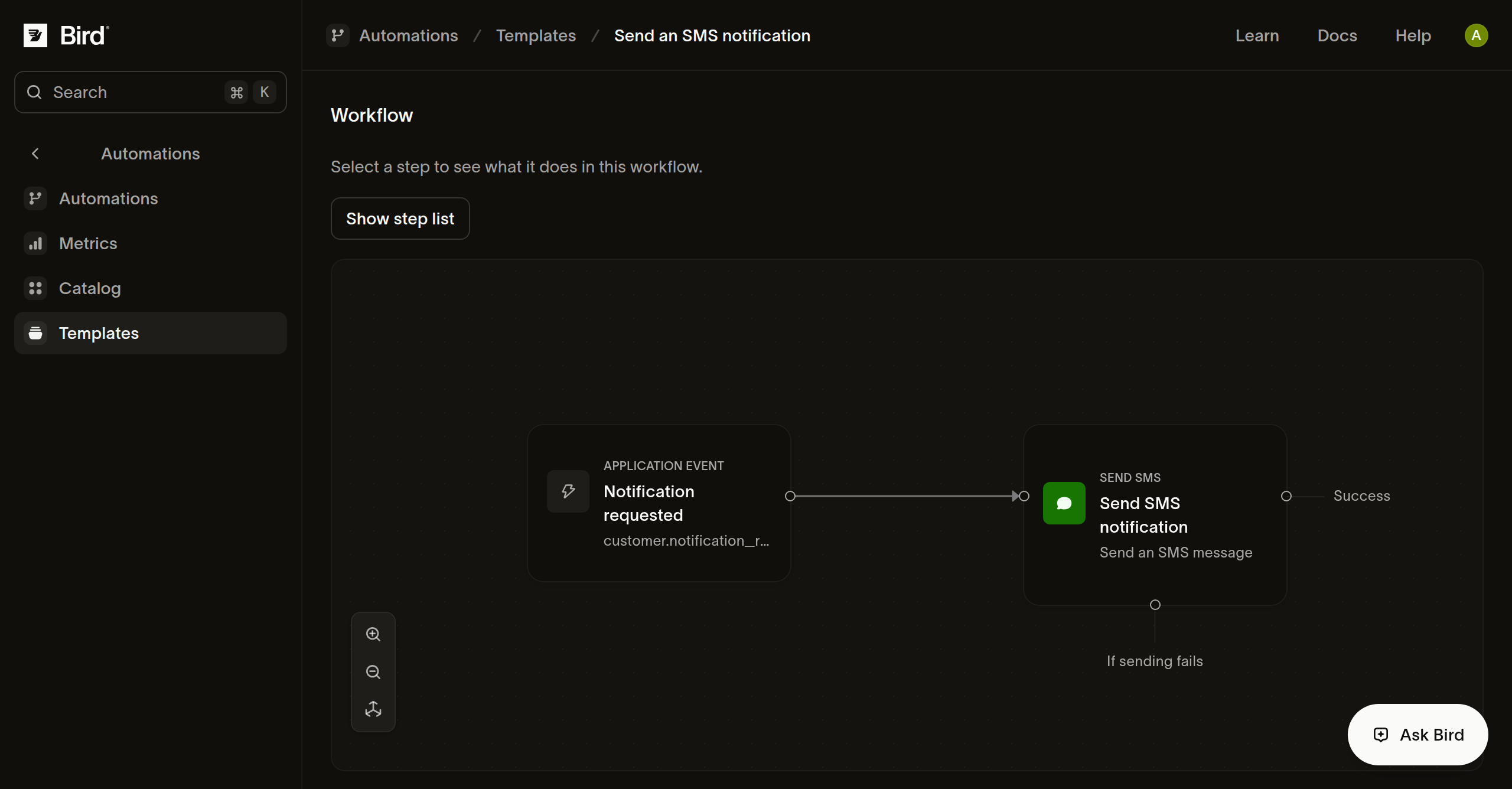
Der Workflow hat zwei Schritte: Notification requested empfängt das Ereignis, und Send SMS notification erstellt aus den Feldern eine Nachricht.
Beispielnachricht prüfen
- Klappen Sie Sample data innerhalb von Message accepted auf.
- Prüfen Sie Trigger data, Example setup und Hypothetical step results.
- Vergleichen Sie die Beispielnachricht mit dem Kundennamen und dem Benachrichtigungstext des Szenarios.
Die Beispielnachricht lautet Hi Ada, your order has shipped. Das Szenario liefert einen Beispielabsender, einen Empfänger und ein akzeptiertes Sendeergebnis.
Wo die Simulation endet
- Klappen Sie das Szenario Inspect the prepared message auf.
- Prüfen Sie den erwarteten Pfad und die Markierung Needs a sample beim Sendeschritt.
Dieses Szenario zeigt, was ohne ein simuliertes Sendeergebnis passiert: Die Vorschau kann die Nachricht vorbereiten, stoppt dann aber bei der Aktion. Path needs another sample bedeutet, dass für die Aktion kein simuliertes Ergebnis vorliegt. Es bedeutet nicht, dass ein SMS-Versand fehlgeschlagen ist.
Entwurf erstellen
Sie können eine eigene Kopie speichern und die Einrichtung im Editor abschließen. Falls Use template fehlt, prüfen Sie Ihre Bearbeitungsrechte.
- Wählen Sie Use template.
- Geben Sie einen Namen ein. Wählen Sie einen Absender unter SMS sender, oder lassen Sie das Feld unverändert, um es später zu konfigurieren.
- Wählen Sie Create draft. Der Editor öffnet Ihre unabhängige Kopie.
- Füllen Sie das Absenderfeld aus, bevor Sie den Sendeschritt in der Vorschau anzeigen.
- Wählen Sie Preview workflow in der Editor-Kopfzeile und dann Preview workflow im Panel, um das Entwurfsbeispiel auszuführen.
- Klappen Sie Previewed path auf, um die simulierten Schritte zu prüfen.
Das Erstellen des Entwurfs aktiviert den Workflow nicht. Folgen Sie der Veröffentlichungsanleitung, wenn Sie echte Empfänger und Aktionen überprüfen möchten.