WhatsApp messages
The Messages page in the Bird dashboard is your workspace's record of every WhatsApp message it has sent: every send made through POST /v1/whatsapp/messages lands here, newest first. Use it to confirm a message went out, see where it is in the delivery lifecycle, and read which template produced it. For a tour of where this page sits in the dashboard, see the dashboard tour.
The message list
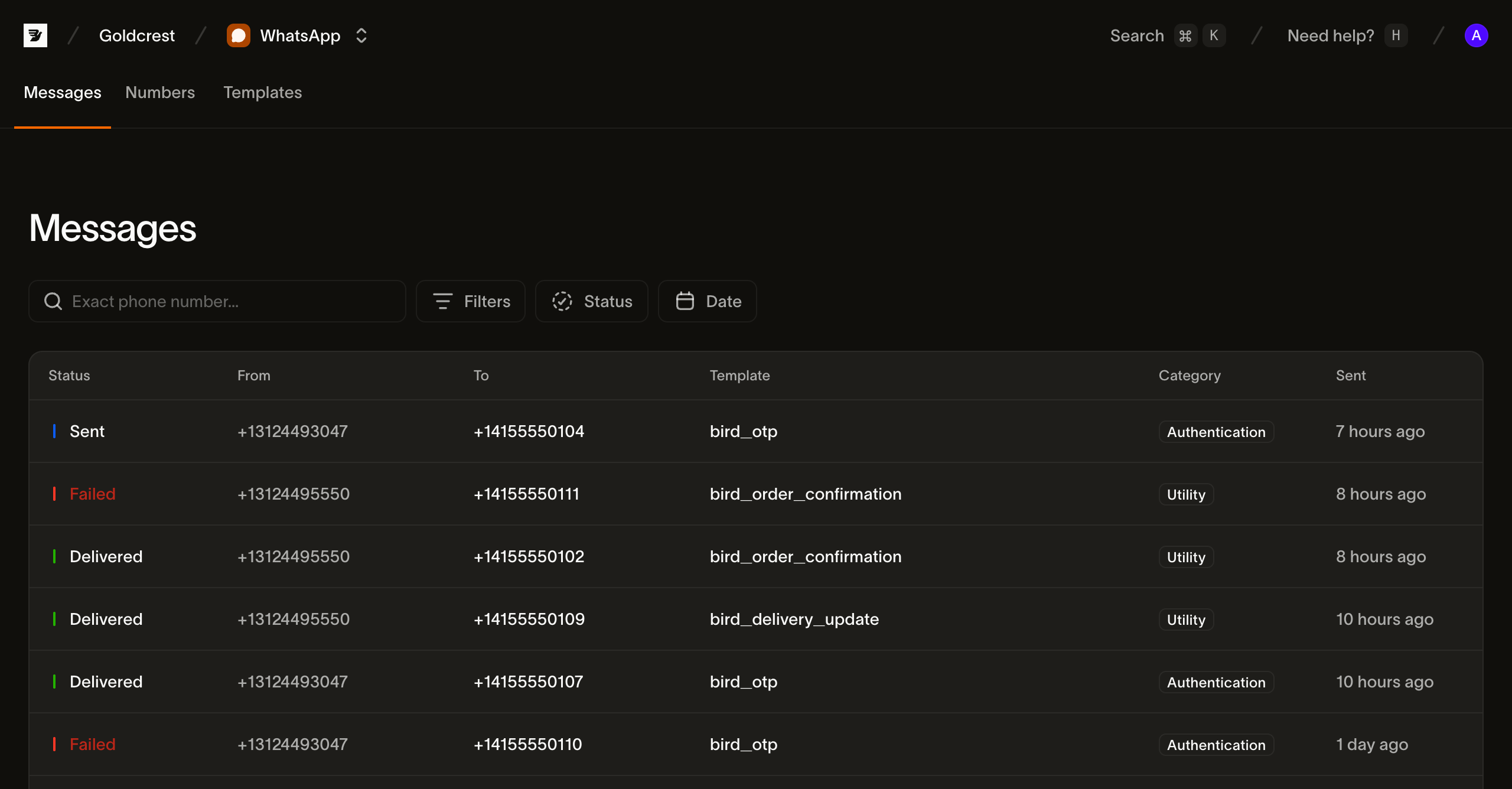
Each row is one message. The columns are:
| Column | What it shows |
|---|---|
| Status | The message's current status (see Statuses below), as a colored dot |
| From | The WhatsApp sender number the message was sent from |
| To | The recipient's number |
| Template | The template the message was sent from (click the row to open the message) |
| Category | The template's category |
| Sent | When the send was accepted, as a relative time (hover for the exact timestamp) |
The list is paginated, 25 messages per page; use Prev and Next to move between pages.
Searching and filtering
A message log fills up fast, so the page leads with a recipient search and two filters. They combine — a status filter plus a date range narrows to messages matching both.
Search by recipient. The search box matches an exact recipient number in E.164 format — type the full number you sent to (e.g. +15551234567) to find every message addressed to it. It is an exact match, not a substring search.
Status. Filter to one or more statuses — status is multi-select, so you can, say, show everything still in flight by selecting Accepted and Sent together. The filterable options are Accepted, Sent, Delivered, and Failed.
Date. Filter by when the message was sent — pick a preset or choose a custom range from the calendar.
When a filter combination matches nothing, the page shows a no-results state with a Clear filters action to reset back to the full list.
Statuses
A message's status is where it currently sits in the lifecycle. A message walks from accepted toward a terminal receipt.
| Status | Meaning |
|---|---|
| Accepted | Bird admitted the message and is preparing to hand it to WhatsApp |
| Sent | Handed to WhatsApp; awaiting a delivery receipt |
| Delivered | WhatsApp confirmed delivery to the recipient |
| Failed | The message will not be delivered |
A read receipt is not a status: when a recipient reads a delivered message, Bird records a read_at timestamp and a whatsapp.read event on the message, and the delivery status stays delivered. Two more statuses, scheduled and canceled, are reserved for a future scheduled-send feature and aren't emitted today.
Inspecting a message
Click any row to open the message. Its header shows the recipient, the template, and the current status; while a message is still in flight, the view refreshes itself every few seconds, so a status change or a delivery receipt appears without a manual reload.
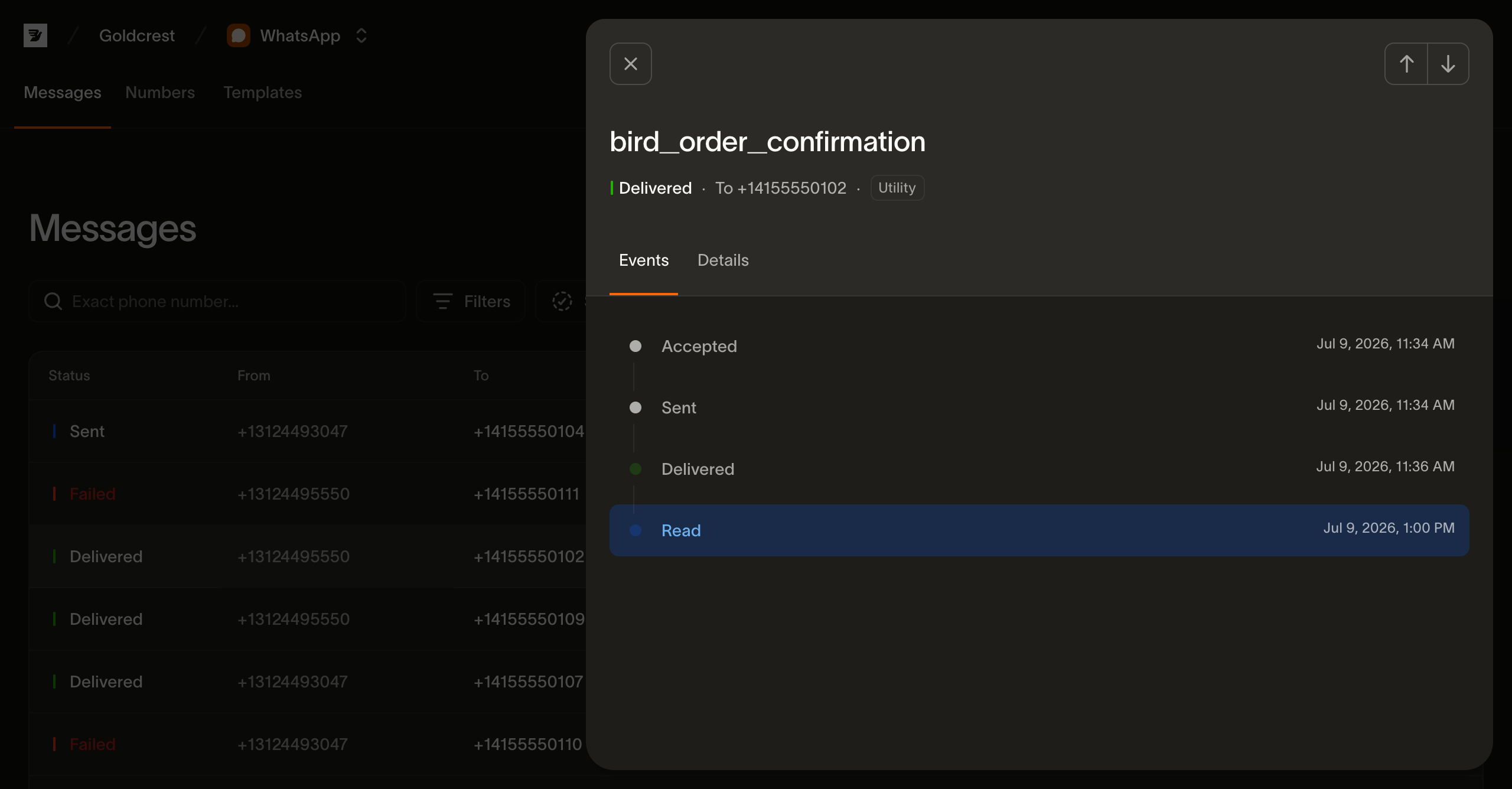
- Events — a timeline of everything that happened to the message, in order, each with its timestamp: Accepted → Sent → Delivered, the whatsapp.read receipt if the recipient read it, or a failure. This is the same stream you can read with GET /v1/whatsapp/messages/{message_id}/events.
- Details — the message's metadata: its ID, the sender and recipient numbers, the template (name, language, and category), the created, sent, delivered, and read timestamps, and, on a message that didn't arrive, the error description and code.
Reading messages from the API
GET /v1/whatsapp/messages lists your messages, newest first; GET /v1/whatsapp/messages/{message_id} reads a single message, and GET /v1/whatsapp/messages/{message_id}/events returns its event timeline. Reading messages needs an API key with the whatsapp_messages scope.
Next steps
- Sending WhatsApp messages — the send payload behind every row
- WhatsApp events — the per-message lifecycle stream behind the timeline
- WhatsApp pricing — what a message costs, by destination and category