WhatsApp numbers
Use your own WhatsApp number so customers recognize your business. You can connect a Bird number allocated to your workspace, connect an existing number you own, or keep using a number in the WhatsApp Business App.
Choose a connection path
| You want to… | Use |
|---|---|
| Connect a number without using the WhatsApp Business App | Connect your number. Bird handles verification for numbers allocated to your workspace. For a number from another provider, you receive Meta's SMS or voice code. |
| Keep using the WhatsApp Business App | Coexistence. Use the same number in the app and Bird. |
| Send supported templates without connecting your own number | Default numbers send supported bird_ templates from Bird's shared numbers. They do not receive messages in your workspace or support free-form replies. |
Review the coexistence limits and app changes before connecting a Business app number.
Cost
WhatsApp numbers have no additional charges.
Check connection status
Open Numbers to check a number's status, update its profile, or change its settings. To add a number, follow Connect your number.
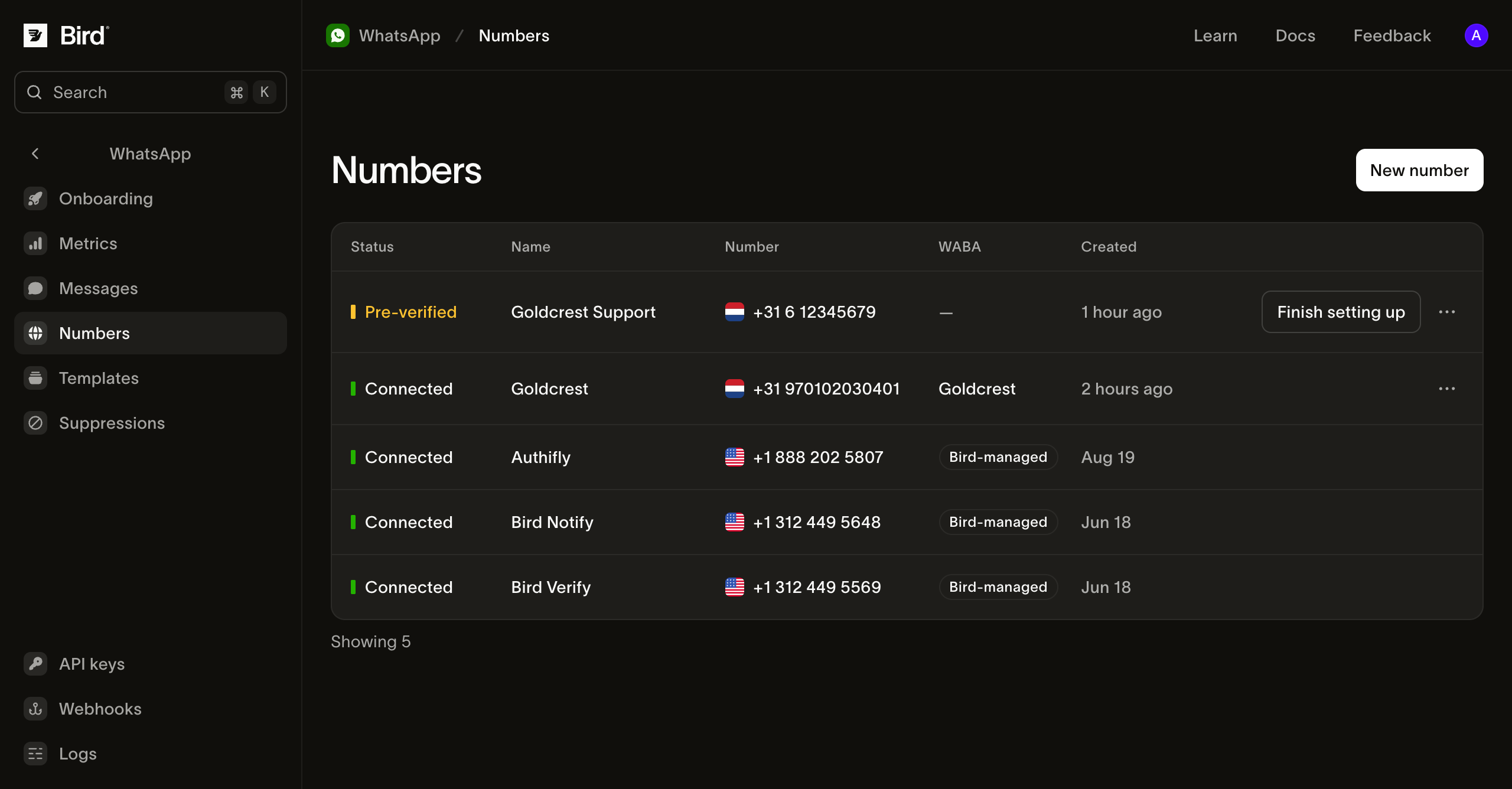
| Status | What it means |
|---|---|
| Preparing | Bird is verifying your number. |
| Pre-verified | Verification is done. Select Finish setting up to continue in Meta. |
| Pending | Meta has not yet reported the number as connected. |
| Connected | Your number is ready to send messages. |
| Failed | Setup failed. Open the number to see the reason. |
For verification_code_not_received or verification_rate_limited, open the number and select Try again. Check retry timing before retrying. For other setup failures, disconnect the failed number and connect it again.
Check number details
Select a number to see its Quality rating, Messaging limit, and Send rate. Meta sets these values. Not rated means Meta does not yet have enough history to rate the number.
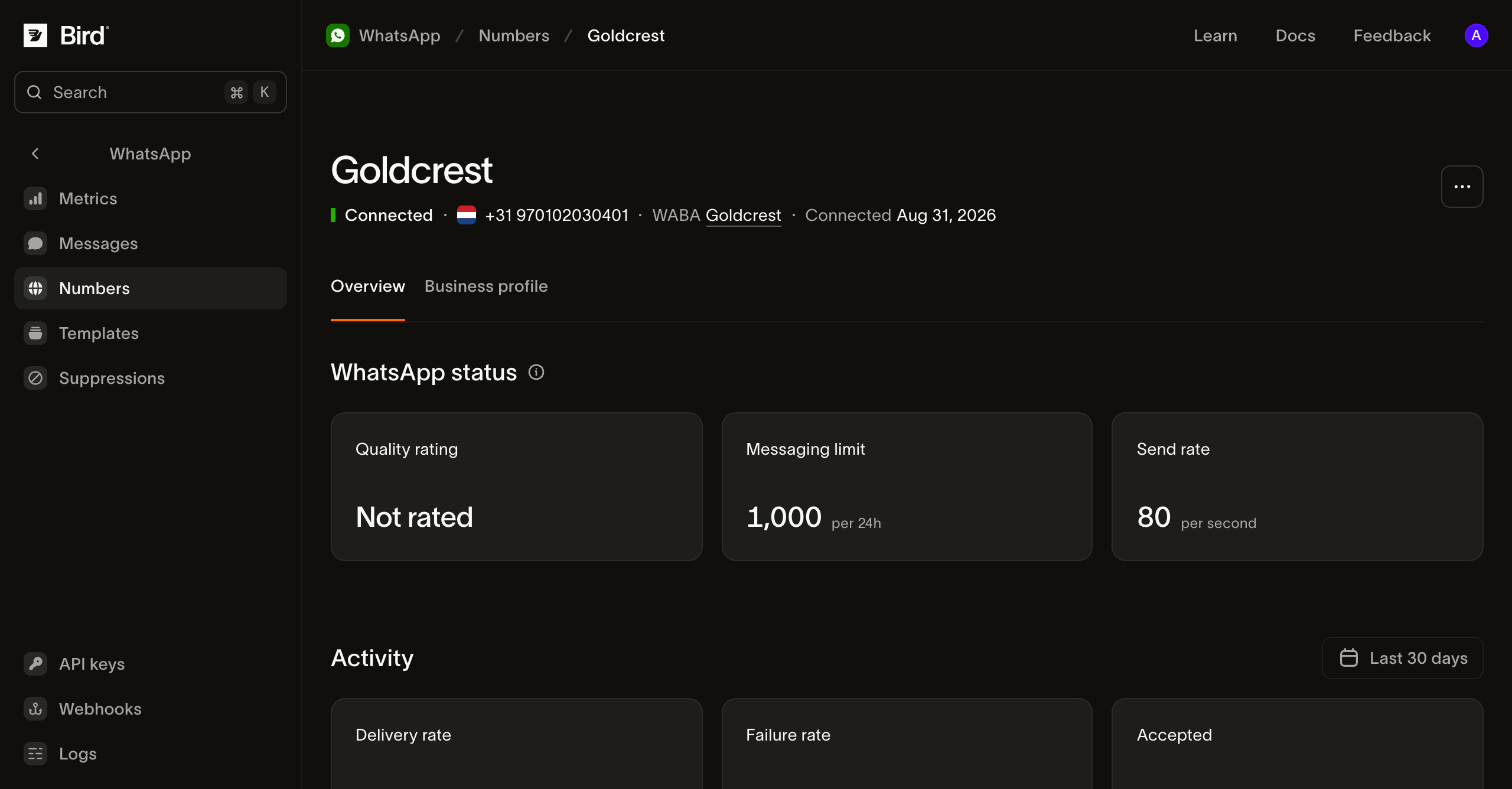
Open Business profile to edit the name, description, address, or photo customers see. Activity shows the number's sending activity.
Check the business account
Select an account in the WABA column to open its WhatsApp Business Account details.
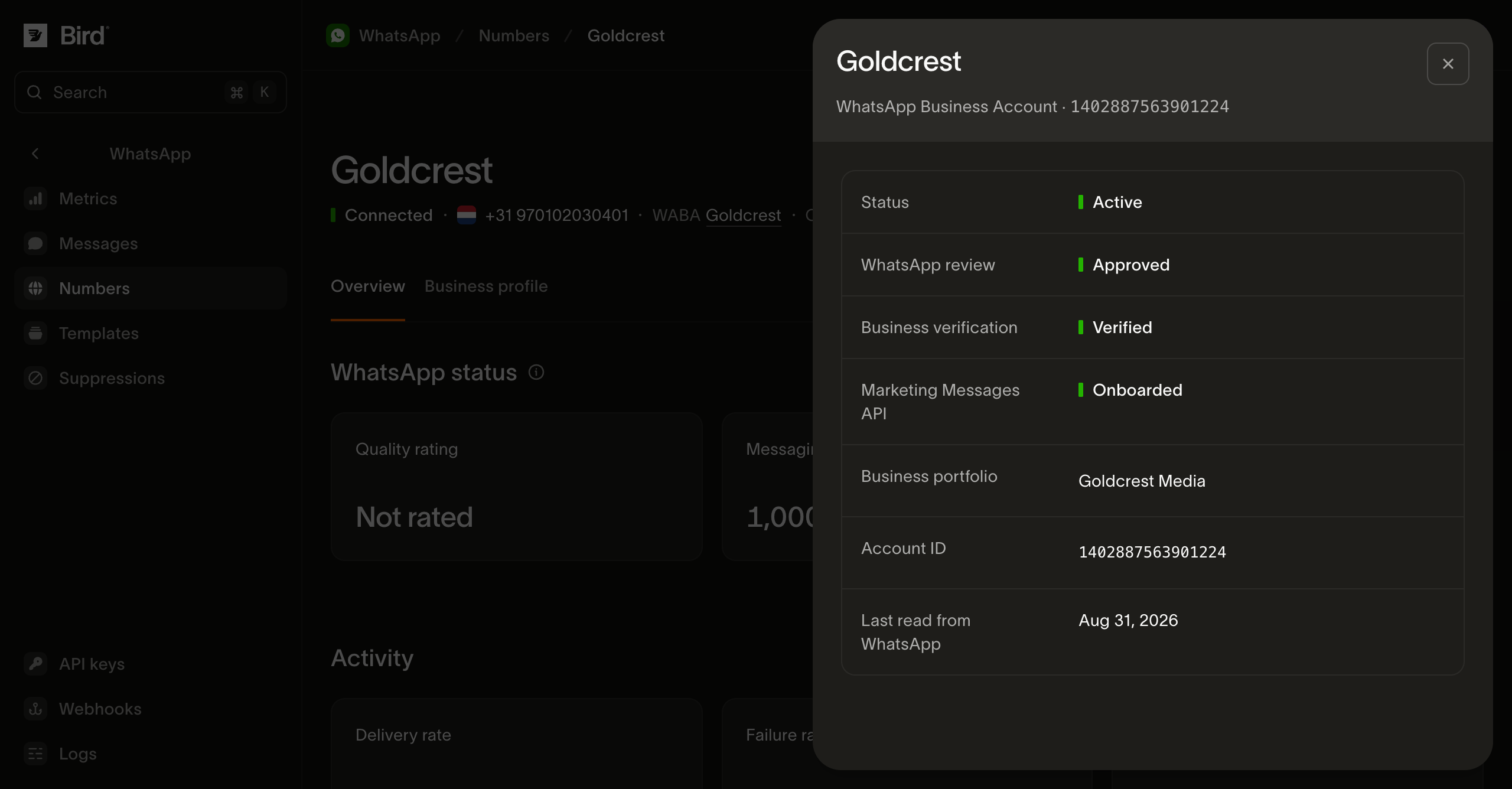
- Business verification shows whether Meta has verified your business.
- Marketing Messages API shows whether the account can use Meta's marketing delivery optimizations.
- Last read from WhatsApp shows when Bird last refreshed the account details.
If you have several accounts, check the one linked to your sending number.
Read your numbers from the API
Use an API key with whatsapp_management read access. List numbers to get their IDs, phone numbers, and statuses:
for await (const number of bird.whatsapp.numbers.list({ limit: 25 })) {
  console.log(number.id, number.phone_number, number.status);
}
for number in client.whatsapp.numbers.list(limit=25):
print(number.id, number.phone_number, number.status)for number, err := range client.Whatsapp.Numbers.List(ctx, bird.WhatsappNumbersListParams{Limit: 25}) {
if err != nil {
log.Fatal(err)
}
fmt.Println(number.Id, number.PhoneNumber, number.Status)
}foreach ($bird->whatsapp->numbers->list() as $number) {
echo $number->getId(), ' ', $number->getPhoneNumber(), ' ', $number->getStatus(), PHP_EOL;
}curl -sS "https://us1.platform.bird.com/v1/whatsapp/numbers?limit=25" \
-H "Authorization: Bearer $BIRD_API_KEY"Read a number to check its status, quality rating, and sending limits. For other details, use:
| Endpoint | What you get |
|---|---|
| Number profile | Description, address, and websites. |
| Number events | Setup and changes to the number, newest first. |
| Business accounts | Your workspace's WhatsApp Business Accounts. |
| Business account details | Review status, verification, marketing onboarding, and Meta health status. |
During setup, status can be preparing or awaiting_signup. Check next for the action to take. Open finish_setup_url to complete the browser step.
Use the dashboard or CLI to connect, rename, or disconnect a number. These actions are not available through the public API or SDKs.
Enable conversations
Open your number's Settings and turn on Enable conversations. See WhatsApp conversations for details.
Number options
- A number allocated to your workspace: follow Connect your number. Bird receives the verification code for you.
- A number from another provider: choose I have my own number and receive Meta's verification code by SMS or voice call.
- A number already registered with WhatsApp: use a supported migration or eligible Business App Coexistence flow.
- A number registered in personal WhatsApp: to keep using it in an app, register it in the WhatsApp Business app and connect it with coexistence. To use it with Bird alone, delete its WhatsApp account first. After up to three minutes, connect your number and choose I have my own number. The number then no longer works in WhatsApp.
Enter a Phone registration PIN if the number already has one on WhatsApp.
Default numbers let you send supported templates without connecting your own number.
Next steps
Related resources
Continue with the documentation, guides and examples for this topic.