Invite your team
Bird is built for teams: each person signs in with their own account and gets exactly the access their role describes. This page shows how to send an invitation, what happens on the other end, and how to pick the right access level.
Pick a role
You invite people to your workspace with a role that sets exactly what they can do. There are three:
- admin — runs the workspace, including its team and settings.
- developer — builds the integration: sends, domains, webhooks, API keys.
- analyst — read-only: can look at everything, change nothing.
Most teammates only need one of these. (Behind the workspace, an owner role manages billing and the member list across the account; you hold it automatically as the person who created the account, and it's wise to have a second owner so no one person is a bottleneck. It rarely comes up day to day — see Users, teams & roles.)
One subtlety worth knowing: workspace access also controls who can be sent test messages from Bird's shared onboarding domain, so a teammate who should receive test sends during setup needs access to the workspace doing the sending.
Send an invitation
In the dashboard, open Settings → Team. You'll see everyone who currently has access to the workspace, each with their role, plus any invitations that haven't been accepted yet.
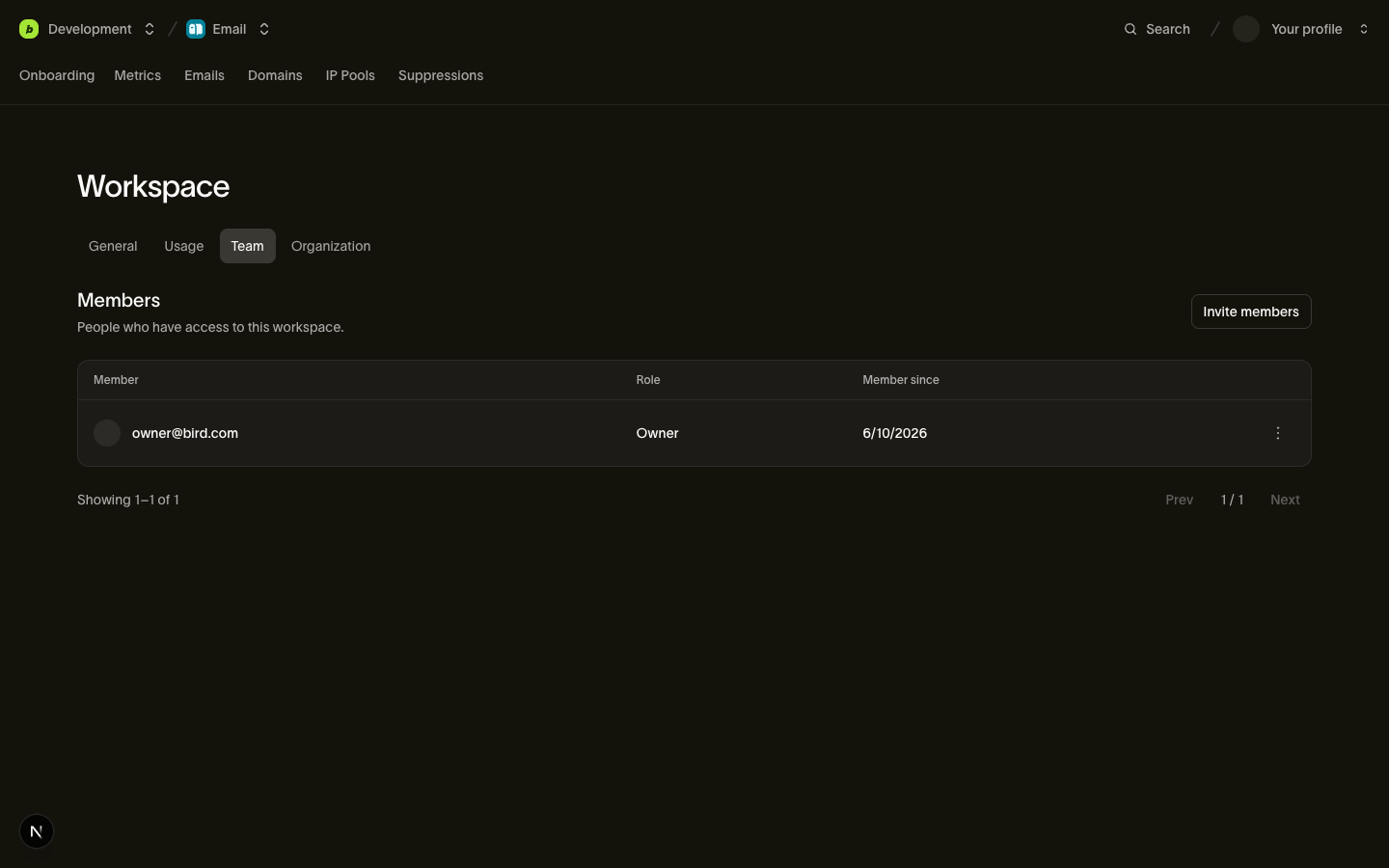
Click Invite members, enter your teammate's email address, and choose their role. What happens next depends on whether they already use Bird:
- New to Bird — they receive an invitation email with a signup link. Once they create their account, they land directly in your workspace with the role you chose. The link is valid for 7 days; after that the invitation expires and you'll need to send a new one from the same screen.
- Already in your organization — they're added to the workspace immediately with the chosen role. No email, no waiting.
You can withdraw a pending invitation at any time from the Team screen, and inviting the same address twice won't create a duplicate — you'll be pointed at the invitation that's already pending.
Accepting an invitation
If you're on the receiving end: the invitation arrives by email from Bird. Click the link, create your account (or sign in if you already have one), and you're in — the workspace appears in your dashboard with the access your inviter chose. If the link has expired, ask the person who invited you to re-send it.
Changing roles and removing people
Roles aren't permanent: a workspace admin or an owner can change anyone's role or remove them from the Settings → Team screen as your team evolves. Two guardrails apply — you can't change your own access (someone else has to do it), and an organization can never lose its last owner.
For the full picture of what each role can and can't do, see Users, teams & roles.