AI onboarding
Bird is built to be driven by agents as much as by humans. The fastest path is to hand your coding agent a setup prompt: paste it once and the agent installs the bird CLI and Bird's skills, then proves it works by sending a test email. The CLI is the default because it is the leanest agent surface: JSON output, semantic exit codes, far fewer tokens per operation than tool calls, and a self-describing command tree. If your client calls tools instead of running a shell, connect the MCP server instead. Set it up once and your agent can send, inspect, and debug on Bird without you copy-pasting anything.
1. Set up your agent (CLI + skills)
The fastest path is to set up your coding agent: paste one prompt and your agent installs the bird CLI and Bird's skills, signs you in, and sends a test email to prove it works. On the home page (and the Products and Email pages), the Claude Code / Codex / Cursor buttons copy the prompt tailored to each one. The skills teach the agent Bird's workflows (send and confirm delivery, find a verified sender, manage webhook endpoints) so it reaches a correct command on the first try.
2. Connect the MCP server (when it fits)
If your client calls tools instead of running a shell (Claude Desktop, ChatGPT developer mode, mobile), point it at Bird's hosted MCP server instead. It is a URL and a browser sign-in, nothing to install:
Code example
https://mcp.platform.bird.comThe first time a client connects, your browser opens a Bird consent screen: you sign in, pick the workspace and the permissions to grant, and approve. There is no API key to create and no secret in your client config. The endpoint, the full tool surface, the delegated OAuth model, and the local-stdio option (bird mcp) are in the MCP server guide.
3. Feed your agent the docs corpus
Everything on this docs site is also published in machine-readable form, so agents that prefer reading over tool calling get the same content you're looking at now:
- /llms.txt — the index: a flat, link-rich summary of every page, ideal as a starting point the agent can follow links from.
- /llms-full.txt — the full corpus: every doc page concatenated as Markdown, for agents that want the whole thing in context.
Both are regenerated with the site, so they never drift from the live API surface. Point your agent at the index URL, paste the full corpus into a long-context session, or use the Copy page menu on any individual page — it copies that page as Markdown and links to both corpus files. The dashboard's onboarding page mirrors the same Copy-for-AI shortcuts.
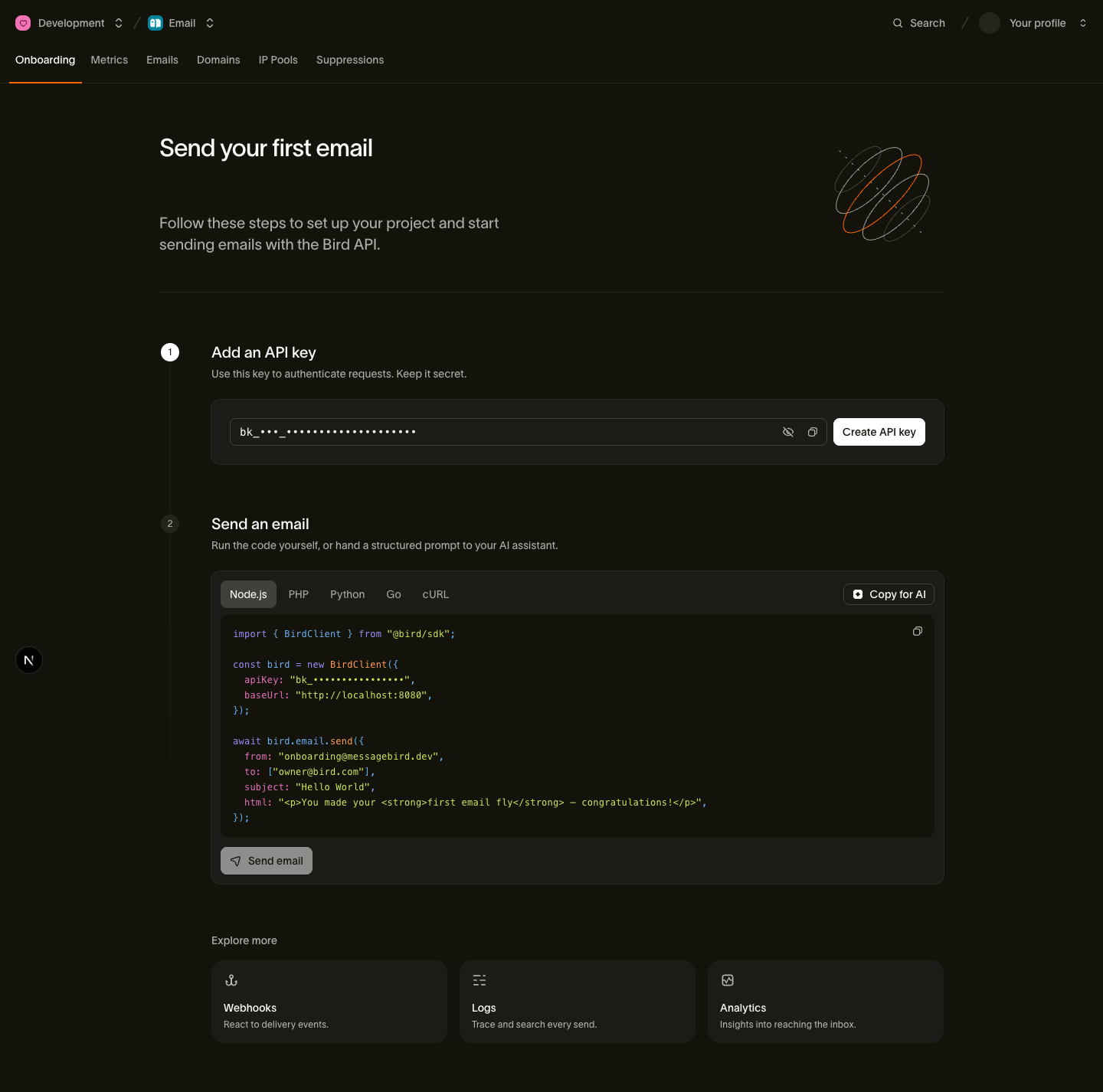
The formats, sizing, and retrieval tips are covered in the llms.txt guide.
4. Try it
Once your agent is set up, give it a real task end to end:
Send a test email from onboarding@messagebird.dev to delivered@messagebird.dev and tell me when it's delivered.
The agent sends through Bird's shared onboarding domain to the sandbox recipient — no domain verification, no real mailbox, a deterministic delivered result — and polls the message status until it lands. That's the same happy path as the send-your-first-email quickstart, just driven by the agent instead of you.
Go deeper
- CLI for agents — the bird CLI's agent contract: JSON output, semantic exit codes, OAuth login. The default surface.
- Agent skills — the bird-ai marketplace plugin and what each client gets.
- MCP server — the hosted endpoint, the full tool surface, the delegated OAuth model, and the local-stdio option.
- llms.txt & Markdown docs — how the machine-readable corpus is built and how to retrieve from it.
- Send your first email — the human-driven version of the happy path above.