Overview
This article explains how to view, interpret, and act on step-level insights for a Journey — so you can see exactly how users move through each step, where they drop off, and which steps drive conversions.
What you’ll learn
How to open step-level insights for any Journey
Key metrics available at each step and what they mean
Filtering, comparing and exporting step data
Practical examples, troubleshooting, and best practices
Accessing step-level insights
Open the Journeys page and select the Journey you want to view insights for or go to 3 dots menu and click on View Insights.
Click the Insights option in the Journey side pane. This will also take you to Journey insights page showing metrics on each step and branch % for the journey.
If you are already on the Journey builder canvas page, you can also click on View Insights on the top right
Click on View Insights from 3 dots menu

Click on Insights on the side pane

Click on View Insights on the Journey builder canvas

Click a specific step in the visual journey canvas to reveal that step’s metrics panel for detailed metrics. If the selected step has failed, click View runs to see runs that failed at that step.
Use the filters on the top to choose date range and journey versions.
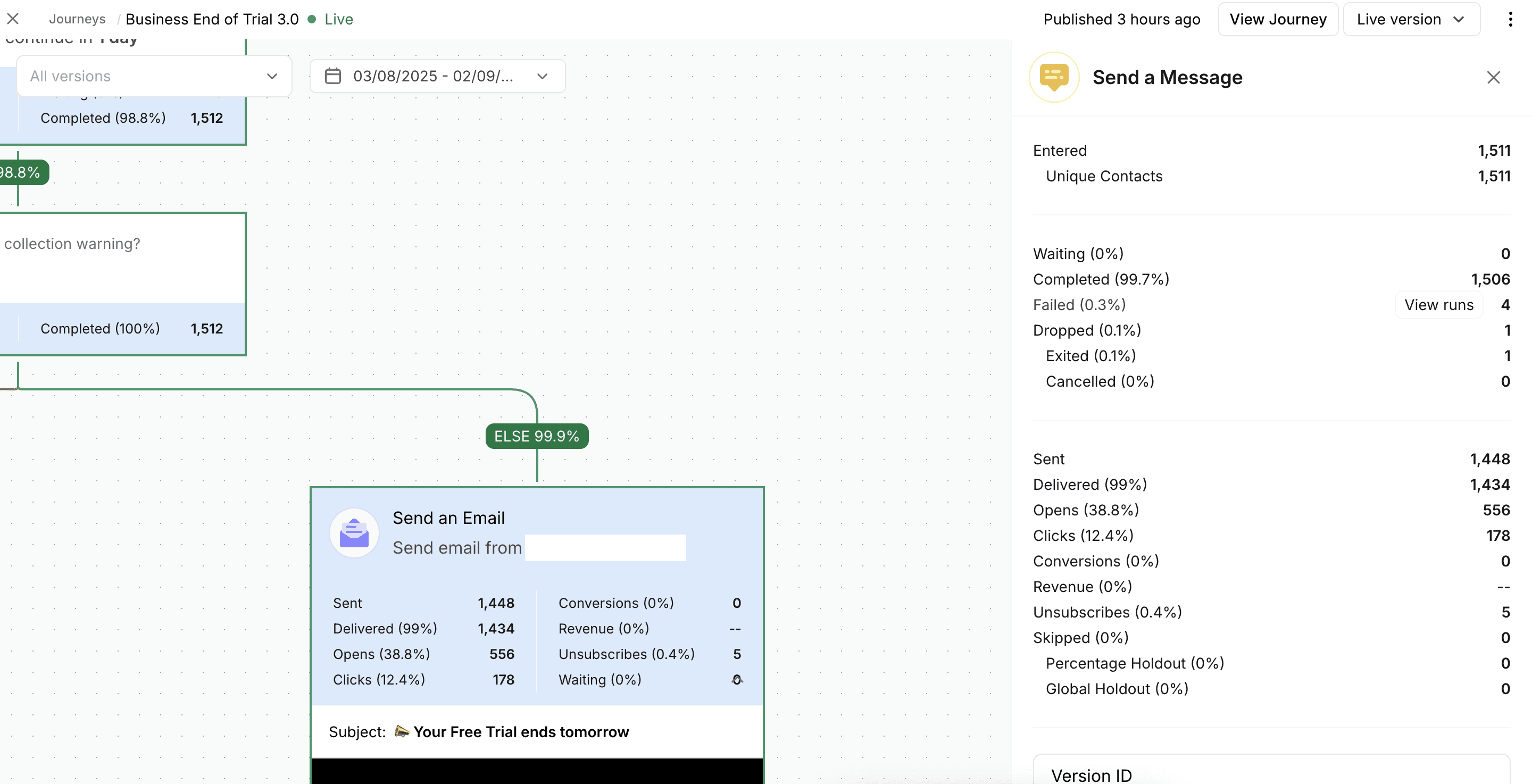
Journey Metric Details
For each step you will see the following set of metrics based on the type of step:
For each metric definition, you can view this article on Reporting Metrics Definition.
Trigger
Metrics shown on the step card
Entered: Total number of times a journey run is triggered with any contact in the selected time range
Additional metrics on the step detail pane
Unique contacts: Number of unique contacts for whom journey run is triggered at least once in the selected time range
Dropped: Total number of entered runs which are rejected, exited or cancelled. In case of trigger, the runs can only be rejected in the selected time range
Rejected: Total number of runs which are rejected due to an entry condition is not met in the selected time range
Message Step
Metrics shown on the step card
Sent: Total number of messages sent from Bird to the channel in the selected time range
Delivered (Delivery rate):
Total number of messages delivered to the channel in the selected time range.
Delivery rate = % of Delivered/Sent
Opens (Open rate)
Unique opens by contacts who opened or read the message at least once in the selected time range.
Open rate = % of Open/Delivered
Clicks (Click rate)
Unique clicks by contacts who clicked a link in the message or a reply button (WhatsApp only) at least once in the selected time range.
Open rate = % of Clicks/Delivered
Conversions (Conversion rate)
Unique conversions by contacts who opened or clicked the message and then resulted in a conversion event (Order Place or Order Fulfilled) within the channel attribution window in the selected time range.
Open rate = % of Conversions/Delivered
Revenue
Total revenue from the conversion events in the selected time range.
Unsubscribes (Unsubscribed rate)
Unique unsubscribes by contacts who submitted the unsubscribe page in email or SMS or replied with unsubscribe keyword for SMS in the selected time range. It also includes any list-unsubscribes on the subject line or email header.
Unsubscribe rate = % of Unsubscribes/Delivered
Waiting: Total number of journey runs which are waiting in this step in the selected time range.
Additional metrics on the step detail pane
Entered: Total number of journey runs which has entered this step in the selected time range
Unique contacts: Number of unique contacts for whom journey run has entered this step in the selected time range
Completed: Total number of journey runs which have completed this step in the selected time range
Failed: Total number of journey runs which have failed at this step in the selected time range
Dropped: Total number of entered runs which are rejected, exited or cancelled in the selected time range. In case of this step, the runs can only be exited or cancelled
Exited: Total number of runs which are exited due to exit condition is met in the selected time range
Cancelled: Total number of runs which are cancelled manually at this step in the selected time range
Skipped: Total number of runs which are skipped sending a message at this step in the selected time range
Global Holdout: Total number of runs which are skipped sending a message at this step in the selected time range due to global holdout setting.
Percentage Holdout: Total number of runs which are skipped sending a message at this step in the selected time range due to percentage holdout settings defined on the trigger.
Wait Step
Metrics shown on the step card
Entered: Total number of journey runs which has entered this step in the selected time range.
Waiting: Total number of journey runs which are waiting in this step in the selected time range.
Completed: Total number of journey runs which have completed in this step and moved to next step in the selected time range.
Additional metrics on the step detail pane
Unique contacts: Number of unique contacts for whom journey run has entered this step in the selected time range.
Dropped: Total number of entered runs which are rejected, exited or cancelled in the selected time range. In case of this step, the runs can only be exited or cancelled
Exited: Total number of runs which are exited due to exit condition is met in the selected time range
Cancelled: Total number of runs which are cancelled manually at this step in the selected time range
Condition Step
Metrics shown on the step card
Entered: Total number of journey runs which has entered this step in the selected time range.
Completed: Total number of journey runs which have completed in this step and moved to next step in the selected time range.
Additional metrics on the step detail pane
Unique contacts: Number of unique contacts for whom journey run has entered this step in the selected time range.
Waiting: Total number of journey runs which are waiting in this step in the selected time range.
Dropped: Total number of entered runs which are rejected, exited or cancelled in the selected time range. In case of this step, the runs can only be exited or cancelled
Exited: Total number of runs which are exited due to exit condition is met in the selected time range
Cancelled: Total number of runs which are cancelled manually at this step in the selected time rangeRandom Sampler Step
Metrics shown on the step card
Entered: Total number of journey runs which has entered this step in the selected time range.
Completed: Total number of journey runs which have completed in this step and moved to next step in the selected time range.
Additional metrics on the step detail pane
Unique contacts: Number of unique contacts for whom journey run has entered this step in the selected time range.
Waiting: Total number of journey runs which are waiting in this step in the selected time range.
Dropped: Total number of entered runs which are rejected, exited or cancelled in the selected time range. In case of this step, the runs can only be exited or cancelled
Exited: Total number of runs which are exited due to exit condition is met in the selected time range
Cancelled: Total number of runs which are cancelled manually at this step in the selected time range
Update Contact Step
Metrics shown on the step card
Entered: Total number of journey runs which has entered this step in the selected time range.
Completed: Total number of journey runs which have completed in this step and moved to next step in the selected time range.
Additional metrics on the step detail pane
Unique contacts: Number of unique contacts for whom journey run has entered this step in the selected time range.
Waiting: Total number of journey runs which are waiting in this step in the selected time range.
Dropped: Total number of entered runs which are rejected, exited or cancelled in the selected time range. In case of this step, the runs can only be exited or cancelled
Exited: Total number of runs which are exited due to exit condition is met in the selected time range
Cancelled: Total number of runs which are cancelled manually at this step in the selected time range
Jump To Step
Metrics shown on the step card
Entered: Total number of journey runs which has entered this step in the selected time range.
Completed: Total number of journey runs which have completed in this step and moved to next step in the selected time range.
Additional metrics on the step detail pane
Unique contacts: Number of unique contacts for whom journey run has entered this step in the selected time range.
Waiting: Total number of journey runs which are waiting in this step in the selected time range.
Dropped: Total number of entered runs which are rejected, exited or cancelled in the selected time range. In case of this step, the runs can only be exited or cancelled
Exited: Total number of runs which are exited due to exit condition is met in the selected time range
Cancelled: Total number of runs which are cancelled manually at this step in the selected time range
End Journey Step
Metrics shown on the step card
Entered: Total number of journey runs which has entered this step in the selected time range.
Completed: Total number of journey runs which have completed in this step and moved to next step in the selected time range.
Additional metrics on the step detail pane
Unique contacts: Number of unique contacts for whom journey run has entered this step in the selected time range.
Waiting: Total number of journey runs which are waiting in this step in the selected time range.
Dropped: Total number of entered runs which are rejected, exited or cancelled in the selected time range. In case of this step, the runs can only be exited or cancelled
Exited: Total number of runs which are exited due to exit condition is met in the selected time range
Cancelled: Total number of runs which are cancelled manually at this step in the selected time range
Branch Metrics and Percentages
Branch Percentage: It is shown on the branch between 2 steps or when there are multiple branches after condition or random sampler steps. It is percentage of Entered this branch out of Entered all branches.
Branch Percentage = Entered this branch / Entered all branches
Metrics shown on hover
Entered this branch: Total number of runs which entered this specific branch from the previous step in the selected time range.
Entered all branches: Total number of runs which were completed from the previous step to move to the next step in the selected time range.
Dropped from all branches: Total number of runs which were dropped from all the branches from the previous step in the selected time range. This may be due to failed, exited or cancelled runs.

For each step you will see the following set of metrics based on the type of step:
For each metric definition, you can view this article on Reporting Metrics Definition.
Trigger
Metrics shown on the step card
Entered: Total number of times a journey run is triggered with any contact in the selected time range
Additional metrics on the step detail pane
Unique contacts: Number of unique contacts for whom journey run is triggered at least once in the selected time range
Dropped: Total number of entered runs which are rejected, exited or cancelled. In case of trigger, the runs can only be rejected in the selected time range
Rejected: Total number of runs which are rejected due to an entry condition is not met in the selected time range
Message Step
Metrics shown on the step card
Sent: Total number of messages sent from Bird to the channel in the selected time range
Delivered (Delivery rate):
Total number of messages delivered to the channel in the selected time range.
Delivery rate = % of Delivered/Sent
Opens (Open rate)
Unique opens by contacts who opened or read the message at least once in the selected time range.
Open rate = % of Open/Delivered
Clicks (Click rate)
Unique clicks by contacts who clicked a link in the message or a reply button (WhatsApp only) at least once in the selected time range.
Open rate = % of Clicks/Delivered
Conversions (Conversion rate)
Unique conversions by contacts who opened or clicked the message and then resulted in a conversion event (Order Place or Order Fulfilled) within the channel attribution window in the selected time range.
Open rate = % of Conversions/Delivered
Revenue
Total revenue from the conversion events in the selected time range.
Unsubscribes (Unsubscribed rate)
Unique unsubscribes by contacts who submitted the unsubscribe page in email or SMS or replied with unsubscribe keyword for SMS in the selected time range. It also includes any list-unsubscribes on the subject line or email header.
Unsubscribe rate = % of Unsubscribes/Delivered
Waiting: Total number of journey runs which are waiting in this step in the selected time range.
Additional metrics on the step detail pane
Entered: Total number of journey runs which has entered this step in the selected time range
Unique contacts: Number of unique contacts for whom journey run has entered this step in the selected time range
Completed: Total number of journey runs which have completed this step in the selected time range
Failed: Total number of journey runs which have failed at this step in the selected time range
Dropped: Total number of entered runs which are rejected, exited or cancelled in the selected time range. In case of this step, the runs can only be exited or cancelled
Exited: Total number of runs which are exited due to exit condition is met in the selected time range
Cancelled: Total number of runs which are cancelled manually at this step in the selected time range
Skipped: Total number of runs which are skipped sending a message at this step in the selected time range
Global Holdout: Total number of runs which are skipped sending a message at this step in the selected time range due to global holdout setting.
Percentage Holdout: Total number of runs which are skipped sending a message at this step in the selected time range due to percentage holdout settings defined on the trigger.
Wait Step
Metrics shown on the step card
Entered: Total number of journey runs which has entered this step in the selected time range.
Waiting: Total number of journey runs which are waiting in this step in the selected time range.
Completed: Total number of journey runs which have completed in this step and moved to next step in the selected time range.
Additional metrics on the step detail pane
Unique contacts: Number of unique contacts for whom journey run has entered this step in the selected time range.
Dropped: Total number of entered runs which are rejected, exited or cancelled in the selected time range. In case of this step, the runs can only be exited or cancelled
Exited: Total number of runs which are exited due to exit condition is met in the selected time range
Cancelled: Total number of runs which are cancelled manually at this step in the selected time range
Condition Step
Metrics shown on the step card
Entered: Total number of journey runs which has entered this step in the selected time range.
Completed: Total number of journey runs which have completed in this step and moved to next step in the selected time range.
Additional metrics on the step detail pane
Unique contacts: Number of unique contacts for whom journey run has entered this step in the selected time range.
Waiting: Total number of journey runs which are waiting in this step in the selected time range.
Dropped: Total number of entered runs which are rejected, exited or cancelled in the selected time range. In case of this step, the runs can only be exited or cancelled
Exited: Total number of runs which are exited due to exit condition is met in the selected time range
Cancelled: Total number of runs which are cancelled manually at this step in the selected time rangeRandom Sampler Step
Metrics shown on the step card
Entered: Total number of journey runs which has entered this step in the selected time range.
Completed: Total number of journey runs which have completed in this step and moved to next step in the selected time range.
Additional metrics on the step detail pane
Unique contacts: Number of unique contacts for whom journey run has entered this step in the selected time range.
Waiting: Total number of journey runs which are waiting in this step in the selected time range.
Dropped: Total number of entered runs which are rejected, exited or cancelled in the selected time range. In case of this step, the runs can only be exited or cancelled
Exited: Total number of runs which are exited due to exit condition is met in the selected time range
Cancelled: Total number of runs which are cancelled manually at this step in the selected time range
Update Contact Step
Metrics shown on the step card
Entered: Total number of journey runs which has entered this step in the selected time range.
Completed: Total number of journey runs which have completed in this step and moved to next step in the selected time range.
Additional metrics on the step detail pane
Unique contacts: Number of unique contacts for whom journey run has entered this step in the selected time range.
Waiting: Total number of journey runs which are waiting in this step in the selected time range.
Dropped: Total number of entered runs which are rejected, exited or cancelled in the selected time range. In case of this step, the runs can only be exited or cancelled
Exited: Total number of runs which are exited due to exit condition is met in the selected time range
Cancelled: Total number of runs which are cancelled manually at this step in the selected time range
Jump To Step
Metrics shown on the step card
Entered: Total number of journey runs which has entered this step in the selected time range.
Completed: Total number of journey runs which have completed in this step and moved to next step in the selected time range.
Additional metrics on the step detail pane
Unique contacts: Number of unique contacts for whom journey run has entered this step in the selected time range.
Waiting: Total number of journey runs which are waiting in this step in the selected time range.
Dropped: Total number of entered runs which are rejected, exited or cancelled in the selected time range. In case of this step, the runs can only be exited or cancelled
Exited: Total number of runs which are exited due to exit condition is met in the selected time range
Cancelled: Total number of runs which are cancelled manually at this step in the selected time range
End Journey Step
Metrics shown on the step card
Entered: Total number of journey runs which has entered this step in the selected time range.
Completed: Total number of journey runs which have completed in this step and moved to next step in the selected time range.
Additional metrics on the step detail pane
Unique contacts: Number of unique contacts for whom journey run has entered this step in the selected time range.
Waiting: Total number of journey runs which are waiting in this step in the selected time range.
Dropped: Total number of entered runs which are rejected, exited or cancelled in the selected time range. In case of this step, the runs can only be exited or cancelled
Exited: Total number of runs which are exited due to exit condition is met in the selected time range
Cancelled: Total number of runs which are cancelled manually at this step in the selected time range
Branch Metrics and Percentages
Branch Percentage: It is shown on the branch between 2 steps or when there are multiple branches after condition or random sampler steps. It is percentage of Entered this branch out of Entered all branches.
Branch Percentage = Entered this branch / Entered all branches
Metrics shown on hover
Entered this branch: Total number of runs which entered this specific branch from the previous step in the selected time range.
Entered all branches: Total number of runs which were completed from the previous step to move to the next step in the selected time range.
Dropped from all branches: Total number of runs which were dropped from all the branches from the previous step in the selected time range. This may be due to failed, exited or cancelled runs.
Important notes when reading the metrics
On Wait step, Entered and Completed may be different in a selected time range
The journey metrics show a snapshot of the journey runs in a selected time range, which means that if you have a time filter of 30 days, Entered shows the total number of runs which entered in the journey in 30 days which may be 100. However, Completed may be more or less than Entered as more or less runs may have completed the Wait step in the 30 days as they may have entered and waiting before the selected time range. In this case, you can increase the time range to see more data.
Impact of Deleting steps
When you delete steps, the metrics are reset as it is new step and they are not combined with same step of the old version. You can still see metrics by selecting the older versions on the version filter. If the step is completely deleted, you can also see their metrics only by using the version filter.
Why your branches may show > 100%
When a Jump To step is adding to a step and the branch, the Entered on the step would be greater than Completed form the immediate previous step. This causes the branch percentage to show > 100%
If you have added or deleted steps in a new journey version, this may also cause > 100% branch percentages.
Why my next step shows more Entered than Sent in previous step
This may happen if messages sending is skipped due to reasons like global or percentage holdouts. These skip sending messages on a message step in a journey but allow the contacts to continue and enter the next step. Please click on the Message step to see detailed Entered and Skipped metrics for clarification.