Users, teams & roles
Access for people in Bird is role-based: a user holds a role on your workspace, and each role is a fixed set of permissions. There is nothing else to configure — pick the right role and the permissions follow.
Roles govern what people can do in the dashboard. What services can do is governed by API key scopes — the same permission vocabulary, granted per key instead of per role.
Workspace roles
The roles you'll work with day to day live on the workspace (see Workspaces): admin, developer, and analyst. Manage them in the dashboard under Settings → Team.
Every permission is a {scope, level} pair, where level is read or write (write includes read). A role is simply a named, fixed set of these pairs.
| Scope | What write means | admin | developer | analyst |
|---|---|---|---|---|
| workspace | Edit workspace settings (name, icon, timezone) | write | read | read |
| api_keys | Create and revoke API keys | write | write | — |
| emails | Send email | write | write | read |
| email_management | Manage suppressions and email configuration | write | write | read |
| domains | Add, verify, and remove sending domains | write | write | read |
| webhooks | Configure webhook endpoints | write | write | read |
| ip_pools | View the organization's IP pools (read-only) | read | read | read |
| members | Manage the workspace team and invitations | write | read | read |
| analytics | View reports and deliverability analytics | read | — | read |
| audit | View the audit log | read | — | read |
| request_logs | View the request log (read-only) | read | read | read |
In practice: admin runs the workspace (team, settings, and everything a developer can do), developer builds the integration (send email with emails:write, manage domains with domains:write, configure webhooks with webhooks:write, mint API keys), and analyst is read-only everywhere. Note that ip_pools is read-only even for admins — purchasing dedicated IPs and managing pools is an organization-level operation (org:ip_pools:write), because pools are owned by the organization and shared across workspaces.
Other channels add their own scopes (for example numbers for phone numbers); they all follow the same {scope, level} model.
A 403 from any endpoint means the authenticated principal lacks the {scope, level} that endpoint requires — the fix is a role change (for a person) or a new key with the right scopes (for a service).
Organization roles
Behind your workspace sits an organization that owns billing and the overall member list. Two roles manage that layer:
- owner — everything. Full read and write across all organization operations and every workspace, present and future, with no workspace role needed. An organization can (and should) have multiple owners. The person who created the account starts as owner.
- billing_admin — billing and organization settings (org:billing:write, org:settings:write) plus read on members and workspaces (org:members:read, org:workspaces:read). No access to workspace operations.
These rarely come up day to day: most teammates only need a workspace role.
Members and the team
Membership is implicit: a user is "in" your organization if they hold any role — an organization role, or a workspace role on any workspace. There is no separate membership record to manage.
You manage the people on your workspace in the dashboard under Settings → Team, gated by the workspace members scope; a workspace admin manages their own team here without any organization-level role. Behind it, the cross-workspace view of everyone in the organization (with their org role and all workspace roles) is available via /v1/organization/members, gated by org:members. Team management is something people do, so API keys cannot hold the members scopes (see Authentication).
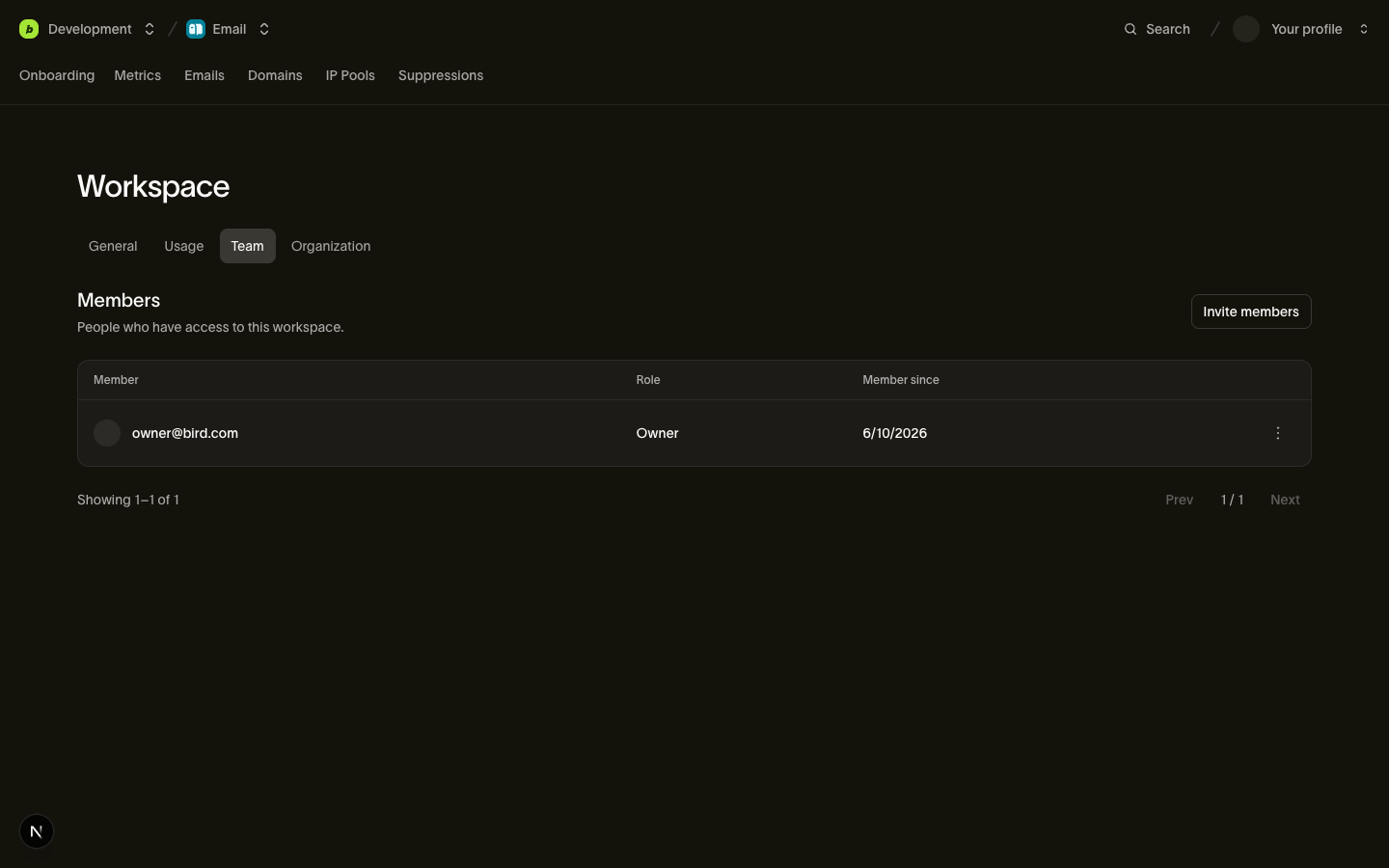
Removing someone from a workspace removes only that workspace role — they remain an organization member if they have roles elsewhere. Removing someone from the organization (DELETE /v1/organization/members/{member_id}) revokes everything: their organization role and all their workspace roles at once. API keys they created keep working either way — keys belong to the workspace, not the person.
Invitations
Inviting is workspace-first: you invite an email address to a workspace with a role, and Bird figures out the rest. This is a smart invitation — the same request handles both colleagues who are already in your organization and people who have never heard of Bird:
Esempio di codice
curl -X POST https://us1.platform.bird.com/v1/invitations \
  -H "Authorization: Bearer <your-credential>" \
  -H "X-Workspace-Id: <workspace-id>" \
  -H "Content-Type: application/json" \
-d '{ "email": "dana@yourcompany.com", "role": "developer" }'- Already an organization member — they are added to the workspace immediately with the given role. No email, no waiting; the response is a member object.
- Not yet a member — Bird creates an invitation, emails them a signup link, and the response is an invitation object with a pending status. The link is valid for 7 days; after that the invitation expires and must be re-sent.
The response carries a type discriminator (team_member or invitation) so you can tell which happened. A pending invitation for the same email returns 409 rather than creating a duplicate, and you can withdraw one at any time with POST /v1/invitations/{invitation_id}/revoke.
Organization-level invitations (POST /v1/organization/invitations) are the multi-workspace variant: one invitation can carry an organization role (owner or billing_admin), workspace roles on several workspaces, or both. You can never grant more than you hold — inviting someone as an owner requires being an owner.
Guardrails
Two invariants are enforced on every role change, regardless of who asks:
- The last owner is immovable. Demoting or removing an organization's only owner returns 409 — an organization can never end up ownerless. Promote a second owner first.
- You cannot change your own access. Changing your own role or removing yourself returns 403. This prevents both accidental self-lockout and quiet self-promotion; another admin or owner has to make the change.
How context is selected
Member and team endpoints exist at two levels, and which organization or workspace a request targets depends on how it authenticates:
- Session auth (the dashboard, or tools acting as you) selects context explicitly per request: X-Organization-Id on organization-scoped endpoints, X-Workspace-Id on workspace-scoped ones.
- API keys carry their context implicitly — a key belongs to exactly one workspace, which also pins the organization. No headers needed; sending a context header that contradicts the key returns 403.
See Workspaces for the full context-resolution model.
Related
- Authentication & API keys — scopes for services, and who can manage keys
- Workspaces — the workspace these roles attach to
- Members reference — full endpoint and schema documentation