# Managing WhatsApp numbers
Open [**Numbers**](https://bird.com/dashboard/w/whatsapp/numbers) to see your WhatsApp numbers, their connection status, and their business accounts. To add a number, follow [Connect your number](/docs/guides/whatsapp/numbers/connect).
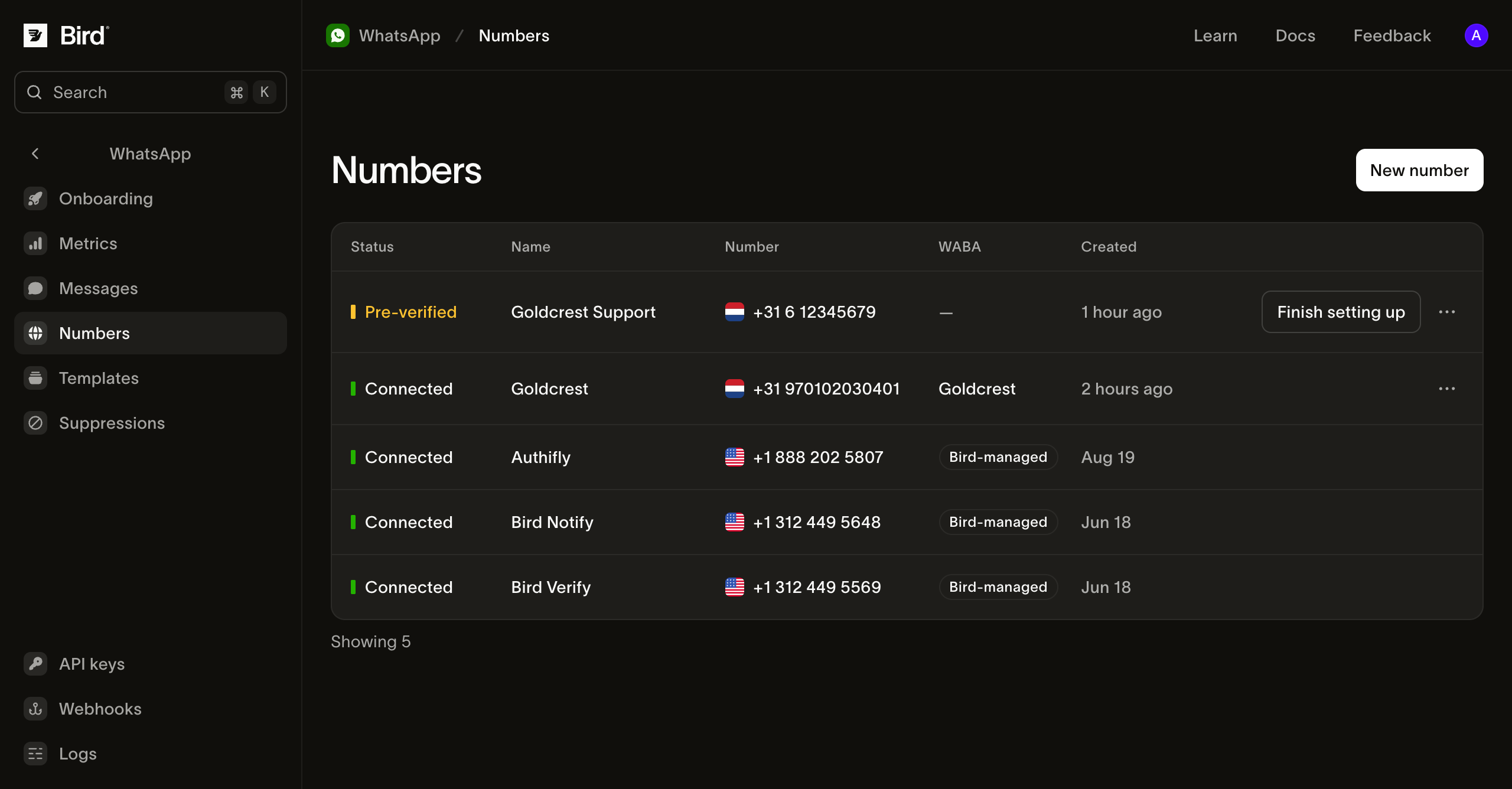
## Check connection status
| Status | What to do |
| ------------ | -------------------------------------------------------- |
| Preparing | Wait while Bird verifies a number your workspace holds. |
| Pre-verified | Select **Finish setting up** to connect it through Meta. |
| Pending | Wait while Bird registers the number with Meta. |
| Connected | Your number is ready to send. |
| Failed | Open the number to check the failure reason. |
For `verification_code_not_received` or `verification_rate_limited`, select **Try again** on the number's page. See [pre-verification failures](/docs/knowledge-base/whatsapp/pre-verification-failures) for retry timing. For other setup failures, disconnect the failed number before connecting it again.
## Review a connected number
Open a number to see its **Quality rating**, **Messaging limit**, and **Send rate**. These values come from Meta. **Not rated** means Meta does not yet have enough history to score the number.
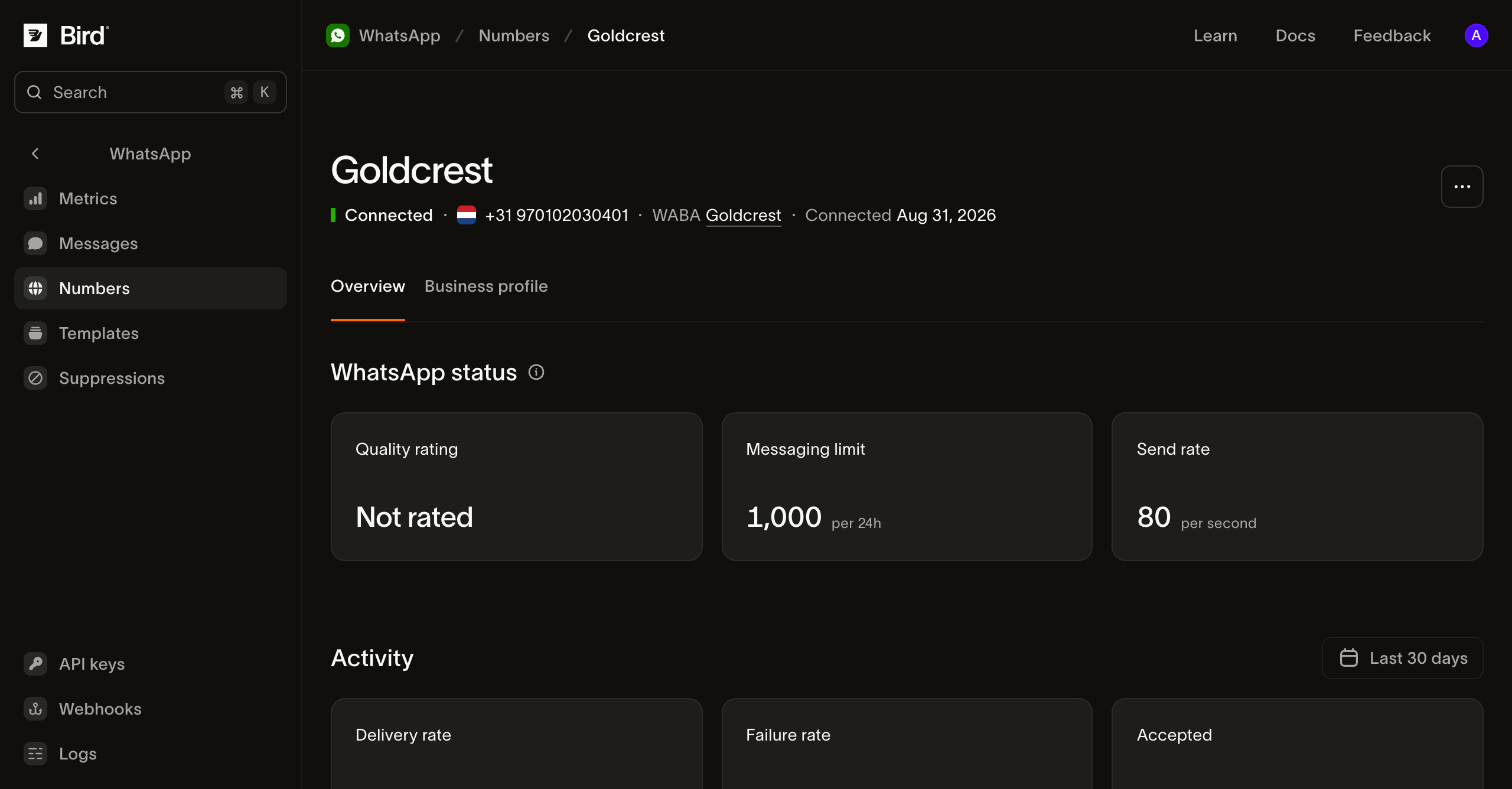
Use **Business profile** to update the display name, description, address, and profile picture recipients see. The **Activity** section shows sending activity.
## Review the business account
Select the account in the **WABA** column to review the WhatsApp Business Account that owns the number.
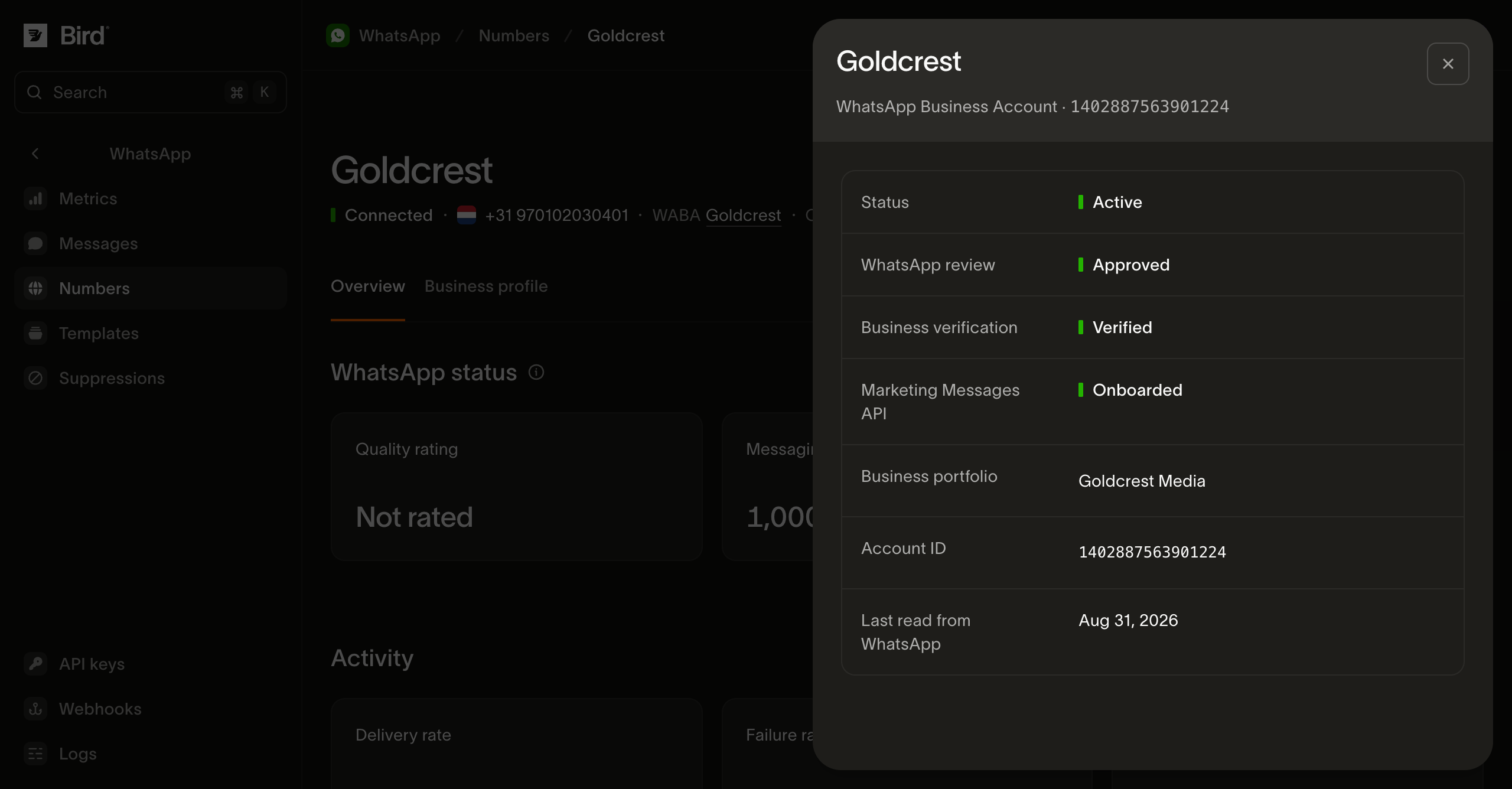
- **Business verification** affects access to features such as your own authentication templates.
- **Marketing Messages API** shows whether Meta has accepted the account for its marketing delivery optimizations. Marketing messages can send before onboarding, but GIF headers require it.
- **Last read from WhatsApp** shows when Bird last refreshed these details.
A workspace can have several business accounts. Check the account linked to the number you plan to send from.
## Read your numbers from the API
Use an API key with `whatsapp_management` read access. [List numbers](/docs/api/reference/list-whatsapp-numbers) returns a cursor page of your numbers:
**TypeScript**
```typescript
for await (const number of bird.whatsapp.numbers.list({ limit: 25 })) {
console.log(number.id, number.phone_number, number.status);
}
```
Examples: [TypeScript](/docs/guides/whatsapp/numbers/managing.ts.md) · [Python](/docs/guides/whatsapp/numbers/managing.py.md) · [Go](/docs/guides/whatsapp/numbers/managing.go.md) · [PHP](/docs/guides/whatsapp/numbers/managing.php.md) · [cURL](/docs/guides/whatsapp/numbers/managing.curl.md)
[Read a number](/docs/api/reference/get-whatsapp-number) for its status, quality rating, and sending limits. Related reads include:
| Endpoint | Returns |
| ----------------------------------------------------------------------------- | ------------------------------------------------------------------------------------ |
| [Number profile](/docs/api/reference/get-whatsapp-number-profile) | Description, address, and websites. |
| [Number events](/docs/api/reference/list-whatsapp-number-events) | Setup, status, quality, limit, and display-name changes, newest first. |
| [Business accounts](/docs/api/reference/list-whatsapp-business-accounts) | The workspace's WhatsApp Business Accounts. |
| [Business account details](/docs/api/reference/get-whatsapp-business-account) | Account review, business verification, marketing onboarding, and Meta health status. |
`meta_synced_at` dates the values last read from Meta. It is absent on default numbers. `meta_health_status` is absent until Bird has read the account. A number's `waba` contains Meta's account ID.
During setup, `status` can be `preparing` or `awaiting_signup`. The `next` field describes the next action, and `finish_setup_url` opens the browser step. Event `type` is an open enum, so handle unfamiliar values without failing.
Use the dashboard or CLI to connect, rename, or disconnect a number; these actions are not part of the public API or SDKs. The CLI commands are `bird whatsapp numbers create|update|delete` and `bird whatsapp numbers profile update`. Creating a connection returns `finish_setup_url` because Meta's consent step requires a browser.
## Receive messages
Messages to your connected numbers appear in the [WhatsApp log](/docs/guides/whatsapp/message-log). The [**Inbound** metrics](https://bird.com/dashboard/w/whatsapp/metrics/inbound) show received volume by number. Each inbound message opens the [24-hour customer service window](/docs/knowledge-base/whatsapp/customer-service-window) for free-form replies.
## Number options
For a number your workspace holds at Bird, [Connect your number](/docs/guides/whatsapp/numbers/connect) shows automatic verification and Meta setup. For a number held elsewhere, choose **I have my own number** and receive Meta's SMS or voice code yourself. Use the supported migration or eligible Business app coexistence path for an existing registration. Enter a **Phone registration PIN** only if the number already has one on WhatsApp.
[Default numbers](/docs/guides/whatsapp/numbers/default) send supported templates without connecting your own number.
## Next steps
- [Send a WhatsApp message](/docs/guides/whatsapp/sending-whatsapp)
- [Choose a template](/docs/guides/whatsapp/templates)
- [Review the WhatsApp log](/docs/guides/whatsapp/message-log)
## Related resources
- [Connecting WhatsApp to Bird: from buying a number to a live channel](/learn/whatsapp/connecting-whatsapp-to-bird) (video)
- [What is the 24-hour customer service window on WhatsApp?](/explained/whatsapp/what-is-the-24-hour-customer-service-window) (answer)
- [WhatsApp message builder](/tools/whatsapp-message-builder) (tool)
- [WhatsApp](/whatsapp-api) (product)
[Get an implementation brief](/learn/workspace?topic=whatsapp)