---
title: "Autofill SMS verification codes on websites and across devices"
description: "Let Chrome and Safari autofill Bird Verify one-time SMS codes on your website, even on a computer when the code arrives on the user's phone."
canonical: "https://bird.com/docs/guides/verify/sms-code-autofill"
---
# Autofill SMS verification codes on websites and across devices
When a Verify SMS names your website, browsers can fill the one-time passcode (OTP) into your sign-in form for the user. This works on the phone that receives the SMS, and on a computer when the code arrives on the user's phone. The same three steps serve each case in the table: bind codes to your website, mark the code field, and ask Chrome for the code with the [WebOTP API](https://developer.mozilla.org/en-US/docs/Web/API/WebOTP_API).
| The user signs in on | The SMS arrives on | How the code is filled |
| -------------------------------------------- | ------------------ | ---------------------------------------------------------------------- |
| Chrome on Android | The same phone | Chrome asks the user for permission to read the code, then fills it in |
| Chrome on Windows, macOS, Linux, or ChromeOS | An Android phone | The phone shows a notification; tapping **Submit** fills the code in |
| Safari on iPhone | The same phone | The keyboard suggests the code; tapping it fills the code in |
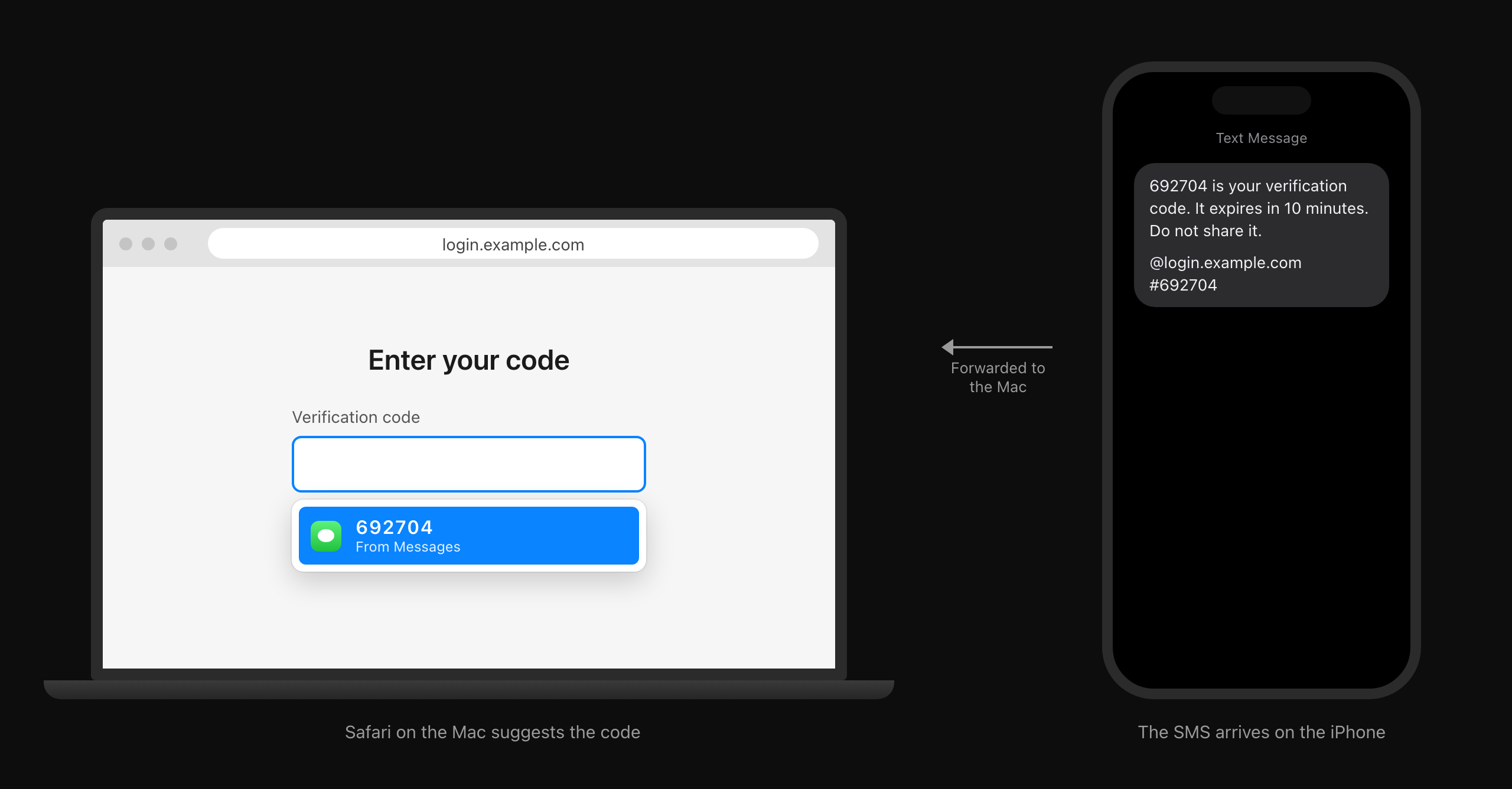
| Safari on a Mac | An iPhone | Safari suggests the forwarded code; clicking it fills the code in |
| Firefox | Any device | Firefox has no WebOTP API, so the user types the code |
Chrome and Safari offer a bound code on the website the SMS names, so autofill doesn't put the code into a look-alike site. Other browsers built on Chromium, such as Microsoft Edge, also have the WebOTP API, but cross-device autofill works in Chrome, because it relies on the user's Google account.
## Before you start
You need:
- A Verify workspace that sends SMS to your users' countries. The [**Destinations**](https://bird.com/dashboard/w/verify/destinations) page sets which channels each country uses.
- A code entry page served over HTTPS.
- If you send from your own registered SMS sender, such as a US 10DLC campaign, a campaign sample that ends with the bound line. See [Registered SMS senders](/docs/guides/verify/settings#registered-sms-senders).
## Bind codes to your website
Open [**Verify** > **Configure**](https://bird.com/dashboard/w/verify/configure), and on the **General** tab set **Website** to the address of the page that shows the code field, such as `https://login.example.com`. Verifications created after that send codes bound to that website.
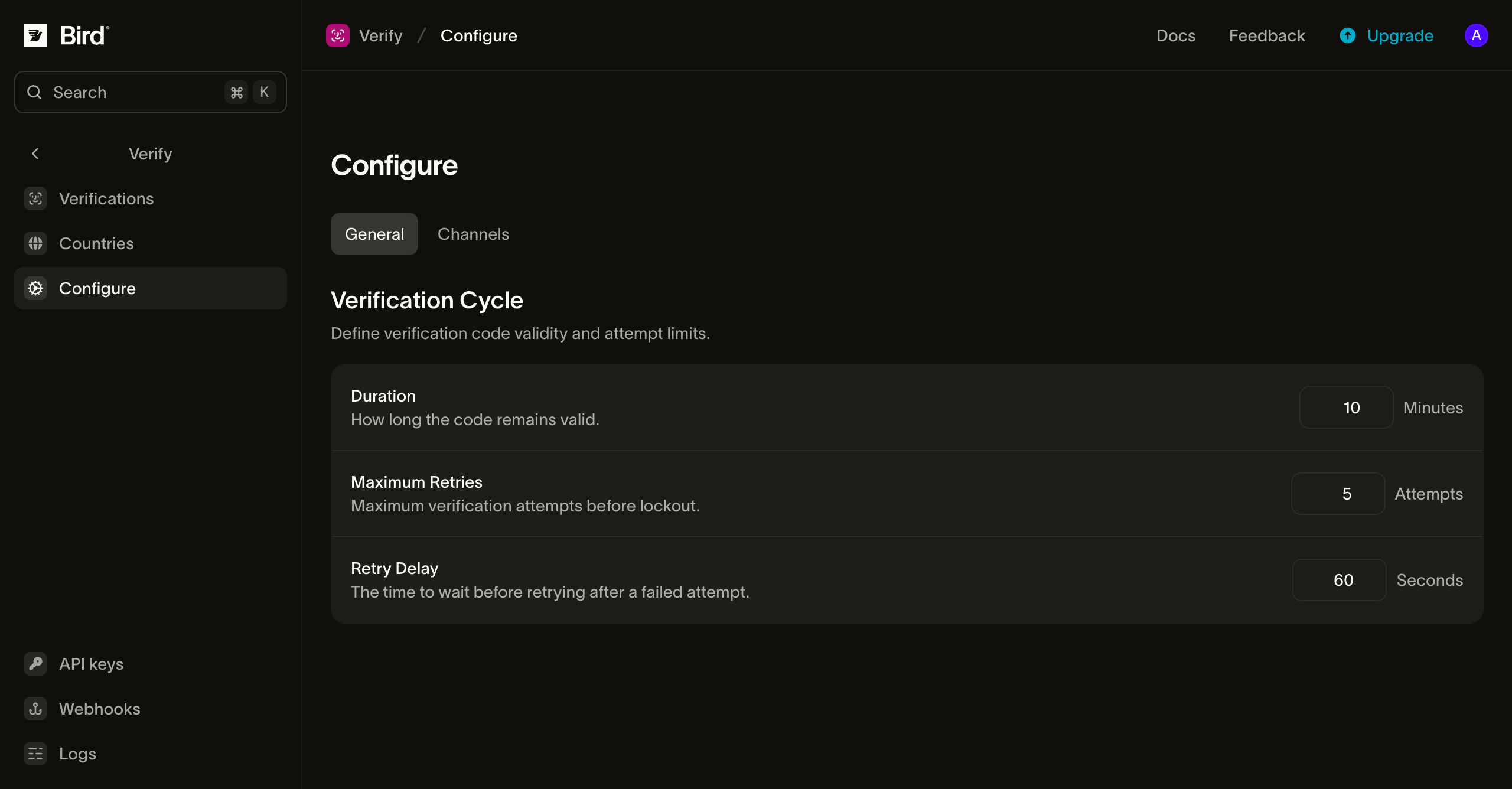
Use the exact host of the page. Chrome compares the host in the SMS with the page's host exactly, so codes bound to `https://example.com` are not filled on `https://www.example.com`. [Autofill](/docs/guides/verify/settings#autofill) gives the full format rules.
To bind one verification without changing the setting, send `options.autofill_origin` when you [create the verification](/docs/guides/verify/sending-verifications#send-a-code). Browsers read the code for autofill from the SMS, so this request also limits delivery to SMS:
```bash
curl -X POST https://us1.platform.bird.com/v1/verify/verifications \
-H "Authorization: Bearer $BIRD_API_KEY" \
-H "Content-Type: application/json" \
-d '{
"to": { "phone_number": "+15551234567" },
"options": {
"autofill_origin": "https://login.example.com",
"channels": ["sms"]
}
}'
```
Use the host for your workspace's region with a matching `bk_{region}_...` key, as in [Send a code](/docs/guides/verify/sending-verifications#send-a-code). Leave out `channels` to keep your configured channel order: when a code goes out on WhatsApp, the user copies it from WhatsApp instead. If SMS isn't available for the recipient's country, a request limited to SMS fails with `422`.
The SMS ends with a line that names your website and repeats the code:
```text
692704 is your verification code. It expires in 10 minutes. Do not share it.
@login.example.com #692704
```
The extra line can add a billed SMS segment, for example in languages that need Unicode encoding or with a long domain. [Autofill](/docs/guides/verify/settings#autofill) explains when it does.
## Mark the code field
Give the code field `autocomplete="one-time-code"`. Safari offers bound codes in any field marked this way, and it is the field the WebOTP script below fills:
```html
```
Use one field for the whole code. Browsers fill the code into one field, so a code split across several boxes isn't filled.
## Request the code with the WebOTP API
Add this script to the page after the form, so the code field exists when it runs. It runs in Chrome on Android and on computers, and does nothing in browsers without the WebOTP API, such as Safari and Firefox:
```javascript
const form = document.querySelector("#verify-form");
const input = form.querySelector('input[autocomplete="one-time-code"]');
if ("OTPCredential" in window) {
const listening = new AbortController();
// A code the user typed wins; stop waiting for the SMS.
form.addEventListener("submit", () => listening.abort());
navigator.credentials
.get({ otp: { transport: ["sms"] }, signal: listening.signal })
.then((otp) => {
input.value = otp.code;
form.requestSubmit();
})
.catch(() => {
// Dismissed, timed out, or aborted: the user types the code instead.
});
}
```
Show the code field and run the script before the SMS arrives, so the request is already waiting for it. The same script works on a phone and on a computer. On an Android phone, Chrome reads the SMS on that phone. On a computer, Chrome asks the user's Android phone for the code: the phone shows a Chrome notification that names the code, the computer, and your website, and tapping **Submit** fills the code on the computer.
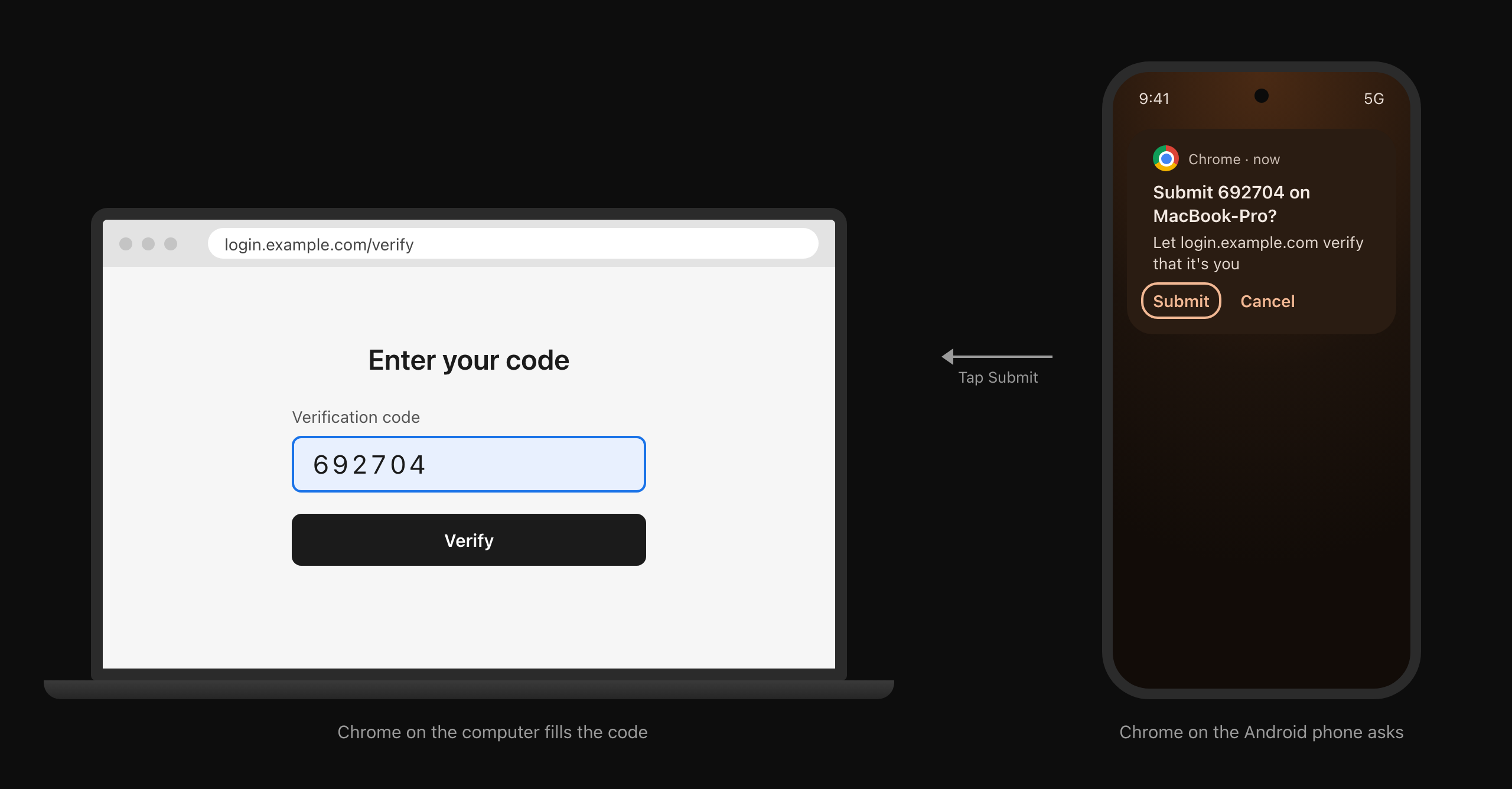
`requestSubmit()` submits the form the way a click on **Verify** does, so your form validation and submit handlers run.
## Check the code on your server
Your form handler sends the code to the [check endpoint](/docs/guides/verify/sending-verifications#check-the-code) with the same recipient, whether the browser filled it or the user typed it:
```bash
curl -X POST https://us1.platform.bird.com/v1/verify/verifications/check \
-H "Authorization: Bearer $BIRD_API_KEY" \
-H "Content-Type: application/json" \
-d '{
"to": { "phone_number": "+15551234567" },
"code": "692704"
}'
```
A matching code returns `"success": true` and a verification with status `verified`. Keep your API key on the server: the browser only submits the form.
## Fill codes in a cross-origin iframe
If the code field is in a cross-origin iframe, such as a payment form embedded in a shop's checkout, bind the code to both websites. Set `autofill_origin` to the iframe's website and `autofill_top_level_origin` to the page in the browser tab:
```bash
curl -X POST https://us1.platform.bird.com/v1/verify/verifications \
-H "Authorization: Bearer $BIRD_API_KEY" \
-H "Content-Type: application/json" \
-d '{
"to": { "phone_number": "+15551234567" },
"options": {
"autofill_origin": "https://pay.example.com",
"autofill_top_level_origin": "https://shop.example.com",
"channels": ["sms"]
}
}'
```
The SMS then names the page first and the iframe last:
```text
552454 is your verification code. It expires in 10 minutes. Do not share it.
@shop.example.com #552454 @pay.example.com
```
Naming two websites makes the line longer, so it is more likely to add a billed SMS segment than a one-site line. [Autofill](/docs/guides/verify/settings#autofill) explains segment counts.
The page in the tab must let the iframe use WebOTP with `allow="otp-credentials"`. Without it, Chrome refuses the iframe's request:
```html
```
The iframe runs the same form and script as a full page. Chrome fills the code when the page in the tab embeds the iframe directly, with no other site's frame in between. Apple doesn't document how Safari handles this two-site line, so plan for Safari users to type the code in an embedded form. Email codes for these verifications carry no `OTP-Token` header, because the header can name only one website.
## What your users need for cross-device autofill
Cross-device autofill runs on the user's own devices and accounts, so you can't turn it on for them.
**Chrome on a computer, SMS on an Android phone.** [Chrome's requirements](https://developer.chrome.com/docs/identity/cross-device-webotp) are:
- Chrome 93 or later on the computer and on the phone, signed in to the same Google account on both. Chrome sync doesn't have to be on.
- On the phone: the same Google account under **Settings** > **Google**, Google Play services 20.30.12 or later, and Chrome set as the default browser and running, in the foreground or background.
**Safari on a Mac, SMS on an iPhone.** On the iPhone, open **Settings** > **Apps** > **Messages** > **Text Message Forwarding** and turn on the Mac, as [Apple describes](https://support.apple.com/guide/safari/ibrwa4a6c6c6/mac). Devices that use Messages in iCloud with the same Apple Account [receive forwarded texts already](https://support.apple.com/en-us/102545).
## Test autofill
Autofill reads a real SMS on a real phone, so test with your own devices:
1. Open your code entry page in Chrome on a computer, and keep your Android phone, signed in to the same Google account, nearby.
2. Request a code for the phone's number. Use a number that hasn't saved your SMS sender as a contact.
3. When the SMS arrives, the phone shows a Chrome notification such as **Submit 692704 on MacBook-Pro?**, with **Let login.example.com verify that it's you** naming your website. Tap **Submit**. The code field on the computer fills and the form submits.
4. Repeat with Safari on a Mac and an iPhone that forwards texts to it: click the code that Safari suggests in the code field.
## Troubleshooting
If the code arrives but the browser doesn't offer it, check these causes in order:
- **The SMS lacks the bound line.** Open the SMS and check that its last line starts with `@` and your website. An [Android app hash](/docs/guides/verify/settings#android-app-hash) replaces that line, so don't set one for verifications your users enter on the web.
- **The website doesn't match the page.** Compare the host after `@` with the address bar, including any `www.` or subdomain.
- **The binding changed while a code was pending.** A new create request for the same recipient reuses the pending verification, which [keeps the **Website** and **Android app hash** it was created with](/docs/guides/verify/settings). Enter the pending code or let it expire before you test a new **Website**, `autofill_origin`, or a cleared **Android app hash**.
- **The sender is a saved contact.** Chrome doesn't offer codes from a number in the user's contacts. Test with a phone that hasn't saved your sender.
- **The script started after the SMS arrived.** Chrome hands over a code that arrives while the request is waiting. Run the script as soon as the code field is on the page.
- **Cross-device autofill doesn't respond.** Check [what your users need](#what-your-users-need-for-cross-device-autofill). If every requirement is met, open `chrome://sync-internals` in Chrome on the phone, select **Stop Sync**, then **Request Start**.
- **The code went out on WhatsApp.** Limit the request to SMS with `"channels": ["sms"]`, or let the user copy the code from WhatsApp.
## Next steps
- [Verification settings](/docs/guides/verify/settings#autofill): the website format, the email `OTP-Token` header, and how binding affects SMS length.
- [Sending verifications](/docs/guides/verify/sending-verifications): every option on the create and check requests.
## Related resources
- [Verify phone numbers at signup](/learn/series/verify-phone-numbers-at-signup) (video)
- [What does OTP mean? One-time passwords explained](/explained/verify/what-does-otp-mean) (answer)
- [Customer verification](/verify-api) (product)
- [Build your first integration](/learn/paths/integration) (course)
[Get an implementation brief](/learn/workspace?topic=verify)